Adding Logo, Favicon, and Banner to Your Store
Adding a Logo, Favicon, and Banner makes your store look more professional to customers. This guide walks you through the steps.
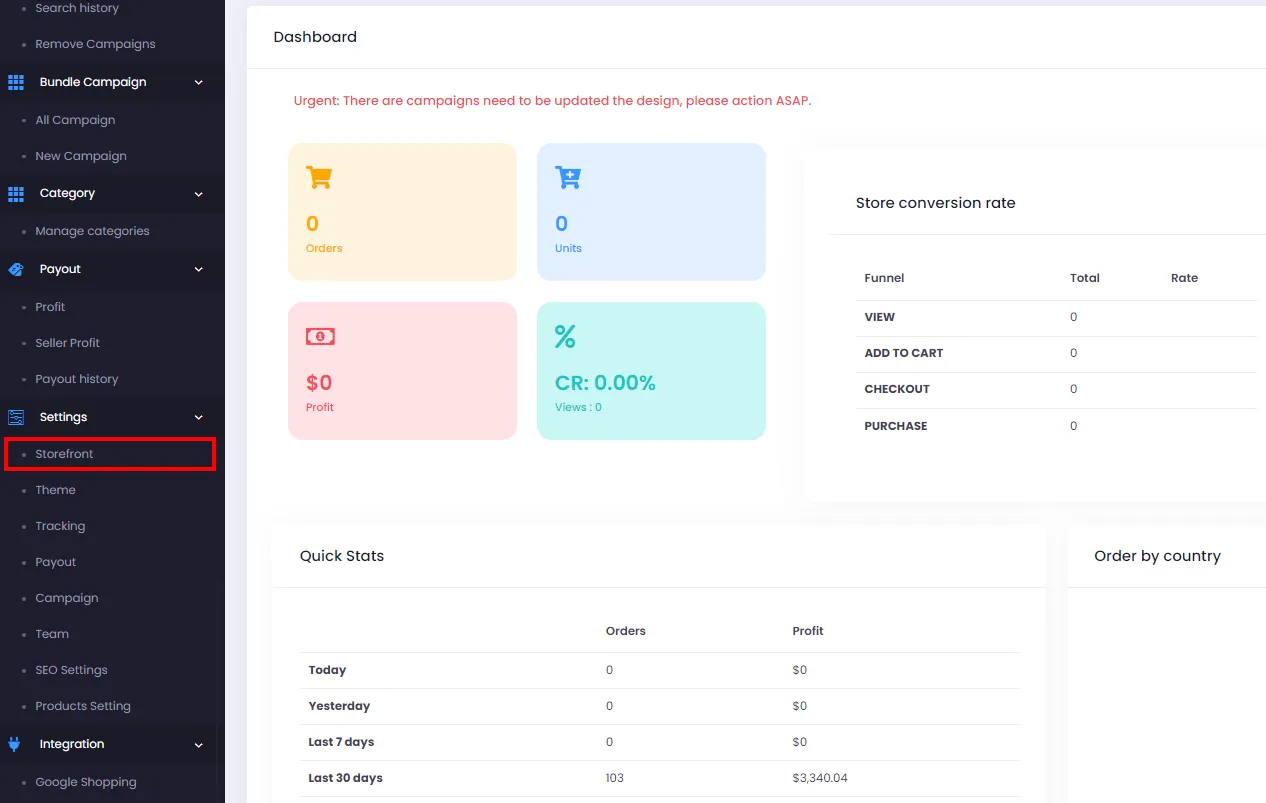
- From the PODSach Admin dashboard, go to Settings > Storefont
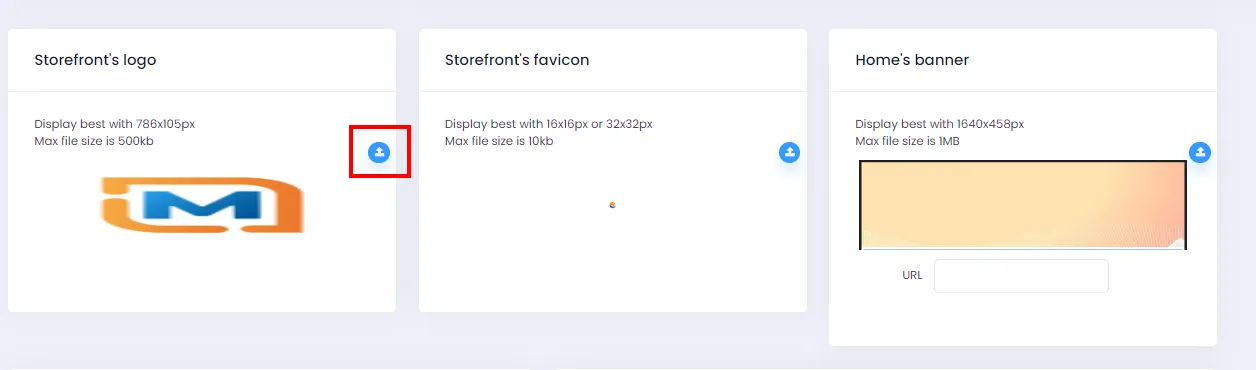
- On the Storefont page, scroll down to the Storefont’s logo, Favicon, and Banner section (shown below)
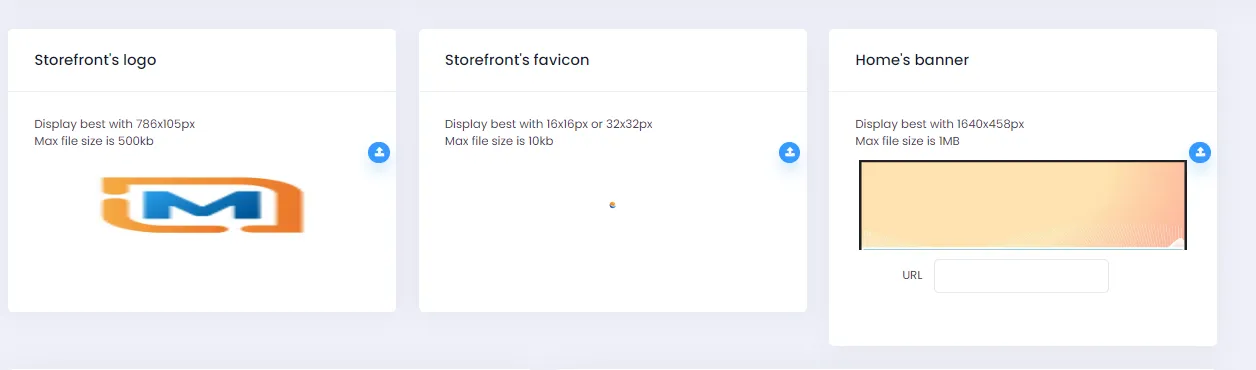
- Under Storefont’s logo, click the upload icon to upload your logo file (Note: your logo should be 786 × 105px for the best display).
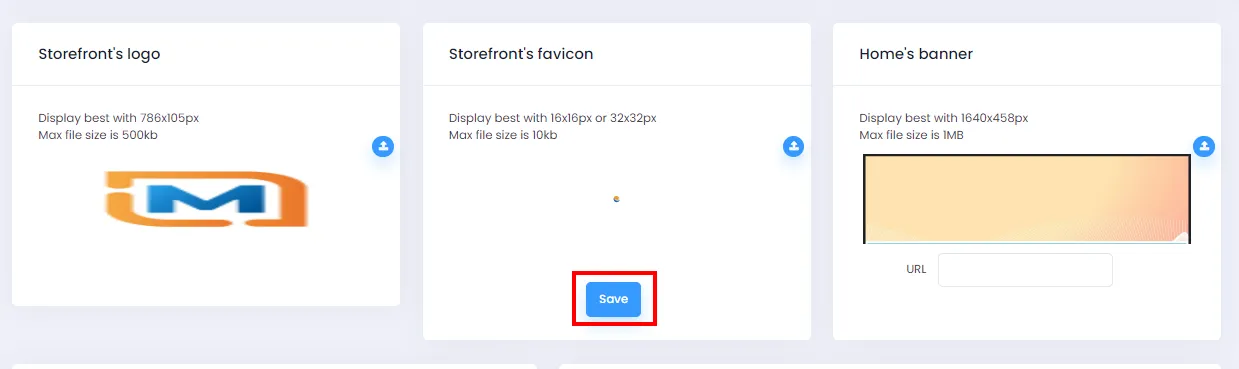
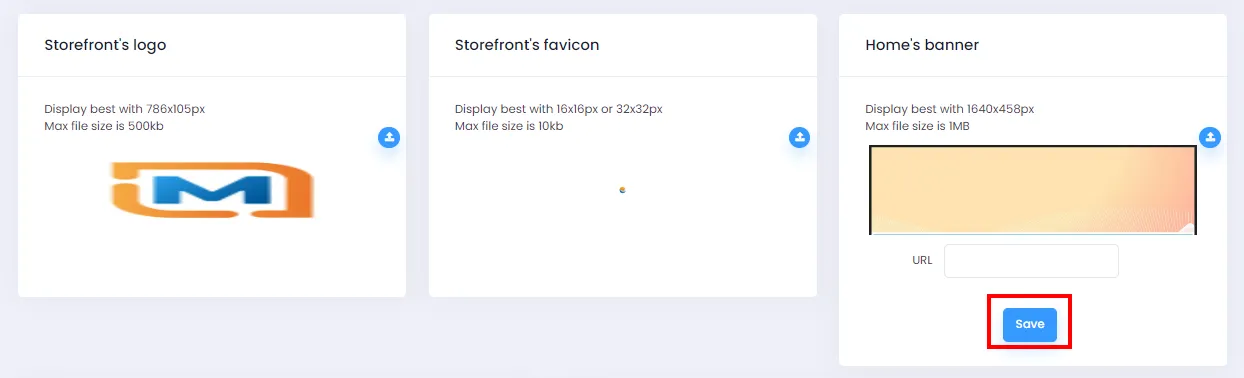
- After a successful upload, the Save button will appear - click it to save your changes.
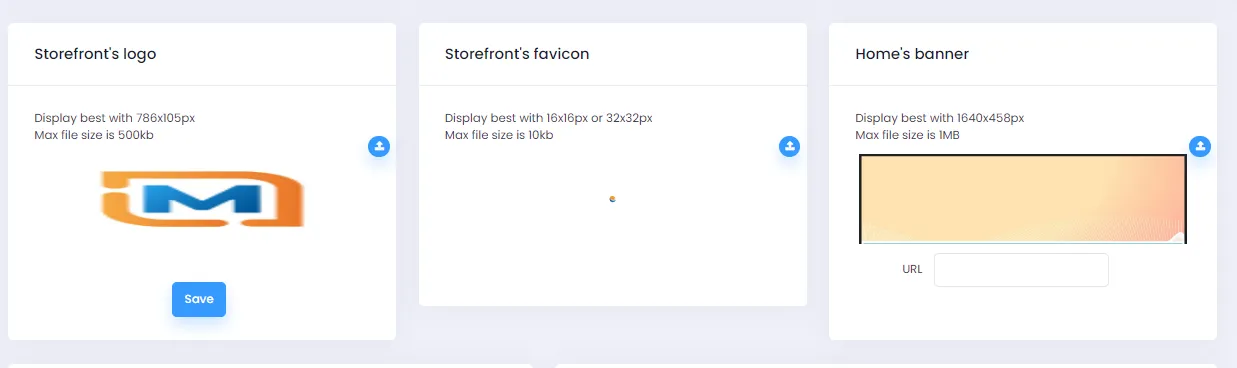
- Repeat the same steps for the Favicon and Banner sections: upload your image file and click Save.