Customizing Store Colors
You can personalize your store by adjusting the colors of text, buttons, and other elements to grab customer attention. This guide walks you through customizing your store’s color settings.
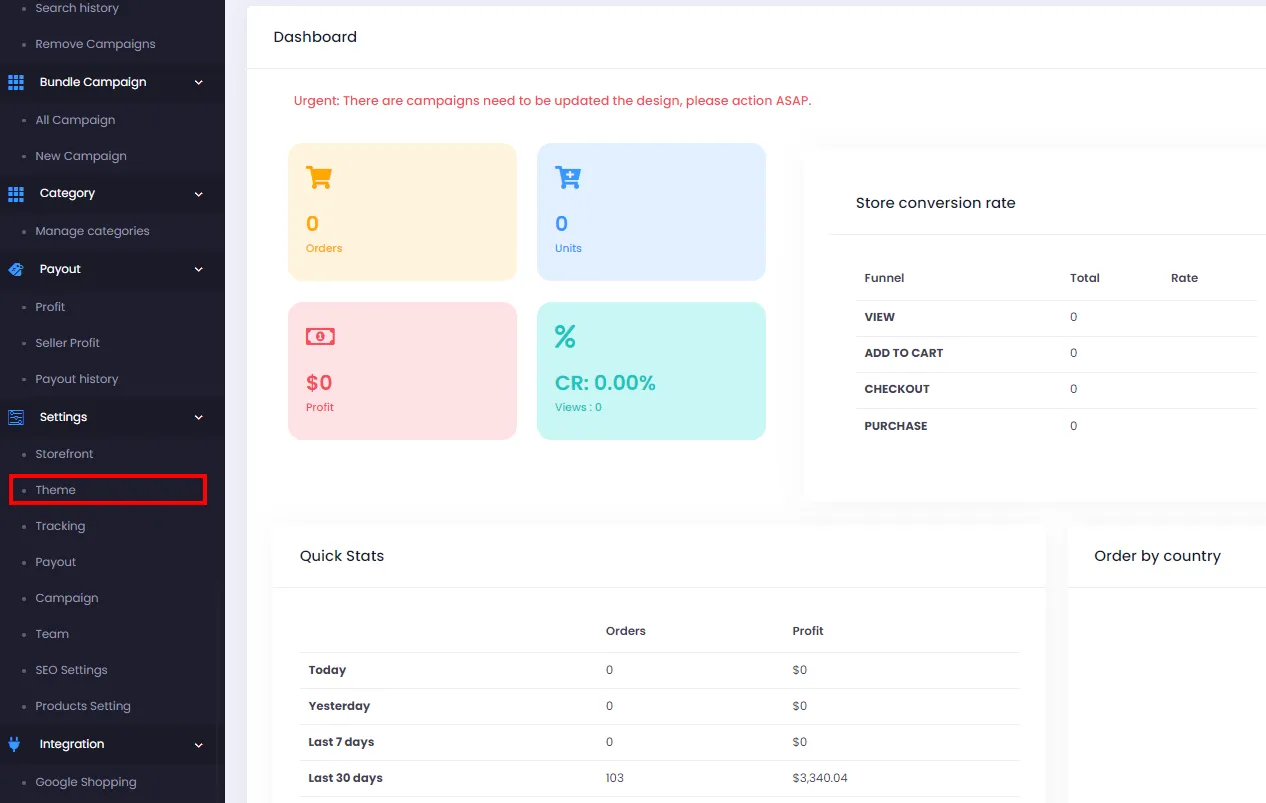
- From the Admin dashboard, go to Settings > Theme
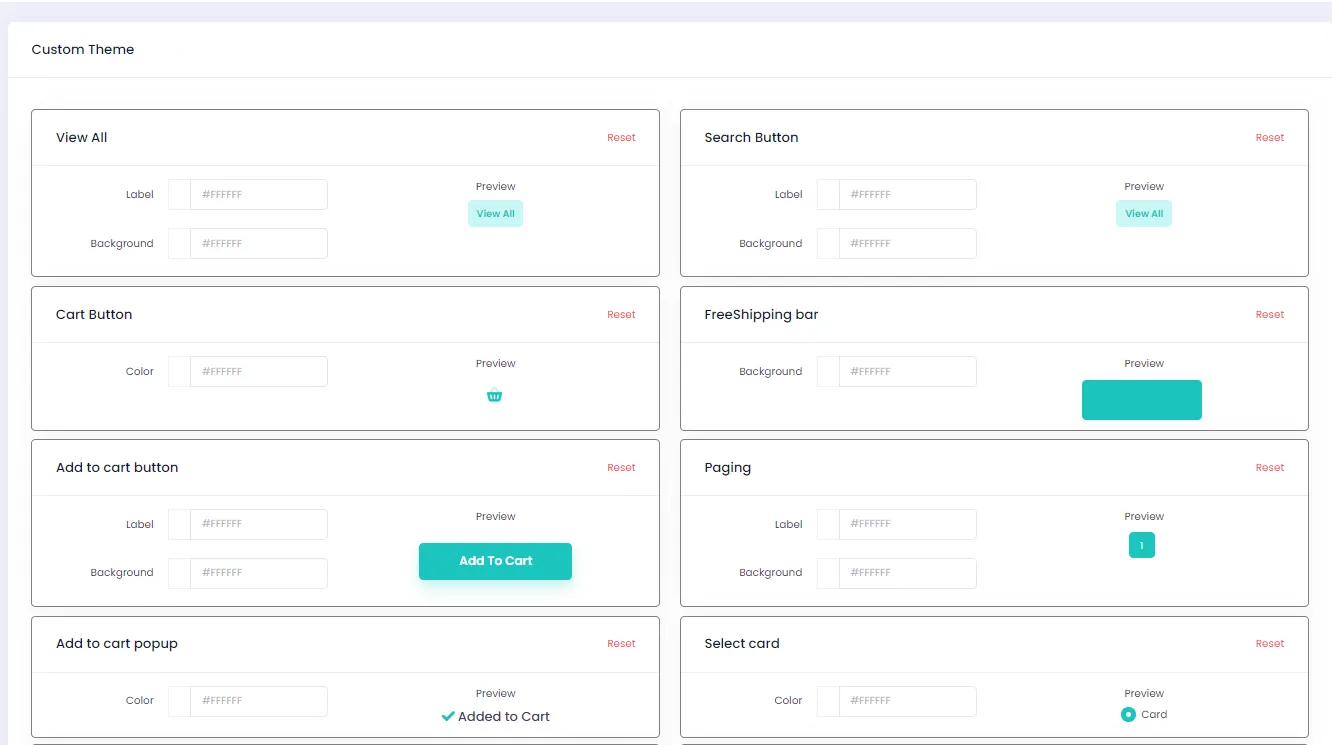
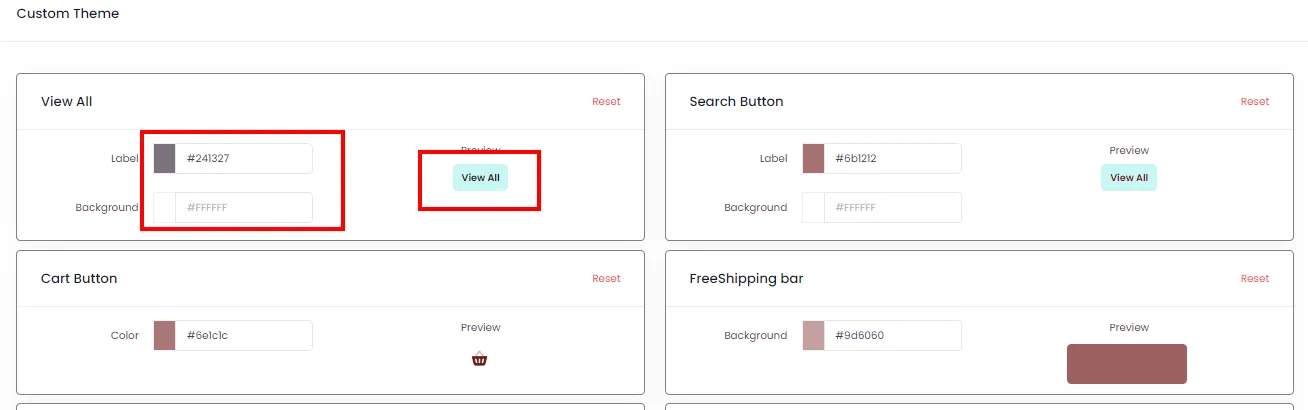
- The Custom Theme screen shows a list of elements whose colors you can change.
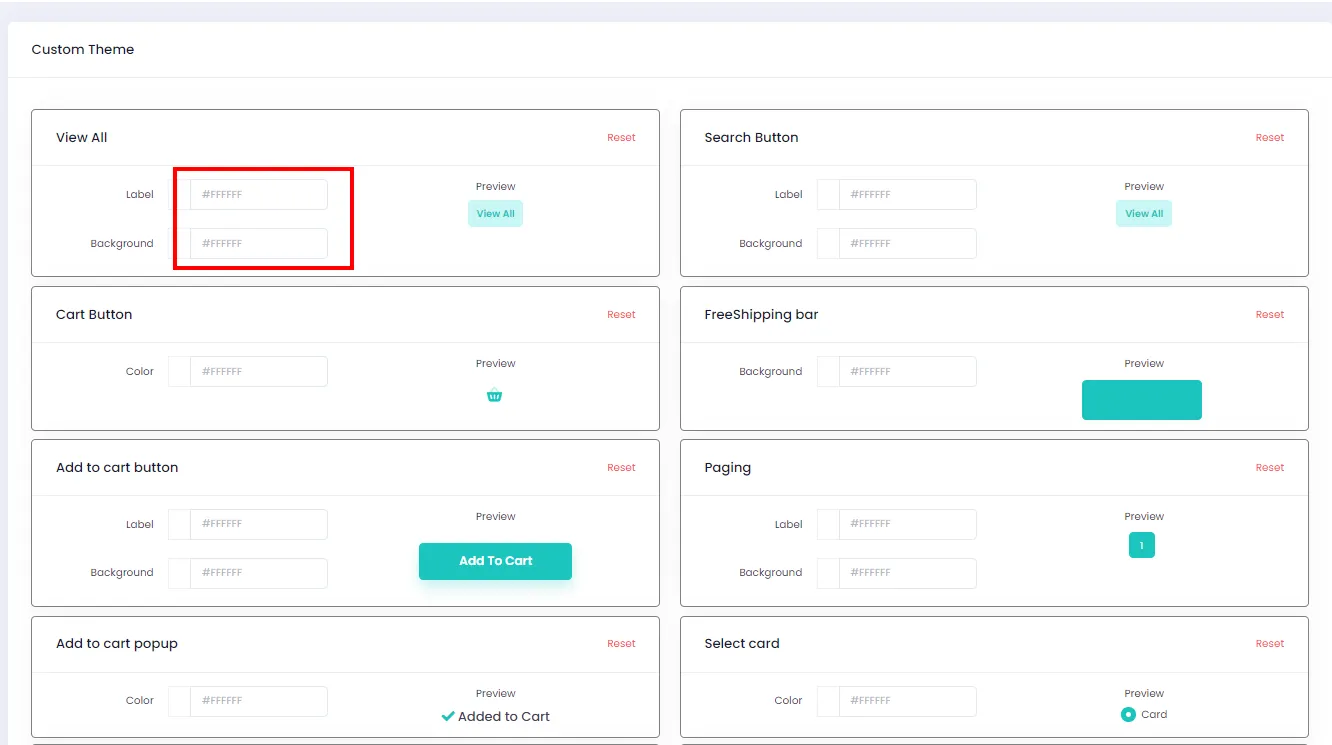
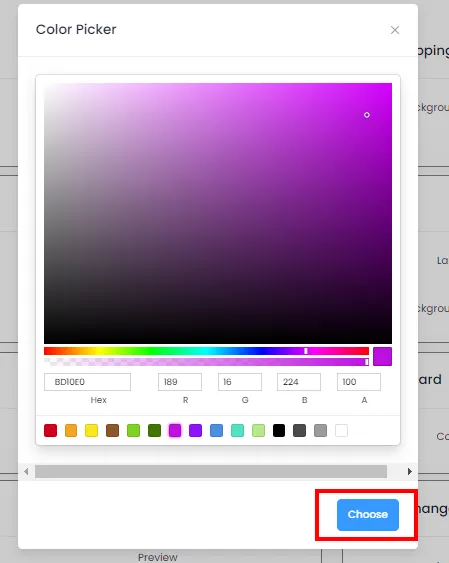
- For each item you want to edit, click the Label and Background fields to open the color picker.
- Choose the color you want, then click Choose to close the color picker.
- The color code will appear in the field you selected. You can preview the change in the Preview area as shown.
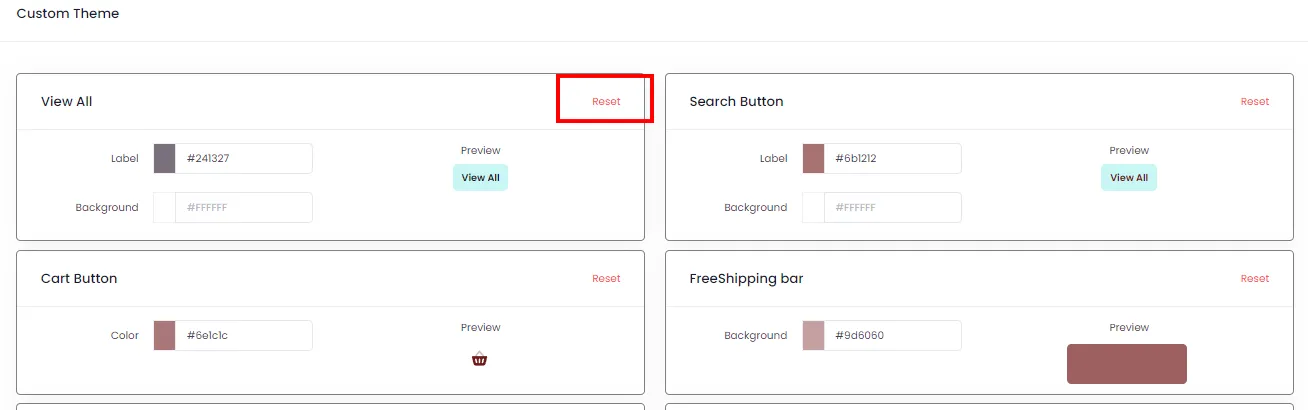
- To reset any item back to its default color, click Reset.
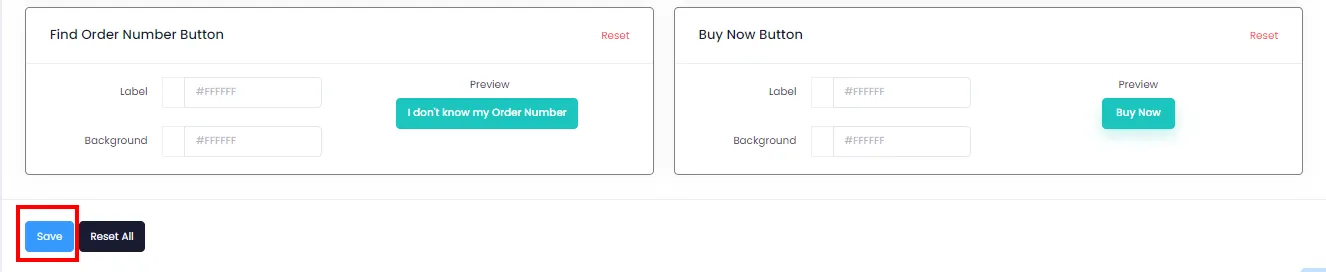
- When you’re done, save your changes by clicking Save (Note: the Save button is at the bottom of the page - you may need to scroll down if your screen is small).