
Creating a New Campaign on PODSach
Article Contents
- Choosing a product type for your campaign
- Uploading designs for your campaign
- Editing campaign details and launching
1. Choosing a Product Type for Your Campaign
Section titled “1. Choosing a Product Type for Your Campaign”PODSach offers a wide variety of products, including both 2D and 3D options. To choose a product type for your campaign, follow these steps:
-
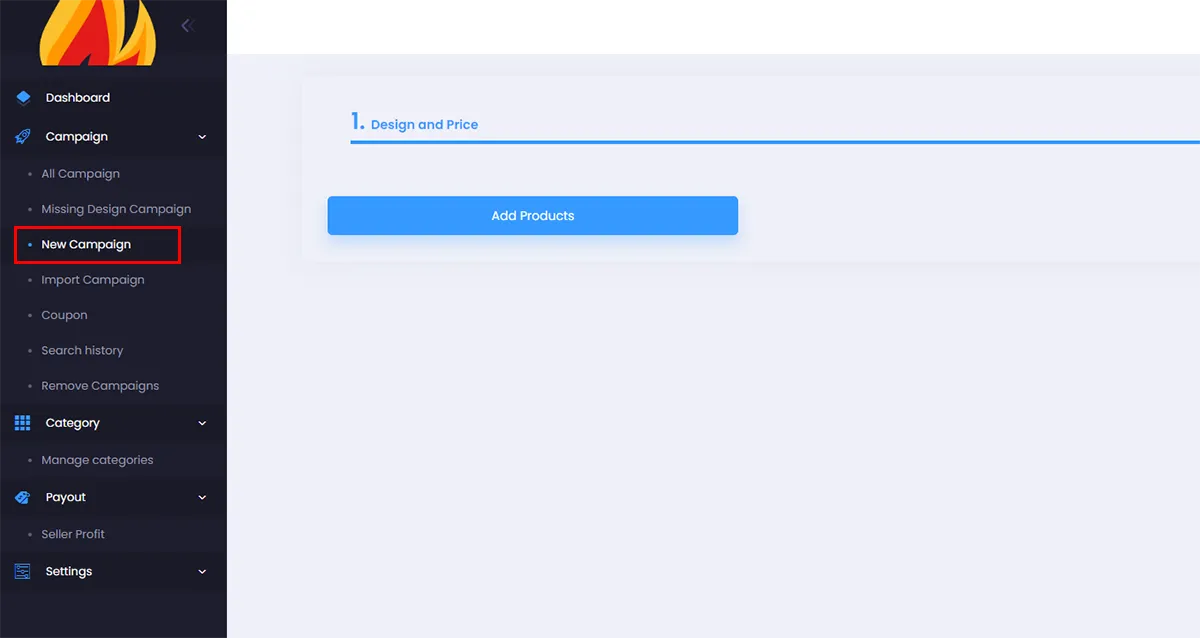
From the admin page, click New Campaign.
-
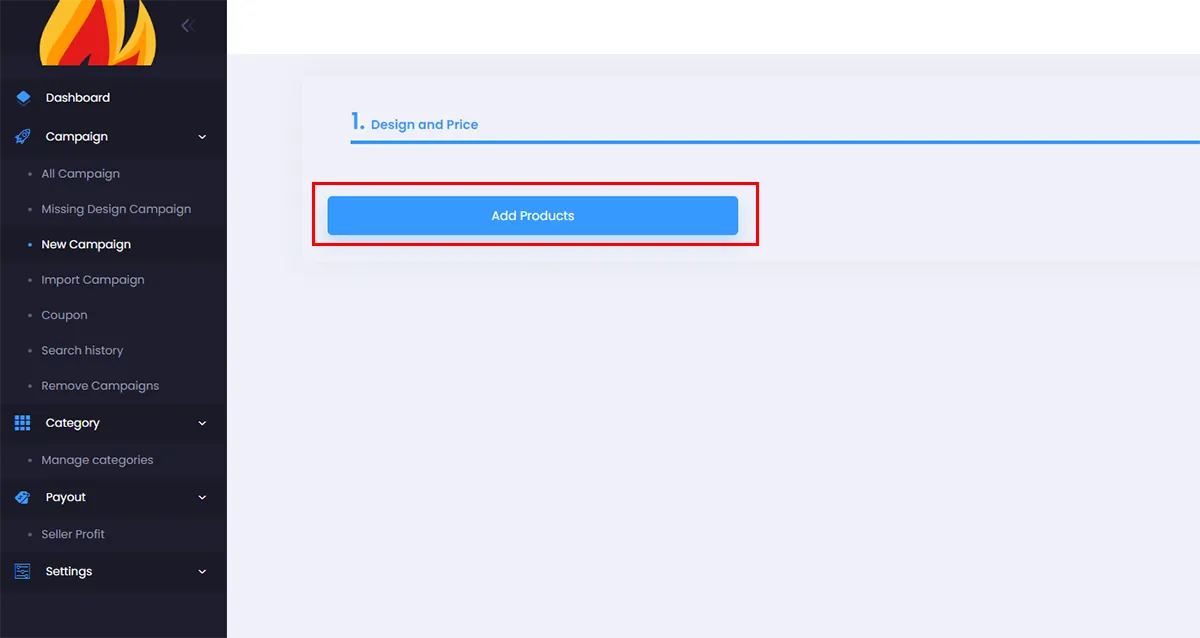
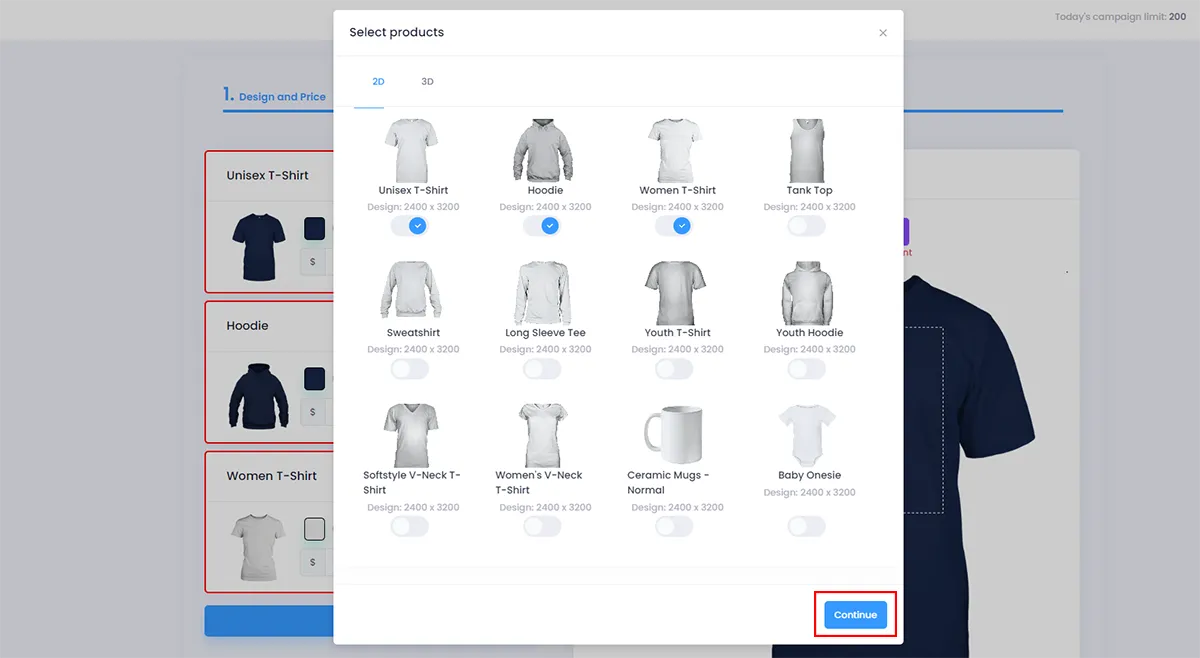
Then click Add Products to open the product selection dialog.
-
In the dialog, you can browse the 2D and 3D products supported by PODSach. You can select multiple products for your campaign by toggling the switches as shown.
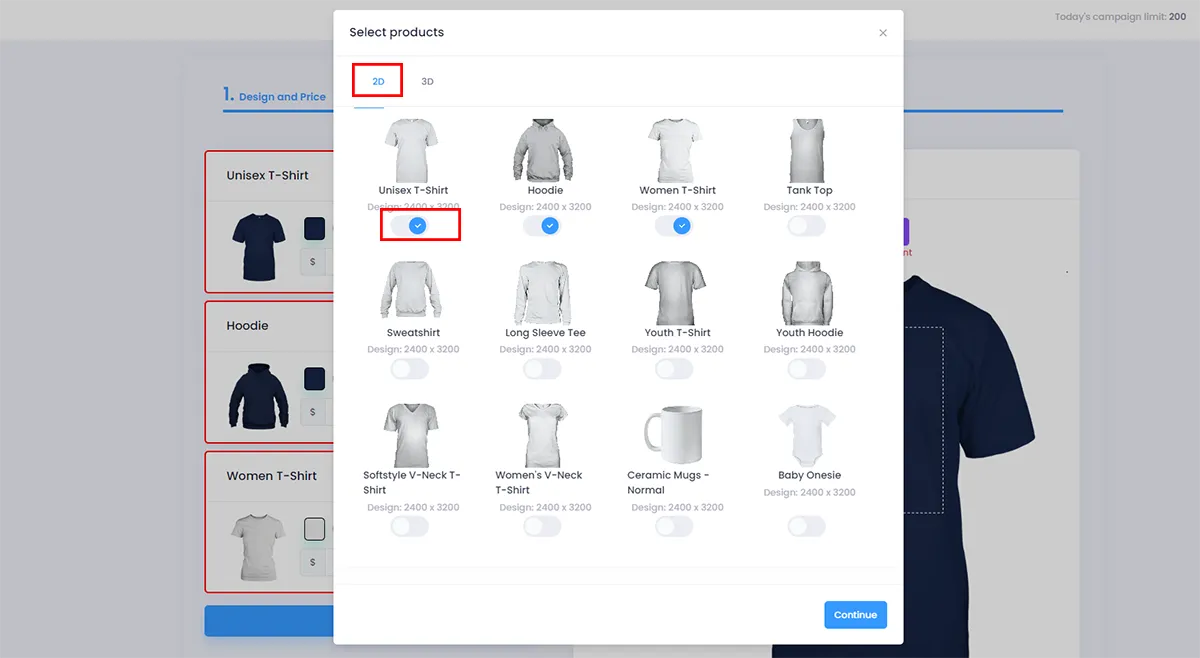 (2D Products)
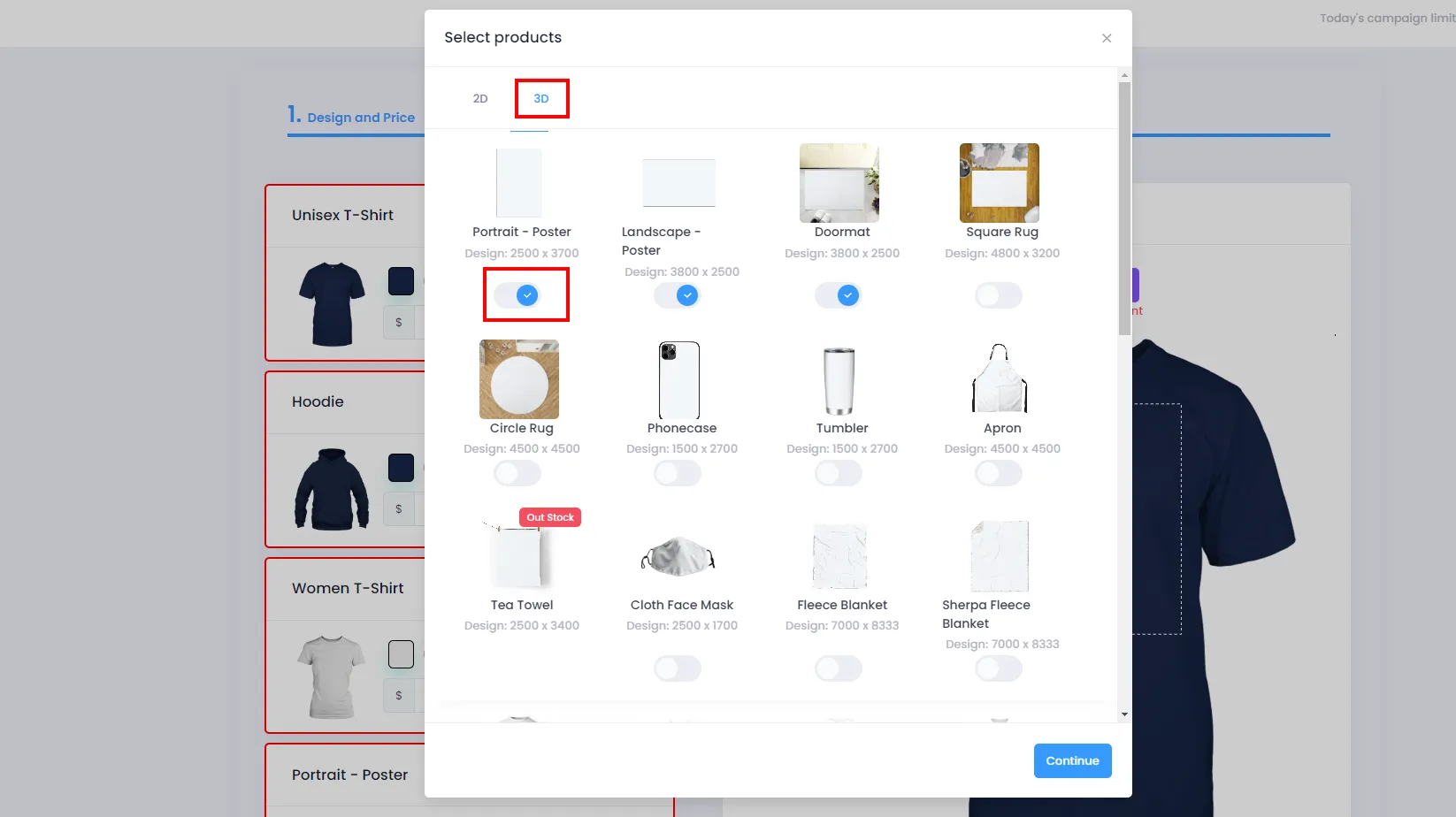 (3D Products)
 -
Click Continue to close the dialog and finalize your product selection.
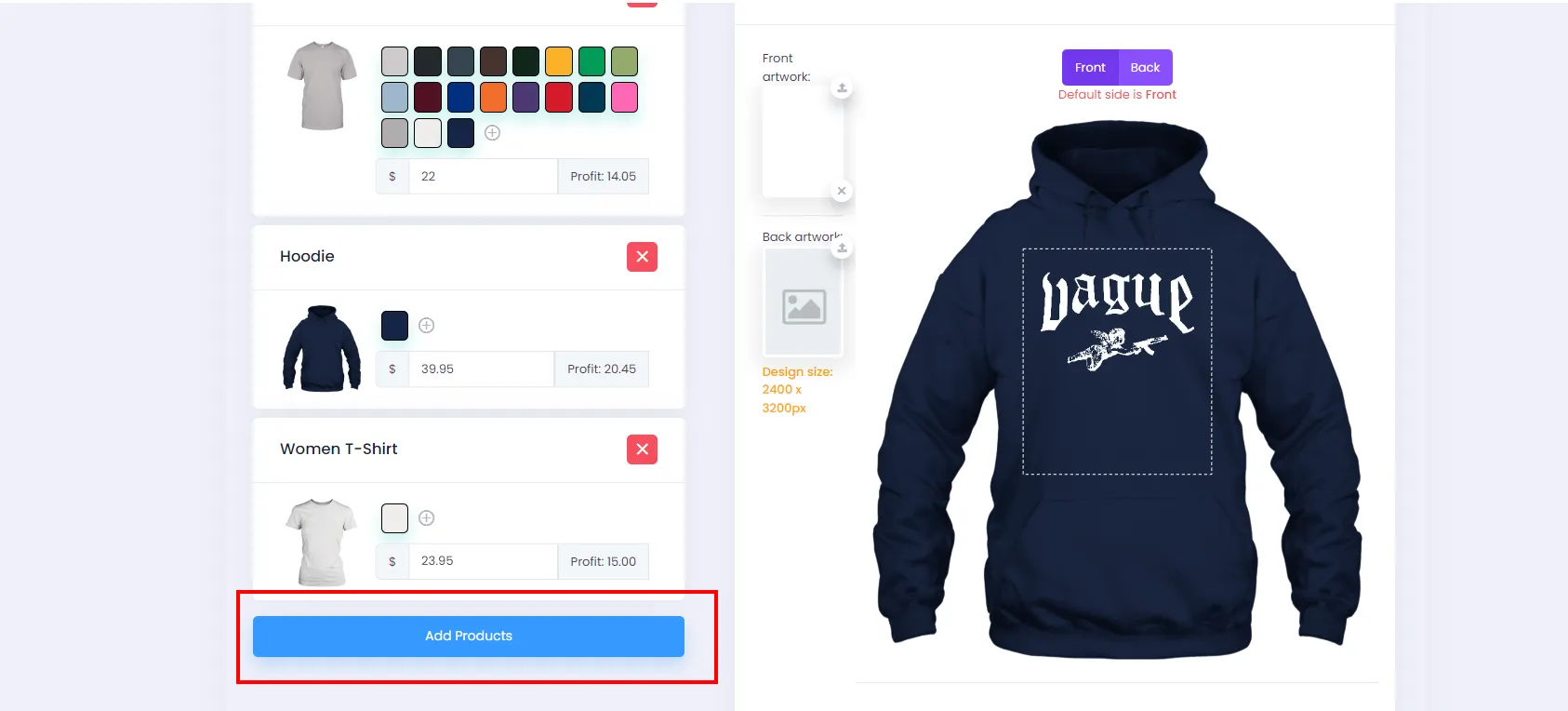
💡 Tip: You can reopen this dialog to update or change your campaign’s products by clicking Add Products as shown below.
2. Uploading Designs for Your Campaign
Section titled “2. Uploading Designs for Your Campaign”-
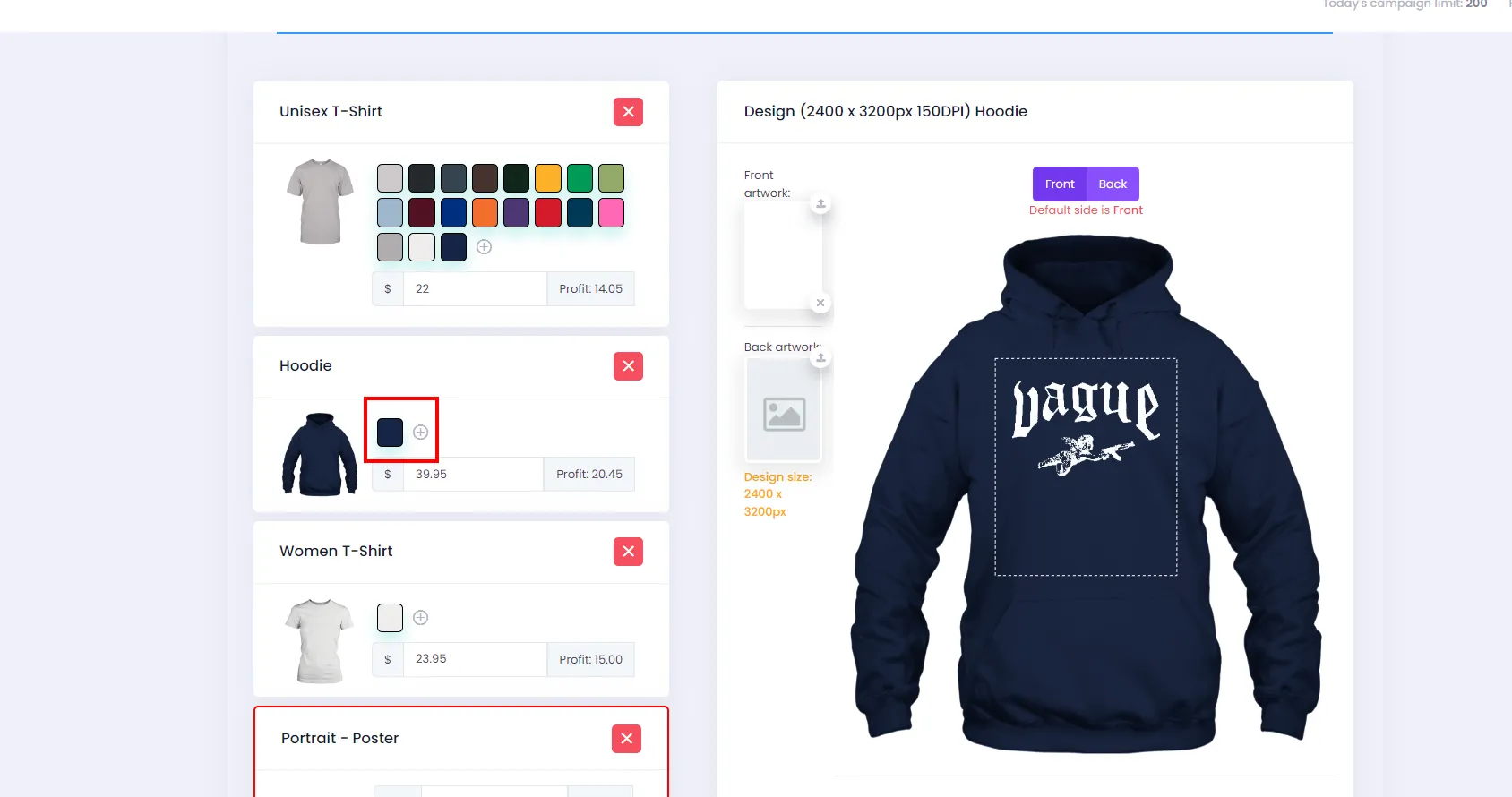
After completing the steps in section 1, the system will display all the products you selected. Here you can add product colors you want to sell by clicking + in the color section. To add a color, simply check the box for that color.
-
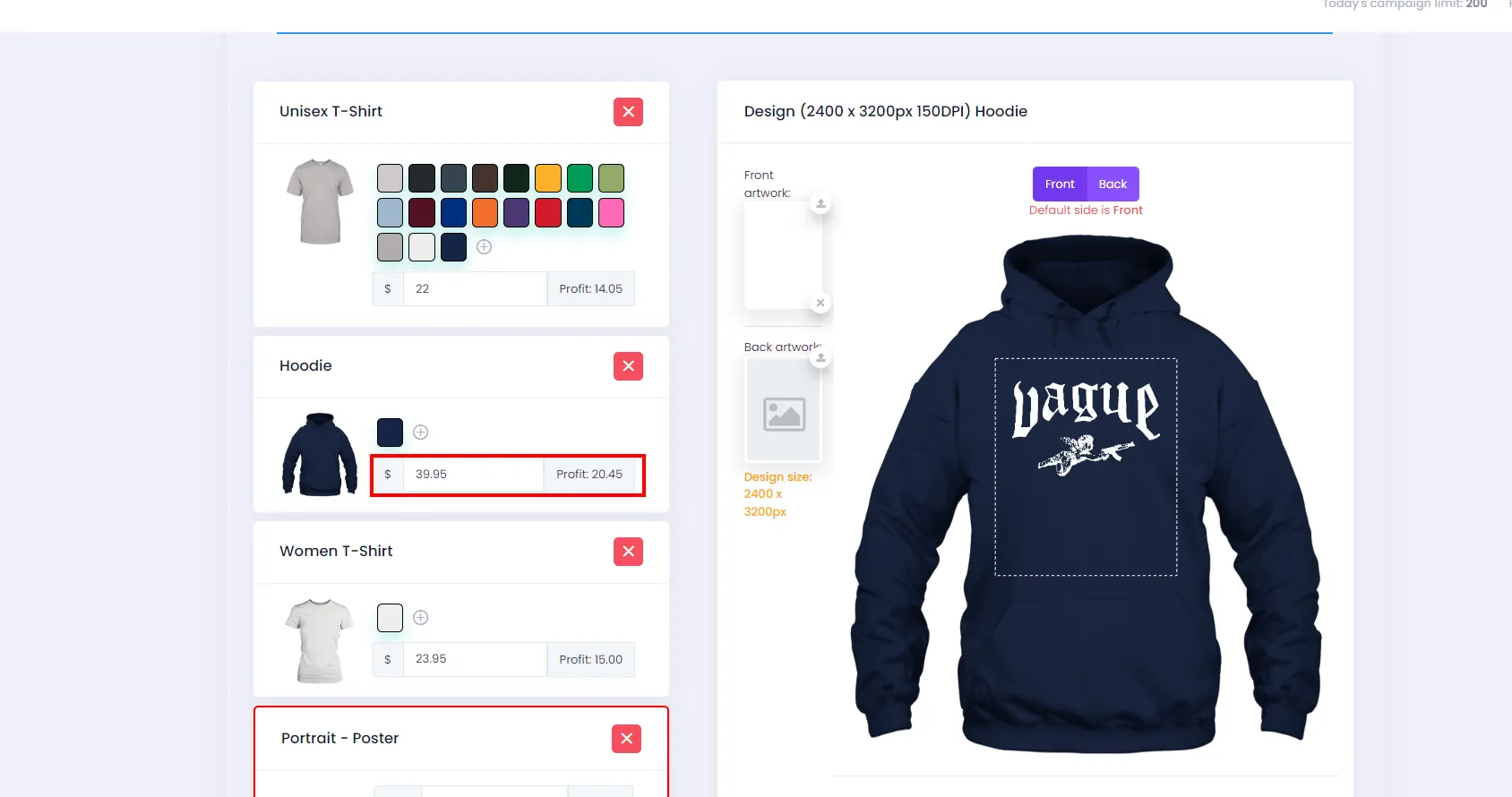
After selecting colors, you can adjust the product price in the price field.
- ⚠️ Note: The product price cannot be lower than the minimum product price.
-
Next, upload your design by clicking the upload button (as shown) for the front, back, or both sides.
- ⚠️ Note: Design files must be in
.PNGformat.
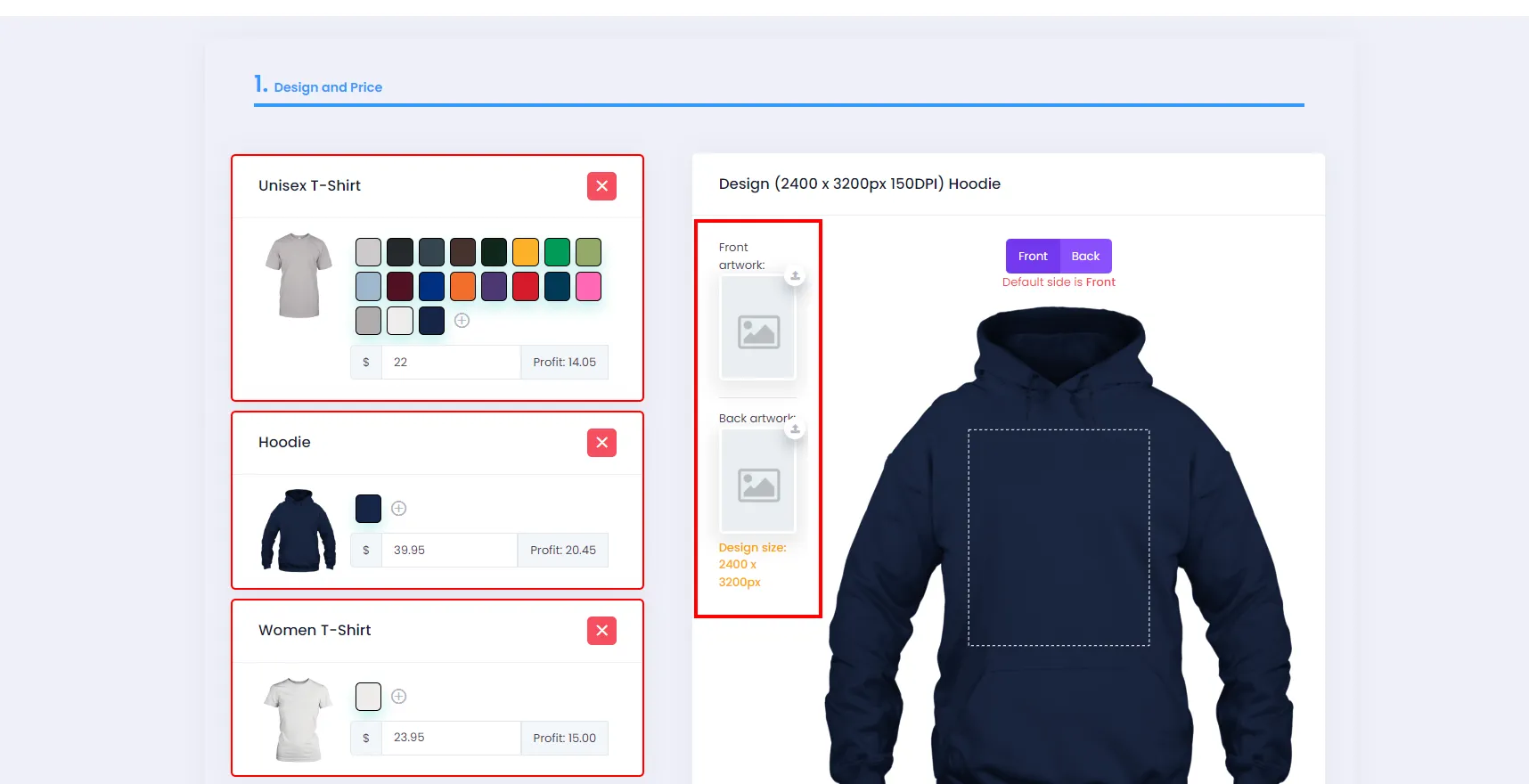
Once the design is uploaded, you can preview each product’s mockup by clicking on the product you want to view.
- ⚠️ Note: Design files must be in
-
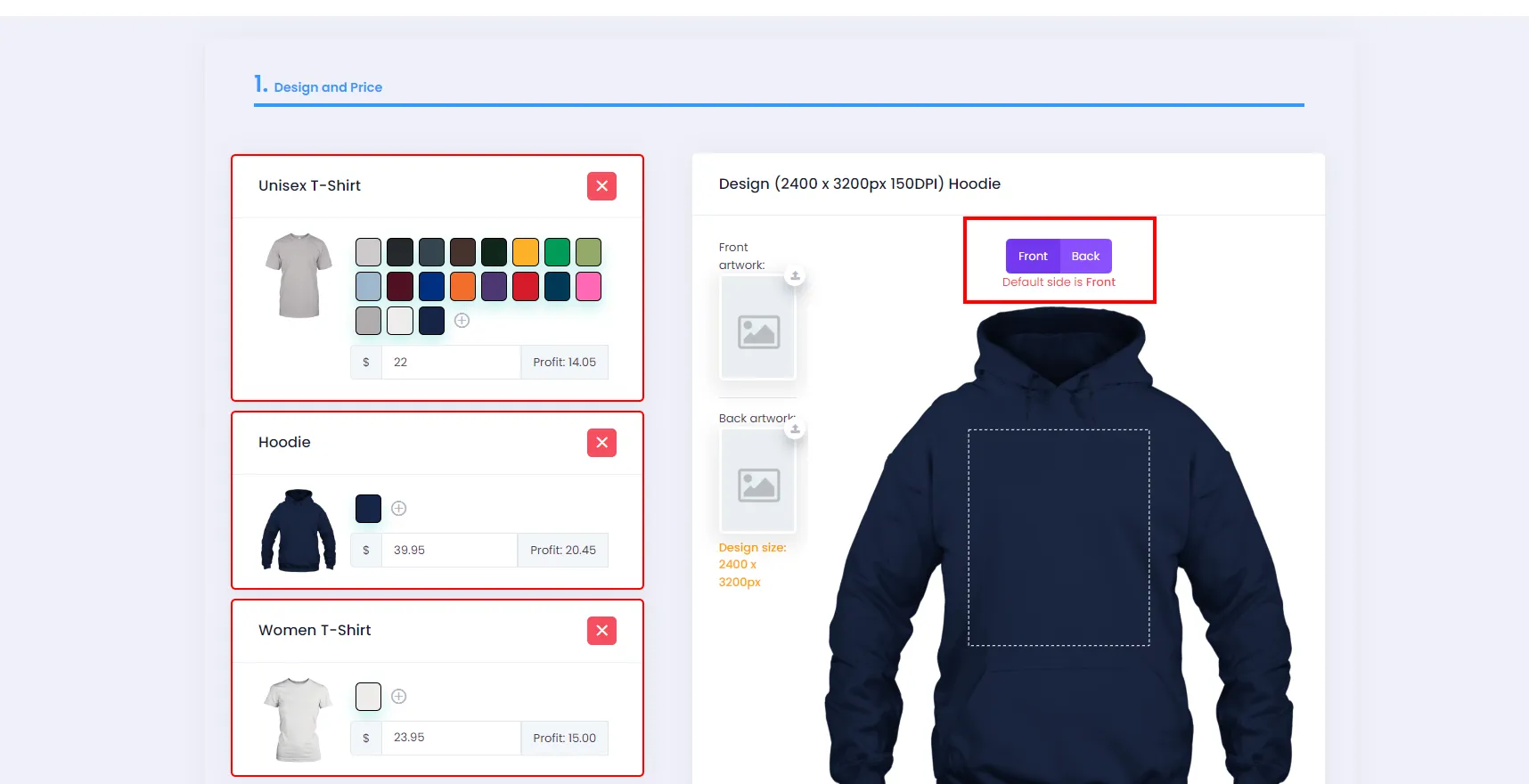
Click the Front or Back button to review the mockup or set the default side displayed on your store.
3. Editing Campaign Details and Launching
Section titled “3. Editing Campaign Details and Launching”- After uploading your design, click Campaign Details to add a title, description, tags/categories, and more for your campaign.
⚠️ Note: Campaign Details only appears after you have successfully uploaded a design file.
| Field | Detailed Instructions |
|---|---|
| Title | Add your campaign title here |