
Bookmark Campaign
The “Bookmark Campaign” feature allows sellers to save and manage their favorite campaigns for easy access and reuse in the future.
Article Contents
- Creating a Bookmark Campaign
- Removing a Bookmark Campaign
1. Creating a Bookmark Campaign
Section titled “1. Creating a Bookmark Campaign”There are 3 ways to bookmark campaigns:
Method 1: Bookmark from the All Campaigns screen
- After logging in, go to the All Campaigns screen from the menu.
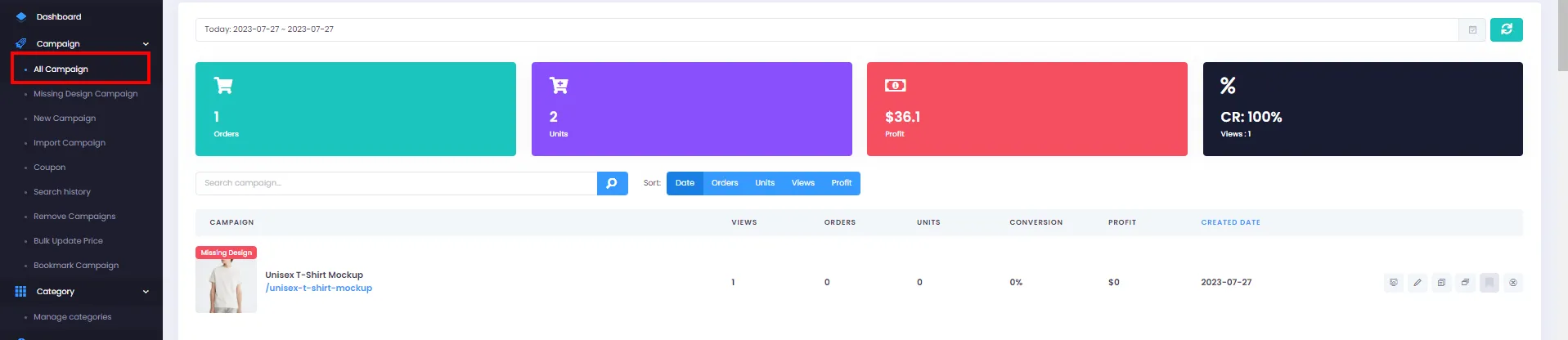
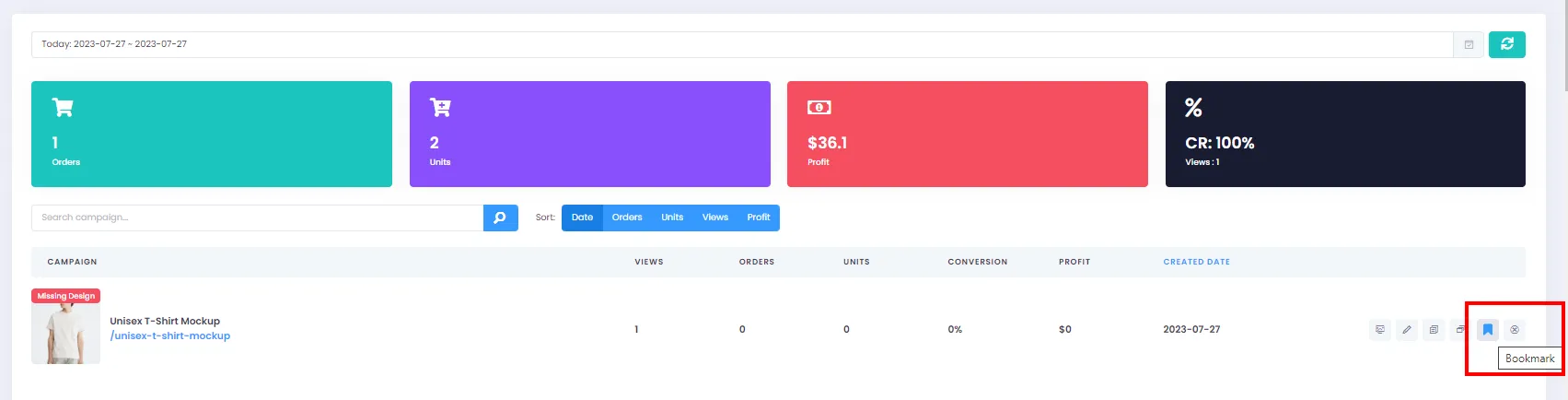
- Click the Bookmark icon for the campaign you want to save to your Bookmark list.
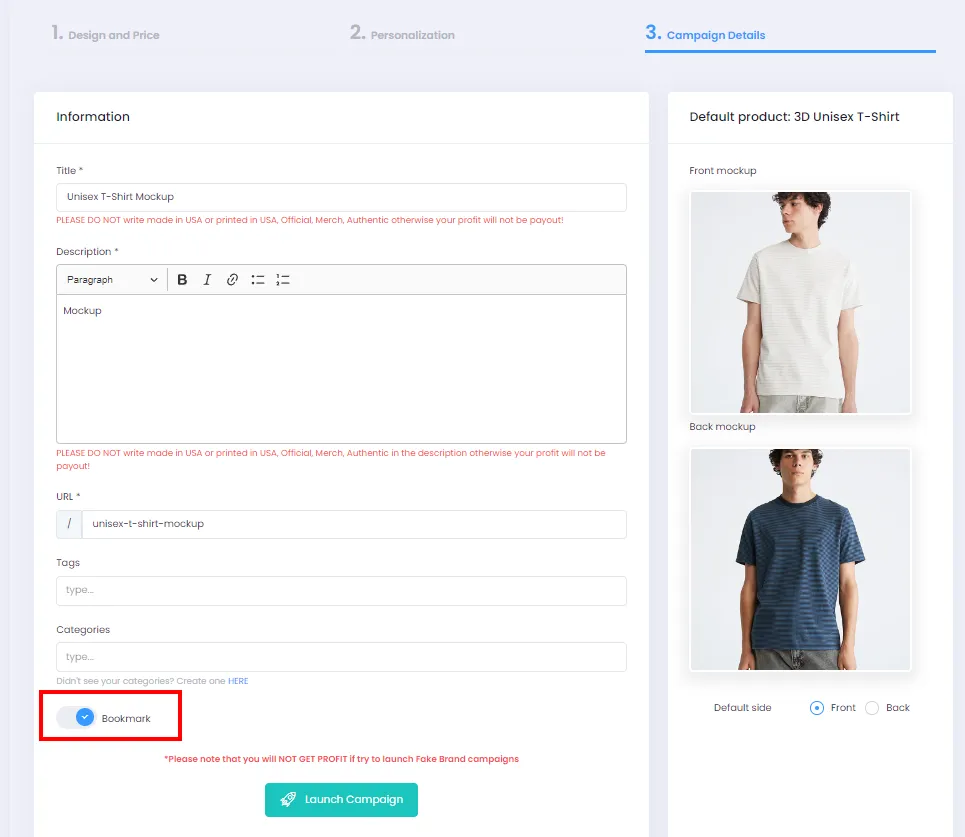
Method 2: Bookmark while creating a new campaign
- When creating a new campaign, after uploading designs and filling in the necessary information, you can enable Bookmark mode as shown.
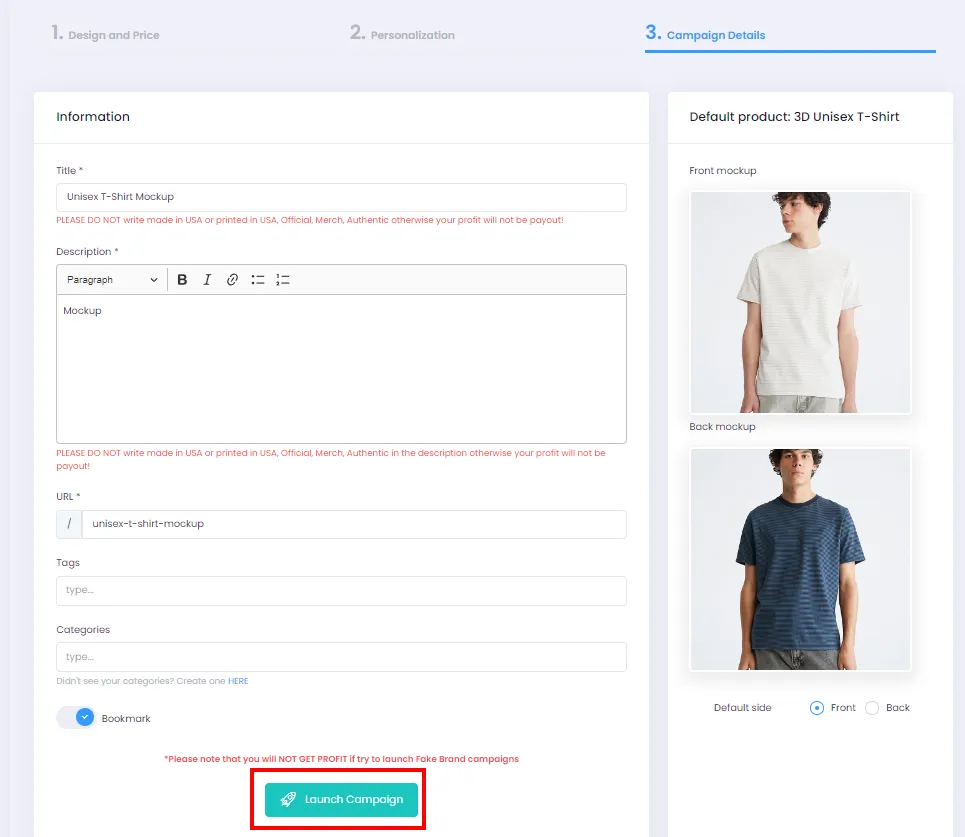
- Finally, click Launch Campaign to create the campaign and save it to your Bookmark list.
Method 3: Bookmark by editing an existing campaign
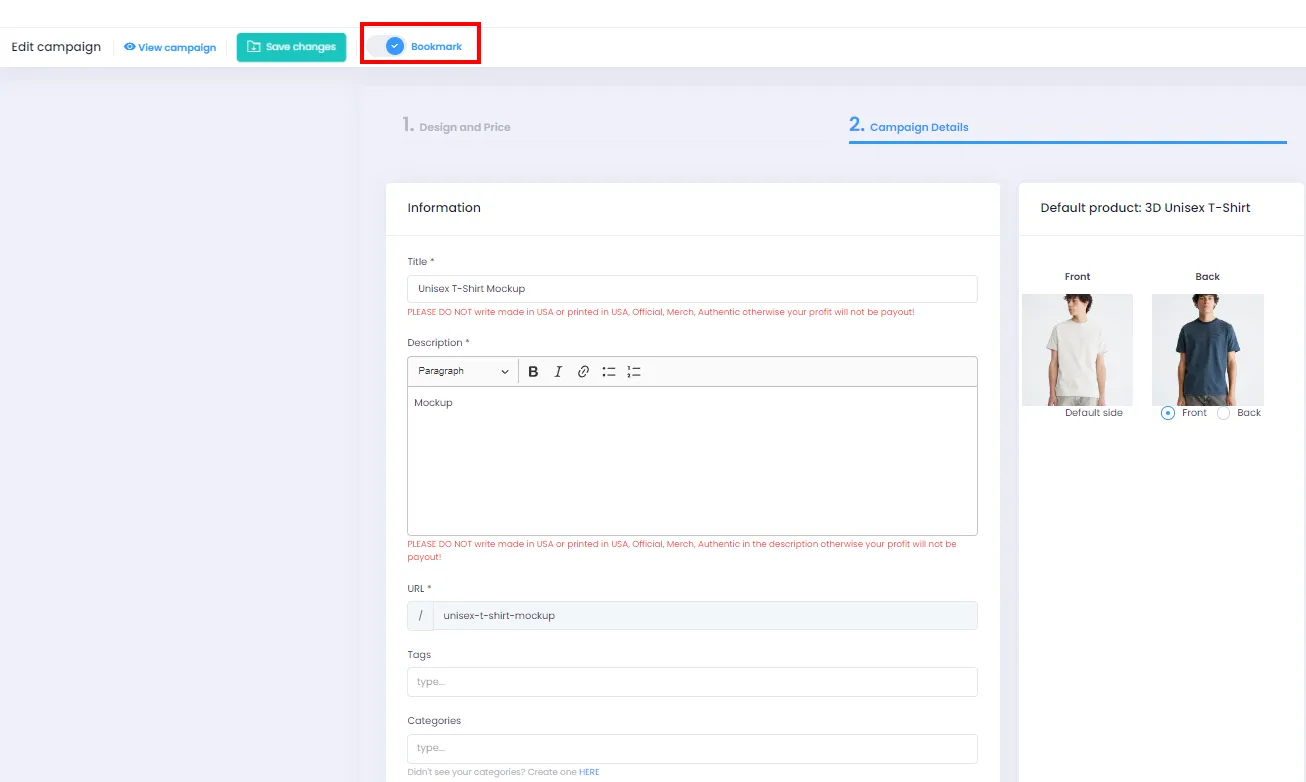
- Edit the campaign you want to save.
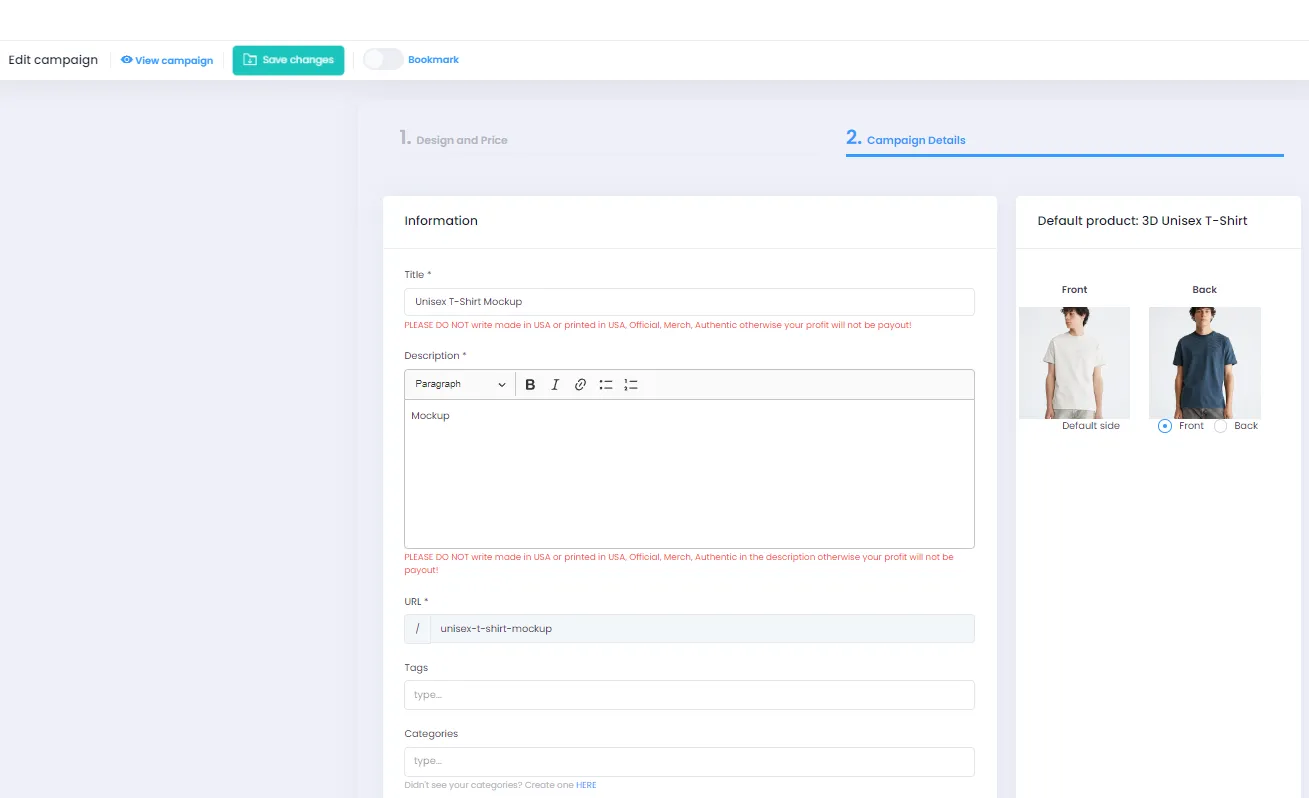
- Enable Bookmark mode as shown to save the campaign to your Bookmark list.
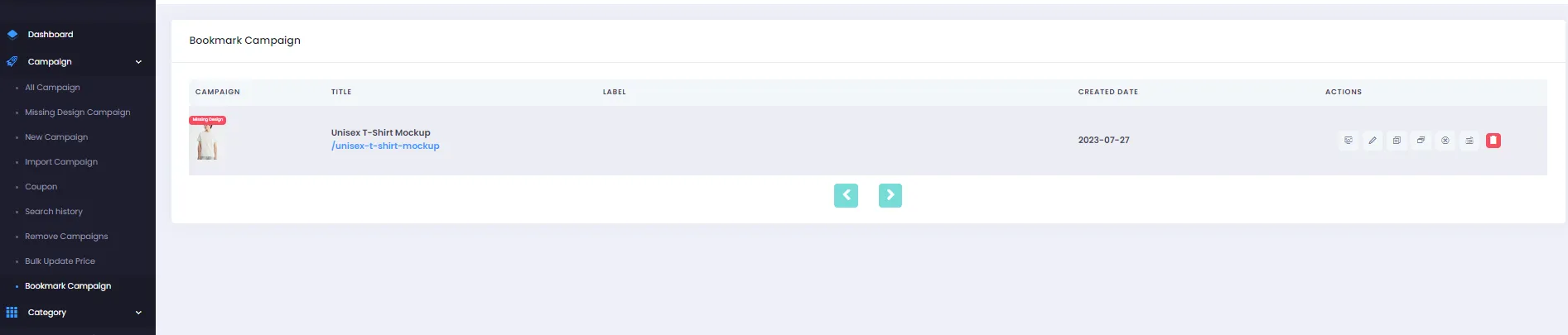
You can find your bookmarked campaigns on the Bookmark list screen: Menu > Campaign > Bookmark Campaign
2. Removing a Bookmark Campaign
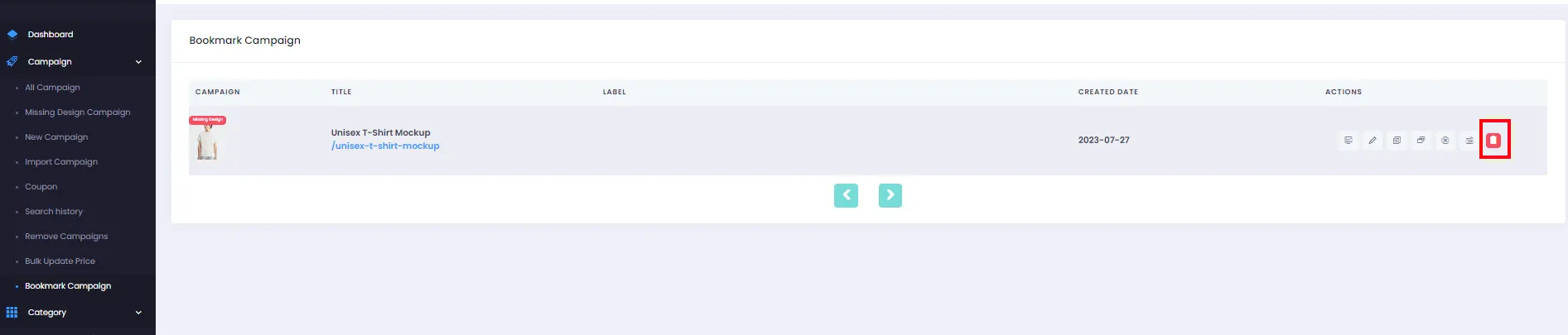
Section titled “2. Removing a Bookmark Campaign”- To remove a bookmark, go to the Bookmark list: Menu > Campaign > Bookmark Campaign
- Click the Delete icon to remove the campaign from your Bookmark list.
Additionally, you can also remove a bookmark by editing the campaign and turning off Bookmark, or by going to All Campaigns and clicking the Bookmark icon for the campaigns you want to remove.
Good luck using the Bookmark Campaign feature to manage your campaigns conveniently and efficiently!