
Manually Renewing Your Store Subscription Fee
To give sellers more flexibility when managing multiple stores, the system has removed automatic store subscription fee charging.
Stores with no sales in the last 3 months will be shown on the Store Monthly Subscription page. To keep these stores active, sellers must pay the monthly subscription fee.
Previously, when sellers topped up their balance, the system would automatically charge subscription fees in the order of stores in the system. This could be inconvenient if a seller only wanted to renew a specific store.
With this update, sellers can now proactively select exactly which store to renew manually, giving them precise control over which store gets charged.
1. How Manual Renewal Works
Section titled “1. How Manual Renewal Works”Stores with no sales in the last 3 months will appear on the Store Monthly Subscription page. To keep these stores active, sellers must pay the monthly subscription fee. Renewal is now done manually on this page.
Simply select the store you want to renew. The system will only charge the fee for the selected store. If your current balance is insufficient, you’ll need to top up before completing the renewal.
2. How to Manually Renew a Store
Section titled “2. How to Manually Renew a Store”Step 1 - Go to the Store Monthly Subscription Page
Section titled “Step 1 - Go to the Store Monthly Subscription Page”Access the Store Monthly Subscription section from your seller dashboard.
Here you’ll see a list of stores that currently need renewal.
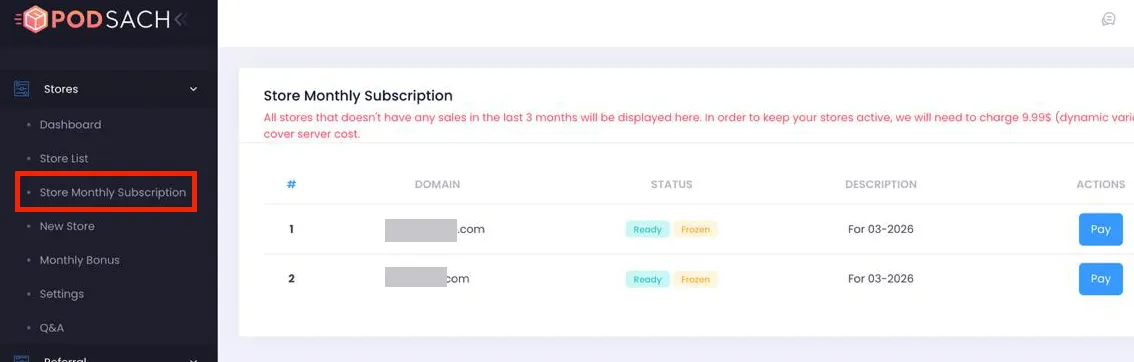
Step 2 - Select the Store to Renew
Section titled “Step 2 - Select the Store to Renew”Find the store you want to keep active and click Pay.
The system will only process the renewal for the store you selected.
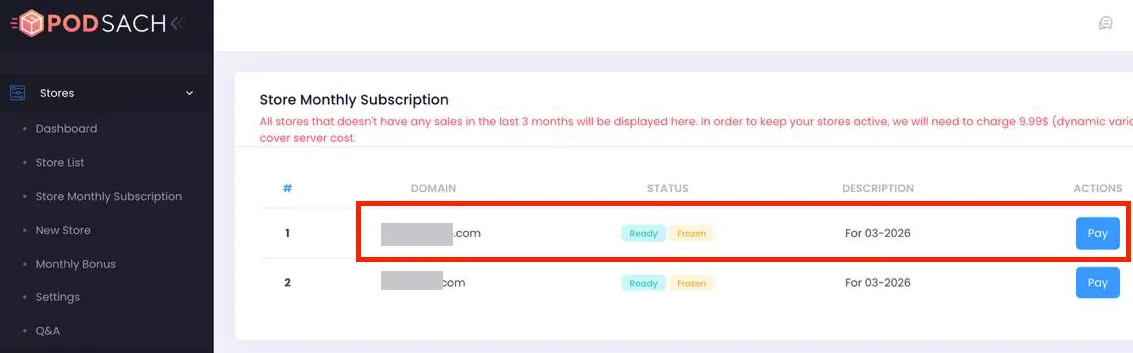
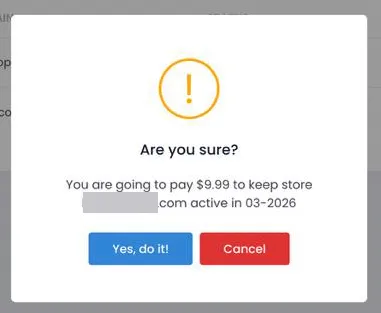
Step 3 - Confirm the Renewal Fee
Section titled “Step 3 - Confirm the Renewal Fee”A confirmation window will show the amount to be paid.
Review the details and click Confirm to proceed.
Step 4 - Complete Payment
Section titled “Step 4 - Complete Payment”If your account balance is sufficient, the system will process the renewal immediately. After successful payment, the selected store will be renewed.
3. If Your Balance Is Insufficient
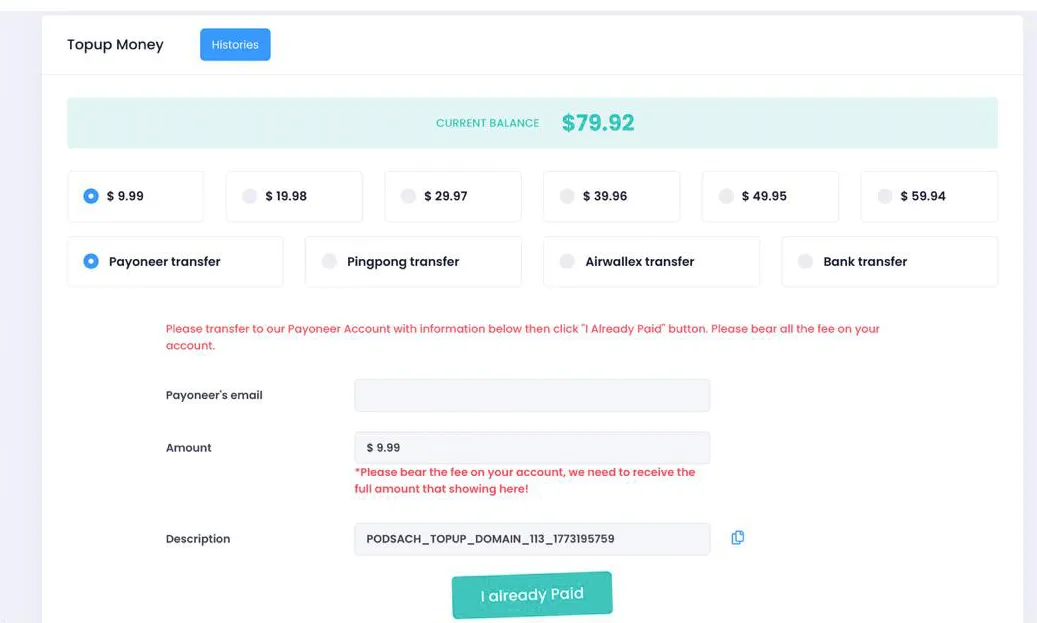
Section titled “3. If Your Balance Is Insufficient”If your current balance isn’t enough to cover the renewal fee, you’ll need to top up first.
Here’s how:
- Go to the Topup Balance page
- Select the amount you want to add
- Choose a payment method
- Complete the payment and submit the topup request
Once the topup is confirmed and your balance is updated, you can return to the Store Monthly Subscription page to renew your store.
4. Example
Section titled “4. Example”Let’s say you have 3 stores:
- Store A
- Store B
- Store C
You only want to renew Store B.
With the Manual Renewal feature, just go to the Store Monthly Subscription page, click Pay for Store B, and confirm the payment.
Only Store B gets renewed. Store A and Store C will not be charged.
We hope this guide makes it easier for you to top up and renew exactly the store you need. If you need further assistance, don’t hesitate to contact the support team for the fastest help.