
How to Verify Payoneer
Follow these instructions carefully for a 99% success rate - the remaining 1% applies if you’ve sold PO on the black market… we can’t help with that!
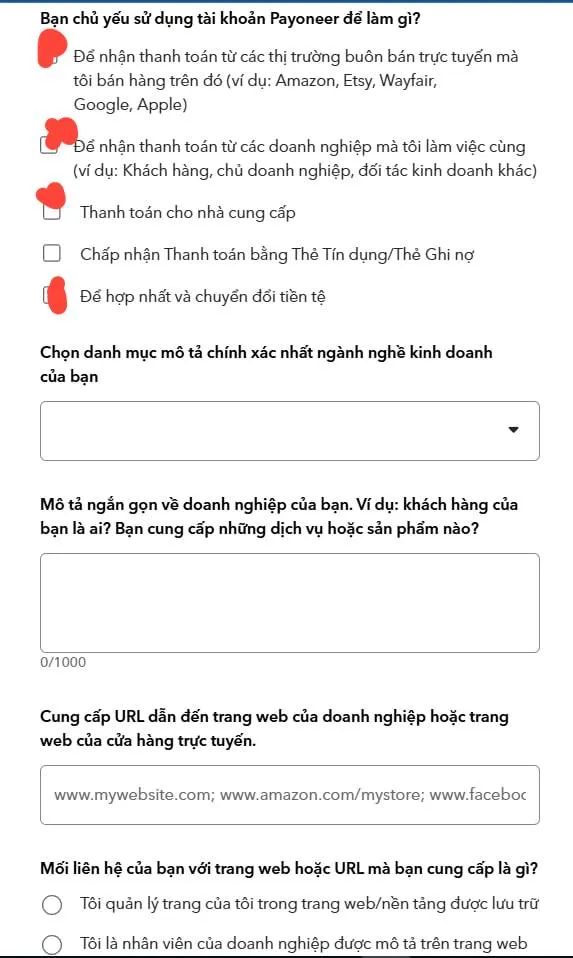
1. Receiving Account Questionnaire
-
Check the boxes as shown below:
-
Choose category that describes…: Select Retail…
-
Briefly describe…: We run ads to sell POD printed products to the US market
-
URL field: Enter the link to your PODSach store. Note: only use stores with domains registered for more than 3 months and no trademarked products on the homepage.
-
IMPORTANT: Go to https://myaccount.payoneer.com/ma/settings/editprofile, screenshot all your information, then contact the PODSach LLC fanpage or your 1-on-1 Telegram support group and request that the supporter add the information at the bottom of your store page.
-
Relationship to…: Select I manage my own page
-
Payment volume…: Select the highest amount possible
2. Submitting an Invoice Related to the Payment
Note: The instructions below are for stores opened on PODSach:
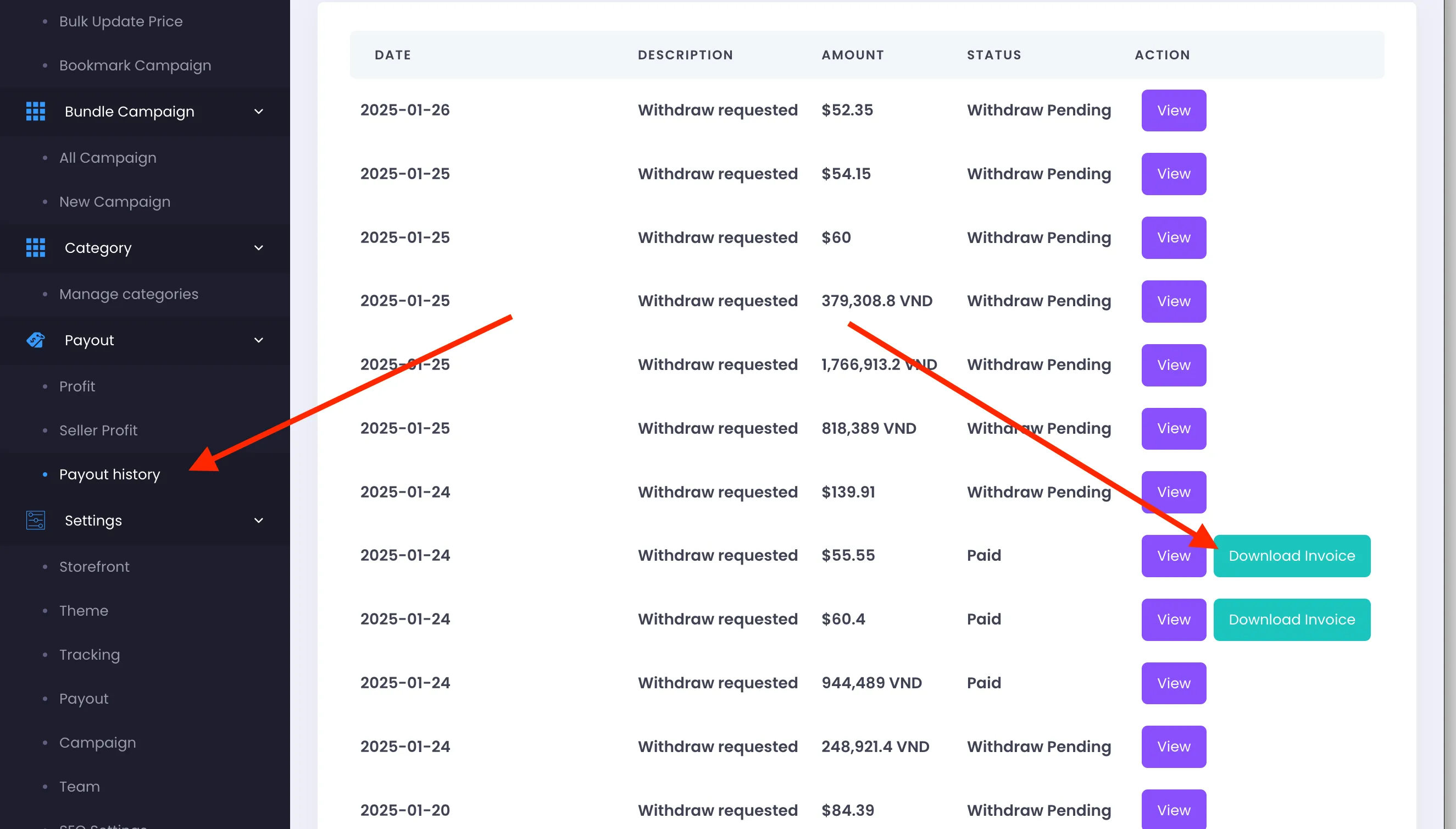
- Payoneer will usually ask you to submit an invoice related to a specific transaction ID in your account. Take that ID and look it up in PO. Once you find the corresponding amount, check the Payout History section of your store on PODSach to get the correct invoice, as shown below:
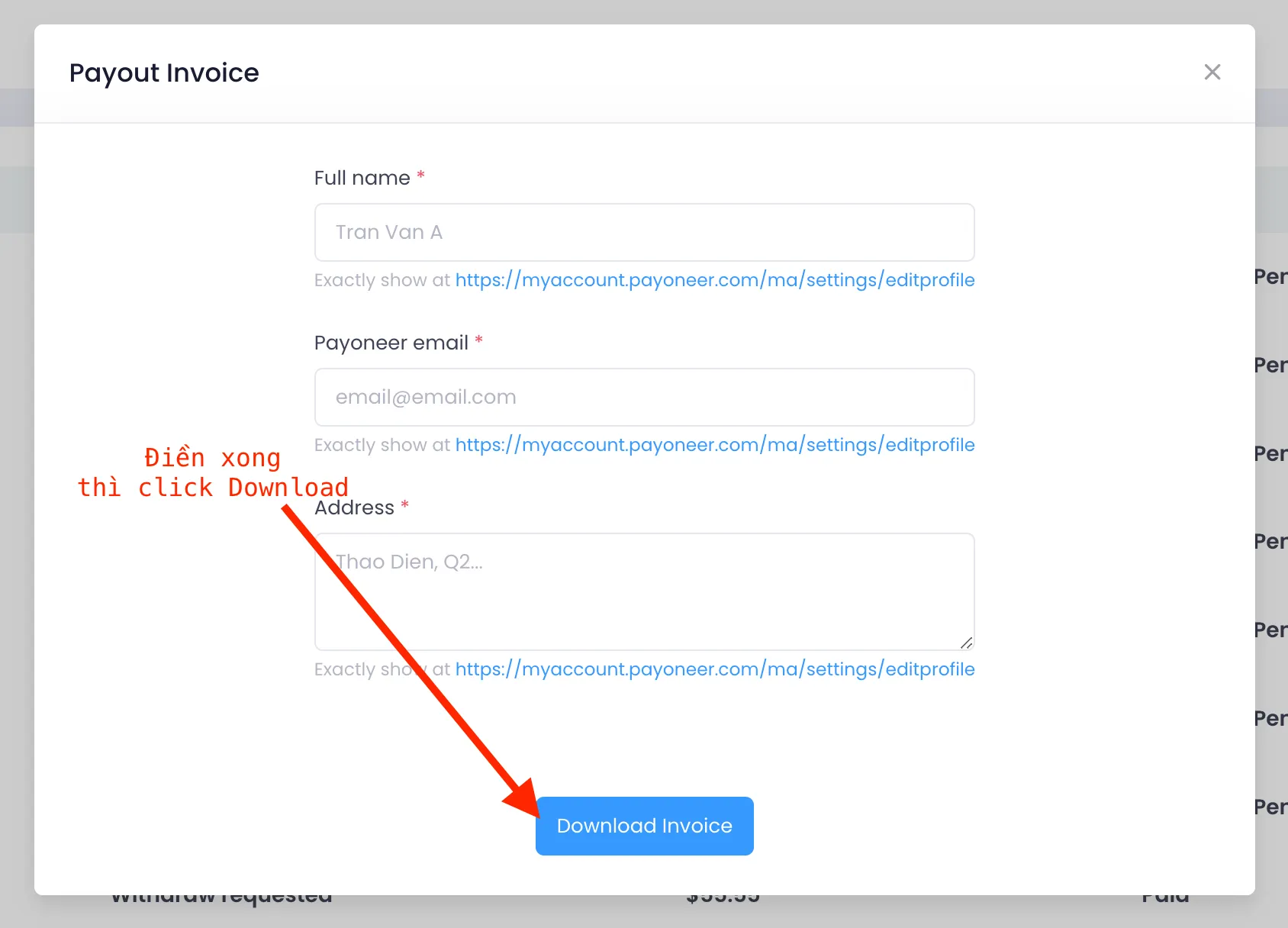
- Go to this link to get your exact PO information to fill in the invoice: https://myaccount.payoneer.com/ma/settings/editprofile
- If your invoice is rejected, open Chat Support to get guidance on correcting your invoice information: https://payoneer.custhelp.com/app/chat/zowie_chat_launch