
Using Bulk Update Price to Update Product Prices
We’re excited to introduce the new Bulk Update Price feature on our platform. This powerful tool lets you quickly and conveniently update prices for products within a specific category. Best of all, you no longer need to edit each campaign one by one. With Bulk Update Price, you can change pricing in bulk to easily optimize your business strategy.
Let’s dive into how to use this feature.
1. Bulk Price Increase by Category and Tag
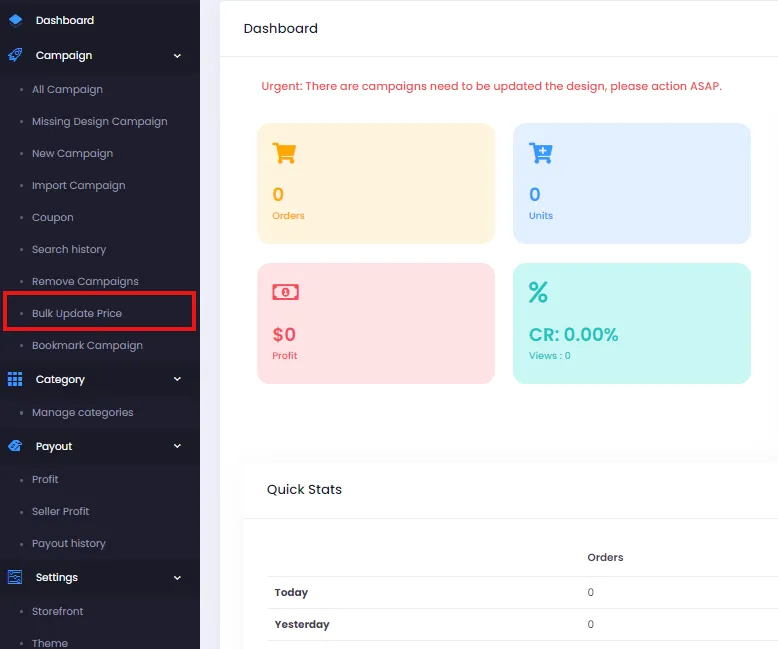
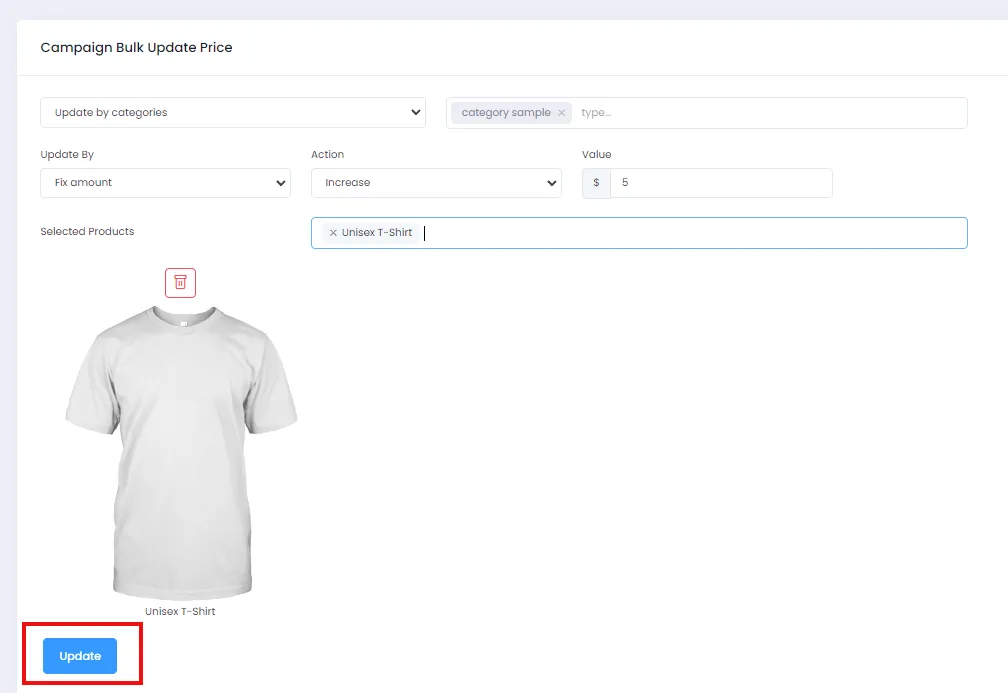
Section titled “1. Bulk Price Increase by Category and Tag”- From the admin page, click the Bulk Update Price menu to go to the Campaign Bulk Update Price page.
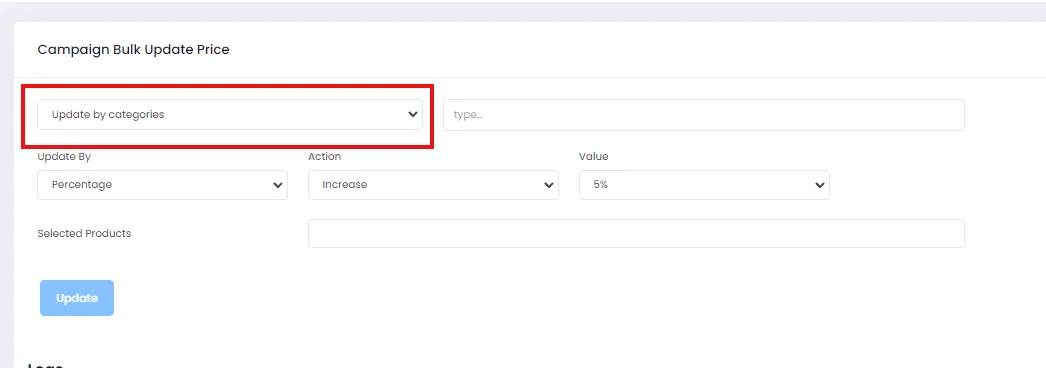
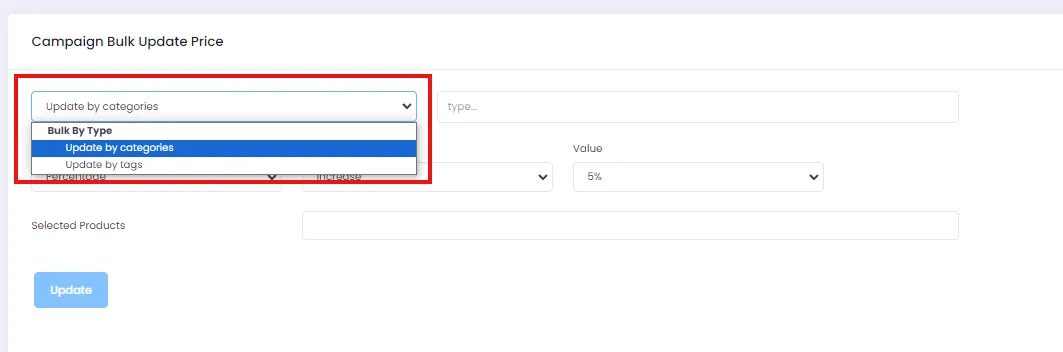
- Here, you can update product prices by Category or Tag. Select “Bulk By Type” to choose the type of price update you want to perform (in this guide, we’ll use “Update by Categories” as an example).
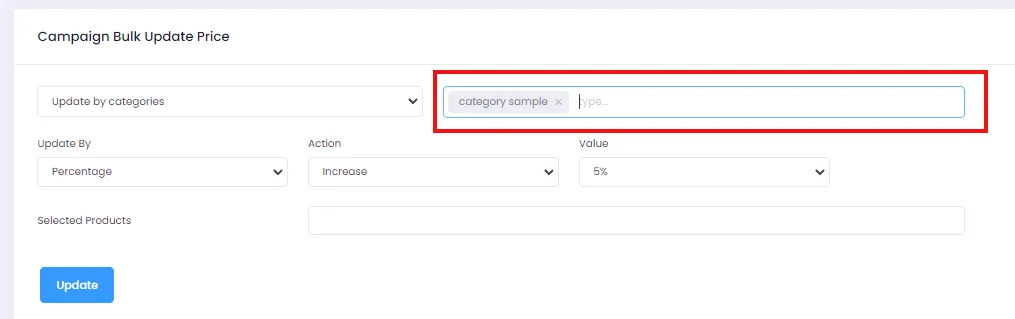
- After choosing the update type, enter the corresponding Category or Tag. Note that the Category and Tag must already exist in your store; otherwise, the system will skip the price update. You can refer to the Creating and Managing Categories for Your Store guide.
- To increase prices, choose either Percentage or Fix amount under the Update By section.
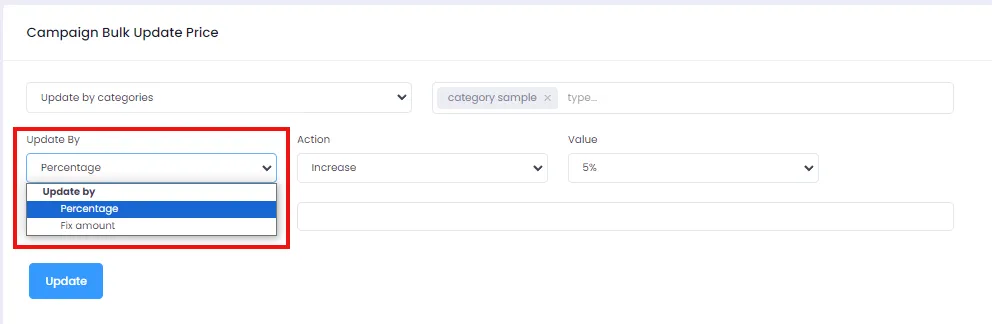
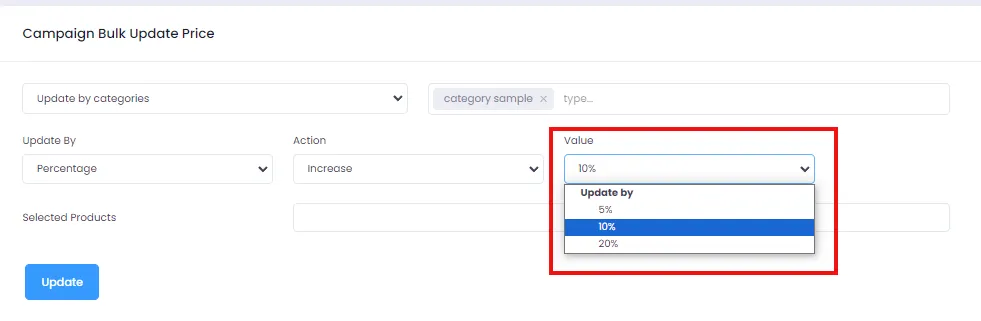
To update by Percentage, select the desired percentage value.
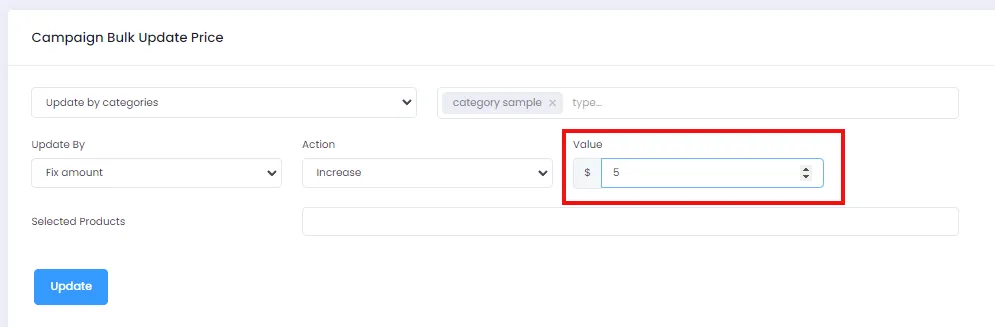
To update by a fixed amount, select “Fix amount” and enter the amount.
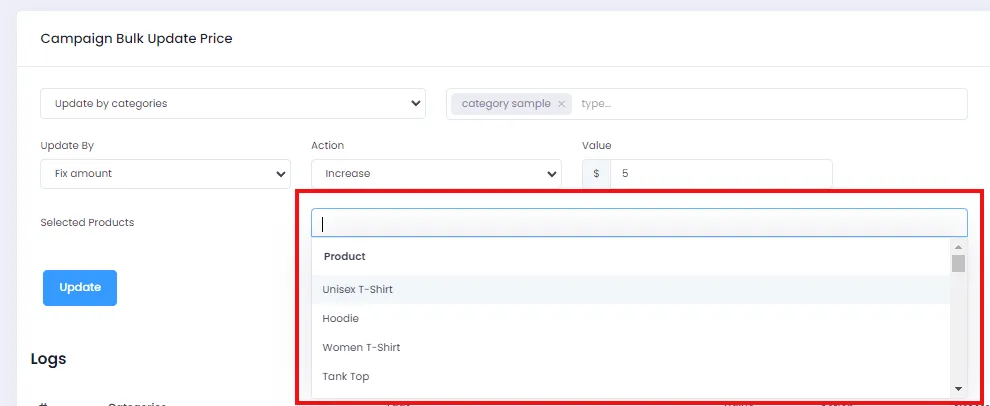
- If you only want to update prices for specific products within the Category (e.g., Unisex T-Shirt), you can select those products individually. Prices will only change for the selected products within the Category scope.
- Finally, click the Update button to complete the price update.
2. Bulk Price Decrease by Category and Tag
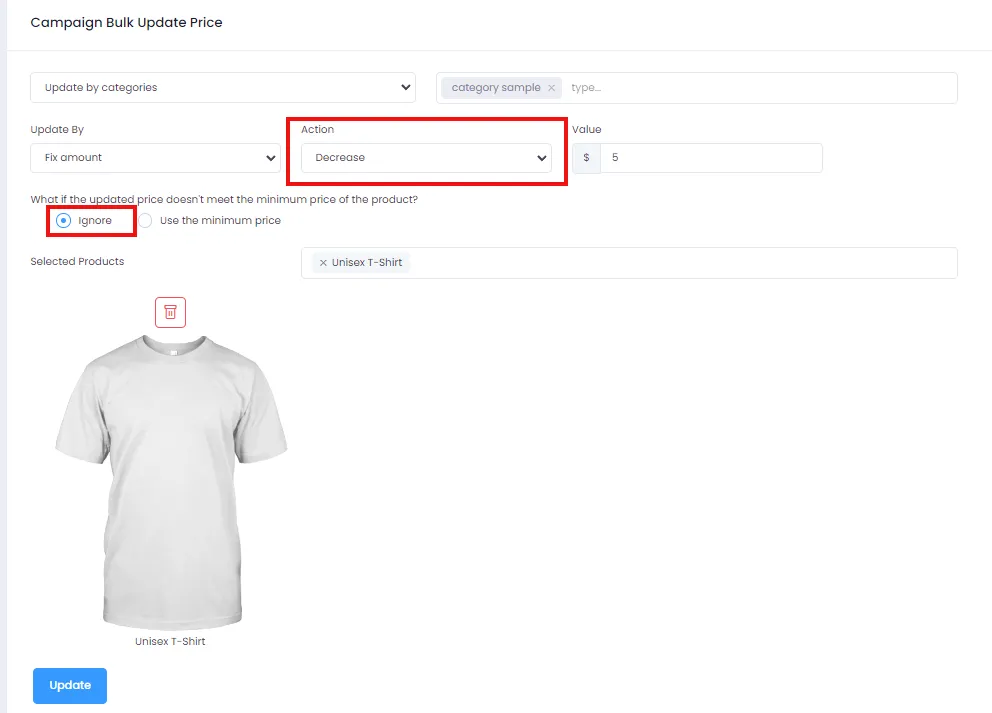
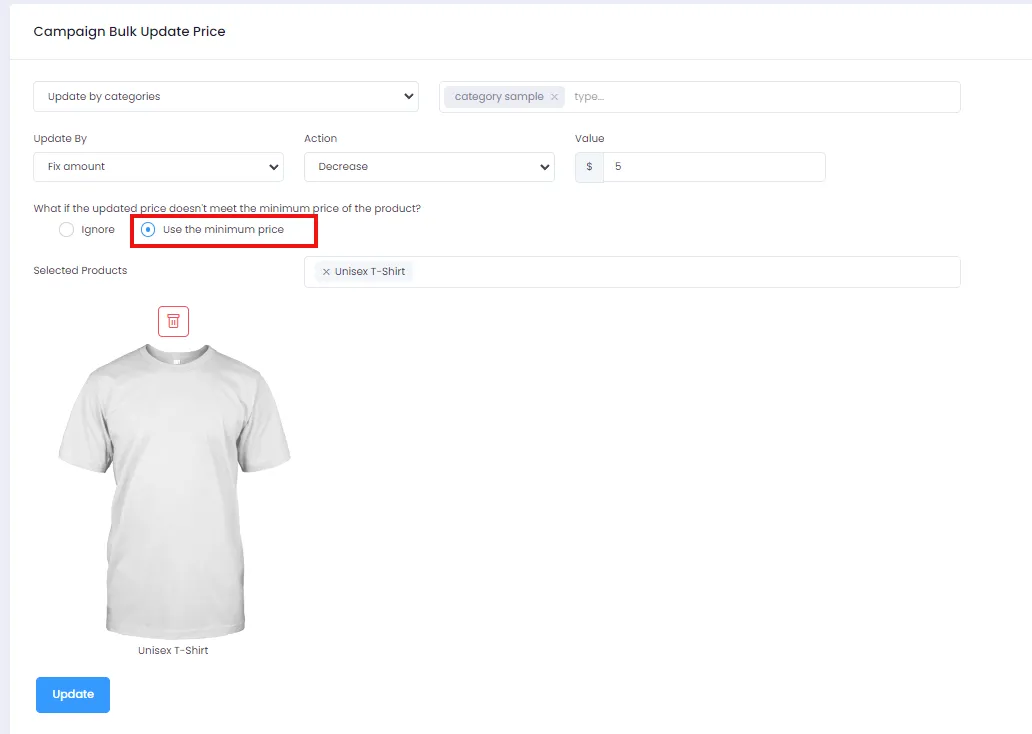
Section titled “2. Bulk Price Decrease by Category and Tag”The process for bulk price decreases by Category and Tag is similar to bulk price increases. Refer to steps 1 through 5 in the bulk increase section above. However, to prevent prices from dropping below the mandatory minimum price, we’ve added two options for you before applying the update:
- Ignore: The system will skip the price decrease if the resulting price falls below our mandatory minimum. Select “Ignore” as shown.
- Use the minimum price: The system will set the product price no lower than our defined minimum price. Select “Use the minimum price” as shown.
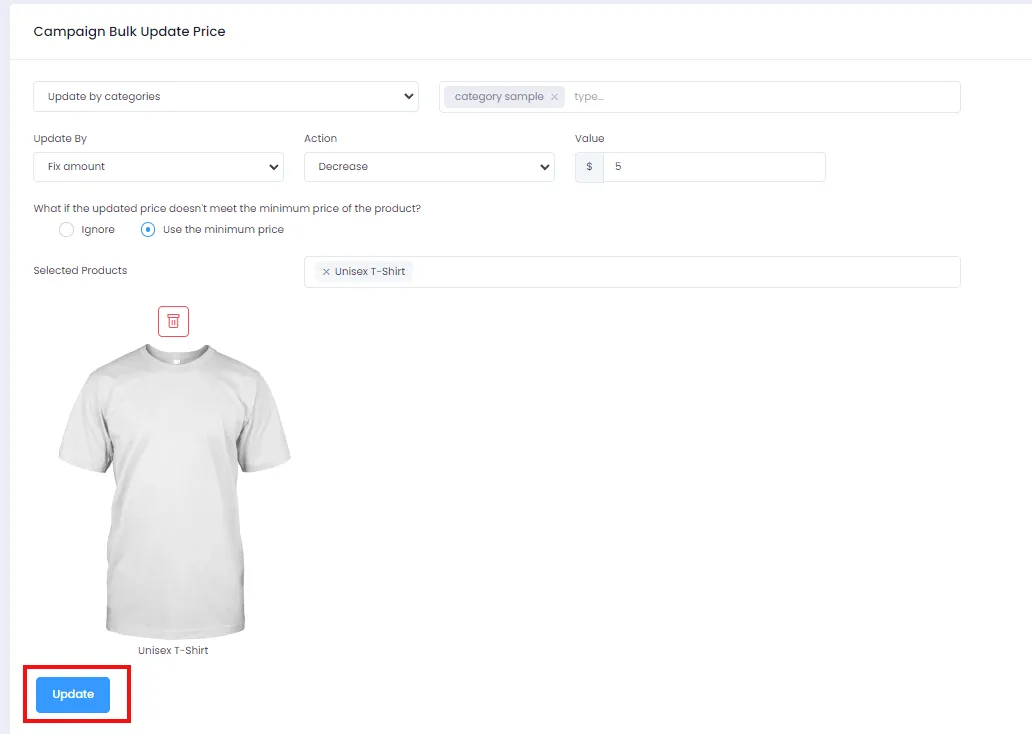
- Finally, click the Update button to complete the price update.
Good luck using the Bulk Update Price feature to manage your product pricing efficiently!