Creating Bundle Campaigns
Bundle Campaigns are a sales tactic that encourages customers to purchase products as a bundle at a discounted price. PODSach allows sellers to apply this by creating bundle campaigns on their store.
NOTE: This feature is only available on select stores as part of a trial.
1. Introduction
Section titled “1. Introduction”- To enable this feature, please contact us via the PODSACH LLC fanpage for further assistance.
- Prepare mockup files for your Bundle Campaigns in advance. Mockups should be square and have a minimum size of 700×700px.
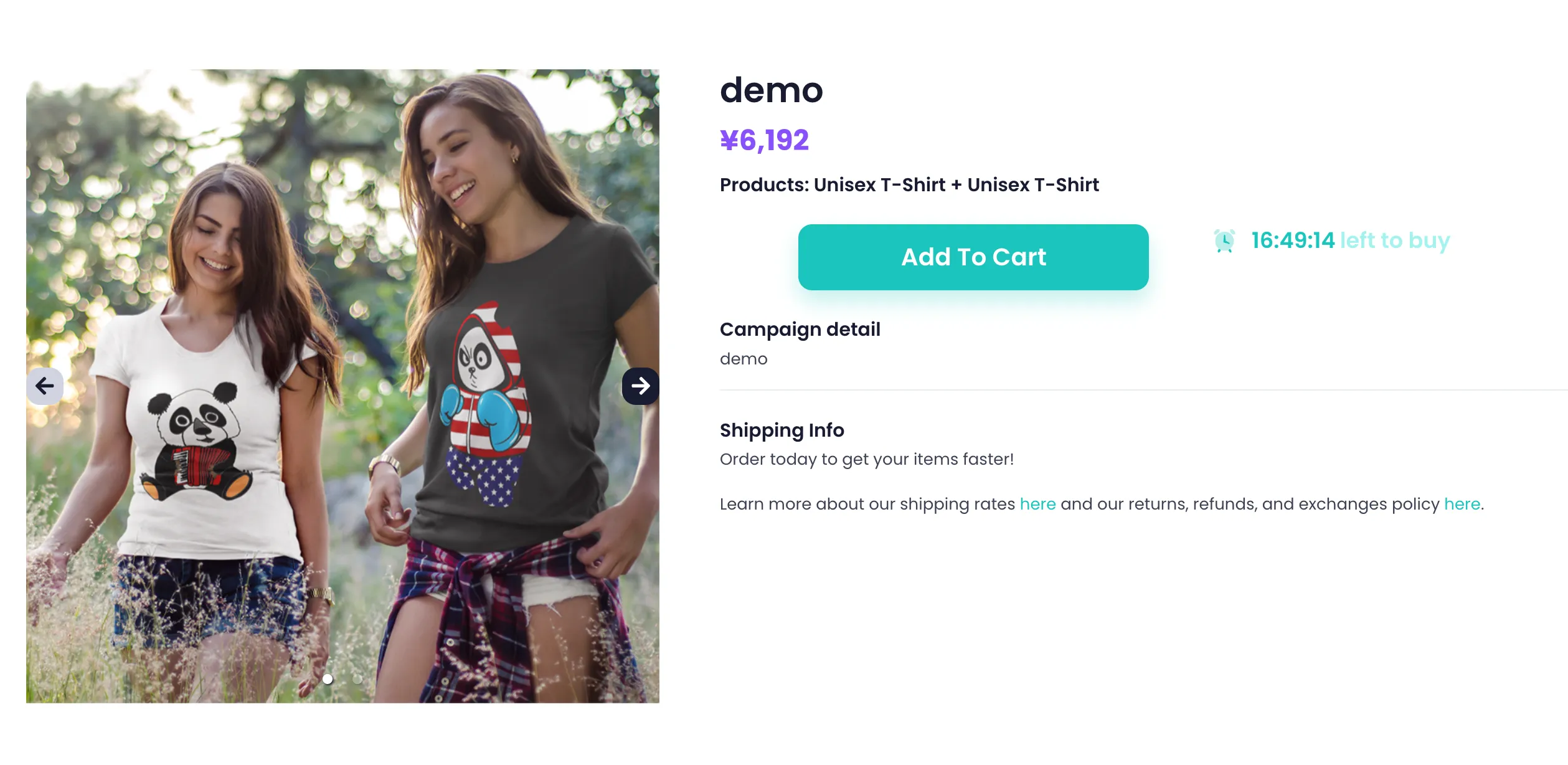
- Demo:
2. Creating Bundle Campaigns
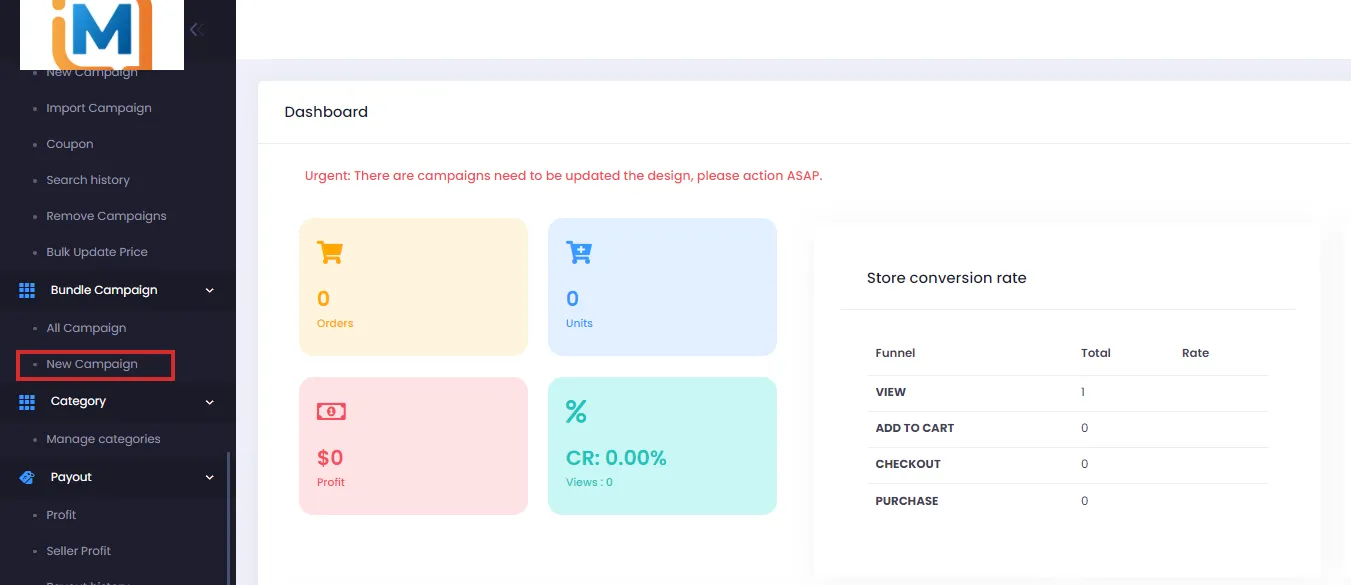
Section titled “2. Creating Bundle Campaigns”- From the admin page, click Bundle Campaign > New Campaign.
-
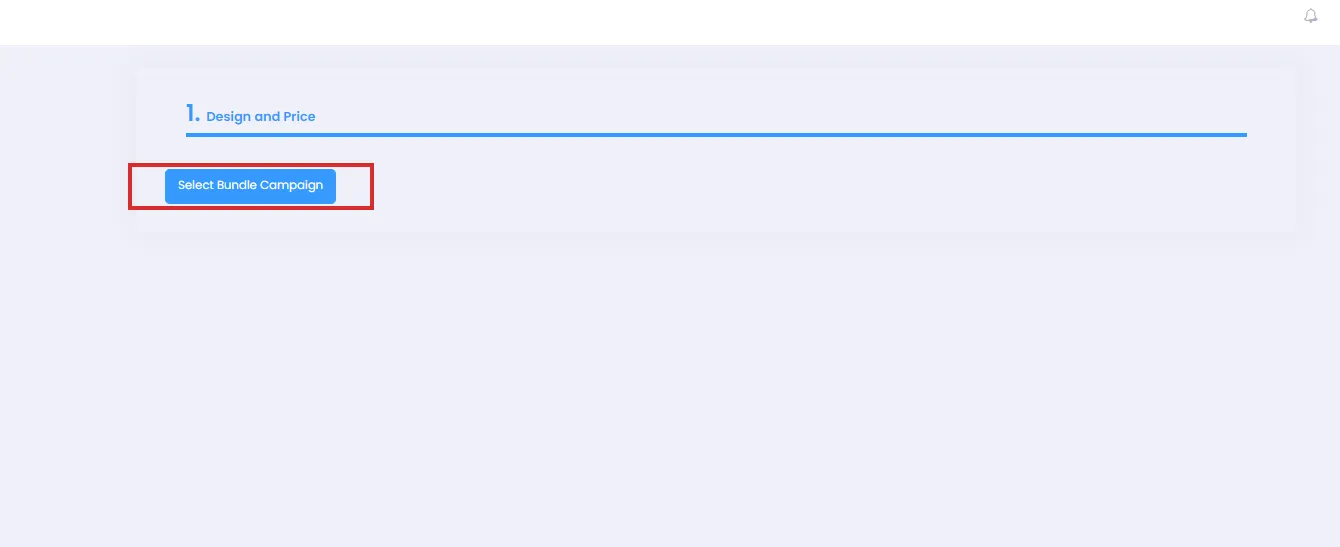
On the Bundle Campaigns creation screen, click Select Bundle Campaign.
-
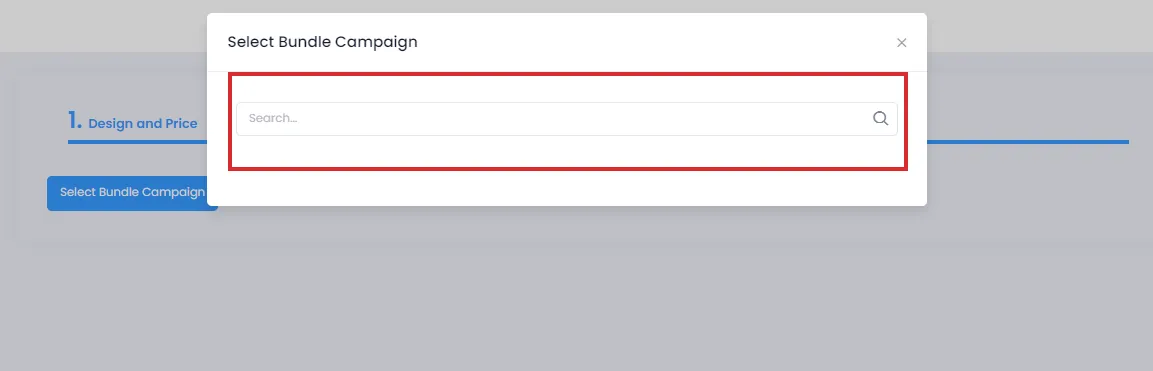
A dialog will appear for you to search and select campaigns. Click the search bar, enter the campaign you want to add to the bundle, and press Enter.
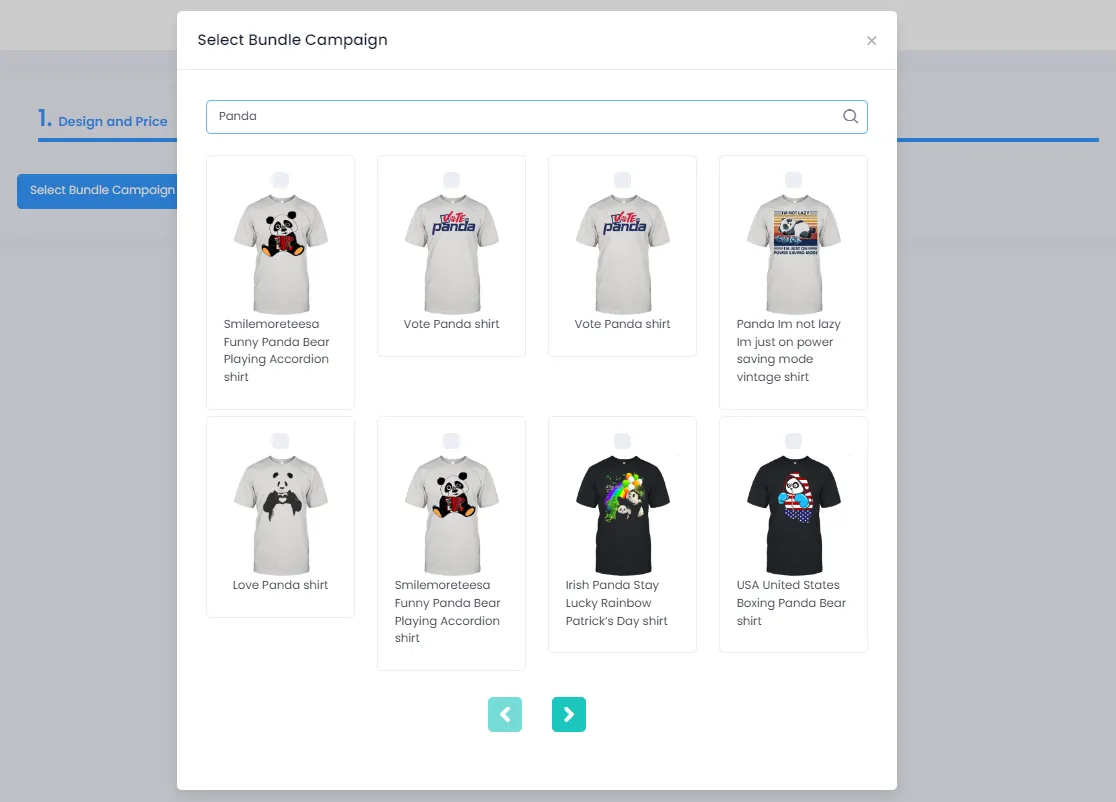
- A list of campaigns will appear in the results as shown.
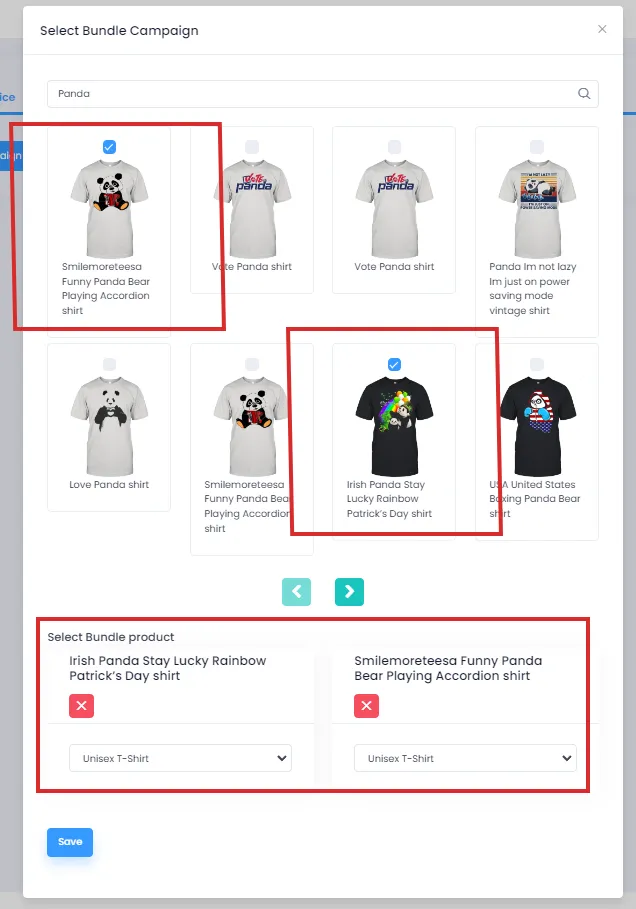
- From the campaign list, click the 2 campaigns you want to add to the bundle (Note: bundle campaigns only support 2 campaigns - you cannot create a bundle campaign with 3 or more campaigns).
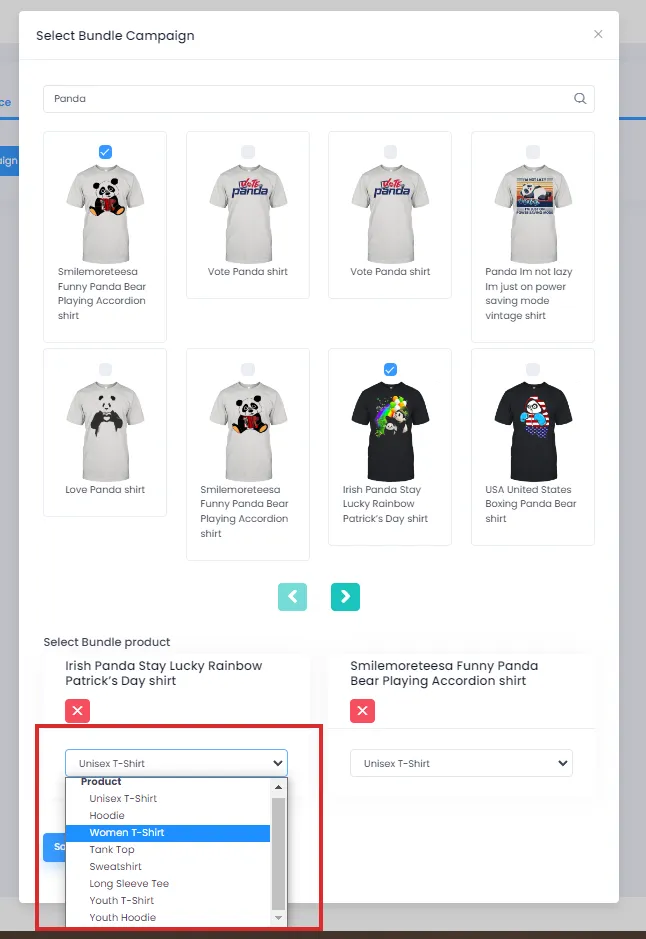
- You can change which products are shown for each of the 2 bundled campaigns by clicking the product dropdown list and selecting the product you want to display.
- Once done, click Save to save.
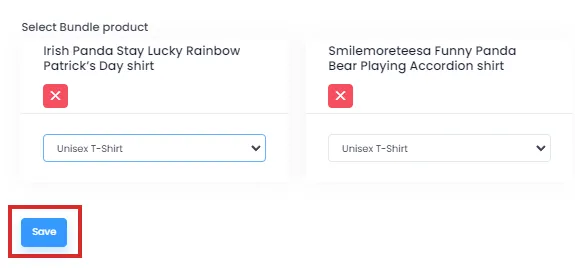
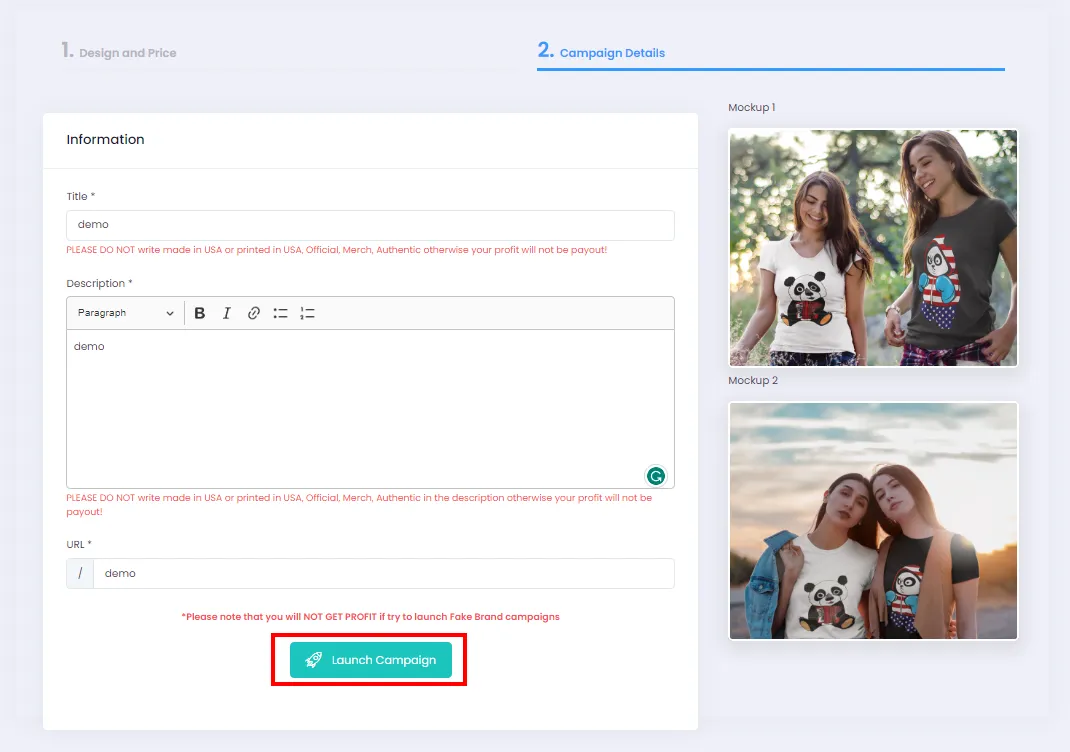
- The Bundle Campaign creation page will now appear as shown:
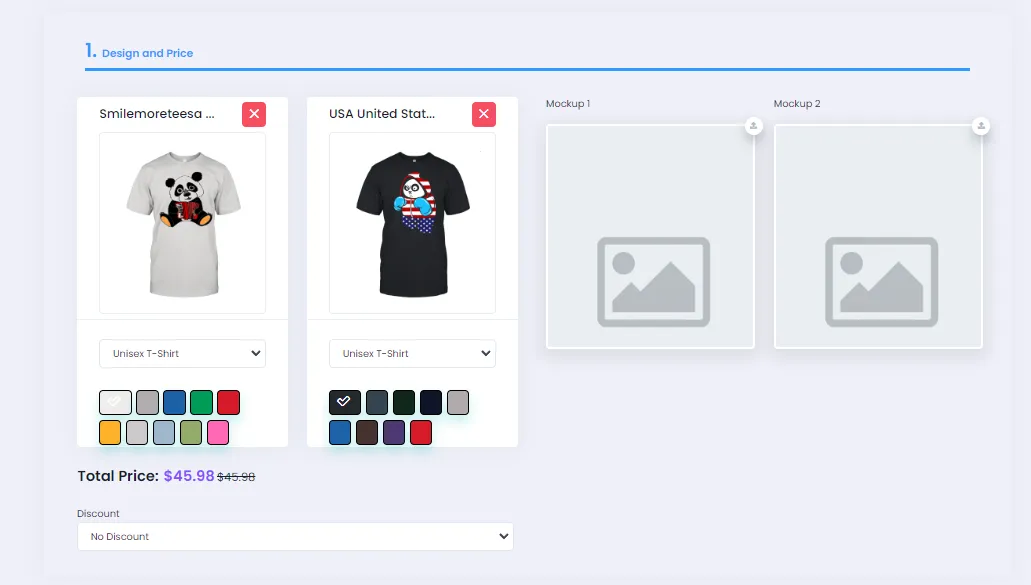
- Here, you can change the default product color from the color palette (3D products do not have a color palette). Choose the desired Discount and upload your mockup. After the mockup is uploaded, Campaign Detail will appear. Go to Campaign Detail to fill in the necessary Bundle Campaign information, such as: Title, product details, and URL.
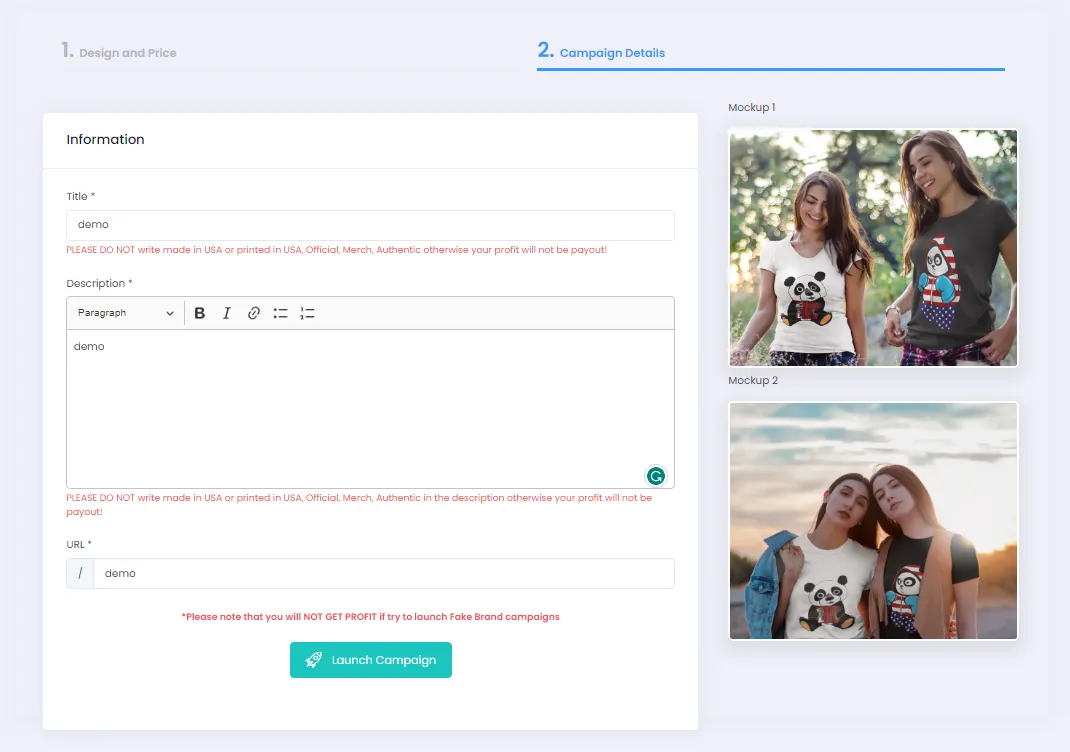
- Click Launch Campaign to create the Bundle Campaign.