Bulk / Duplicate Campaigns on PODSach
If you want to create multiple new campaigns at once that share the same product information as an existing campaign but differ only in design, you can use the Bulk tool on PODSach. This tool lets you quickly clone one campaign into multiple others.
Article Contents
- How to Bulk campaigns
- How to Duplicate a campaign
1. How to Bulk Campaigns
Section titled “1. How to Bulk Campaigns”-
From the admin page, go to All Campaigns.
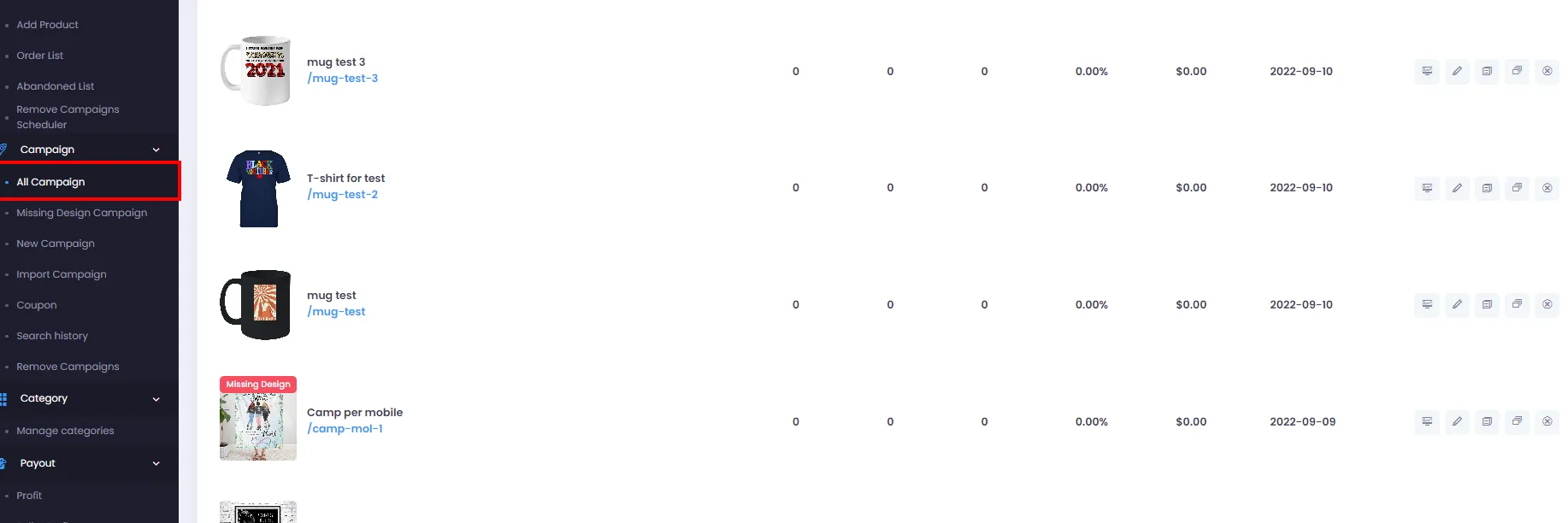
-
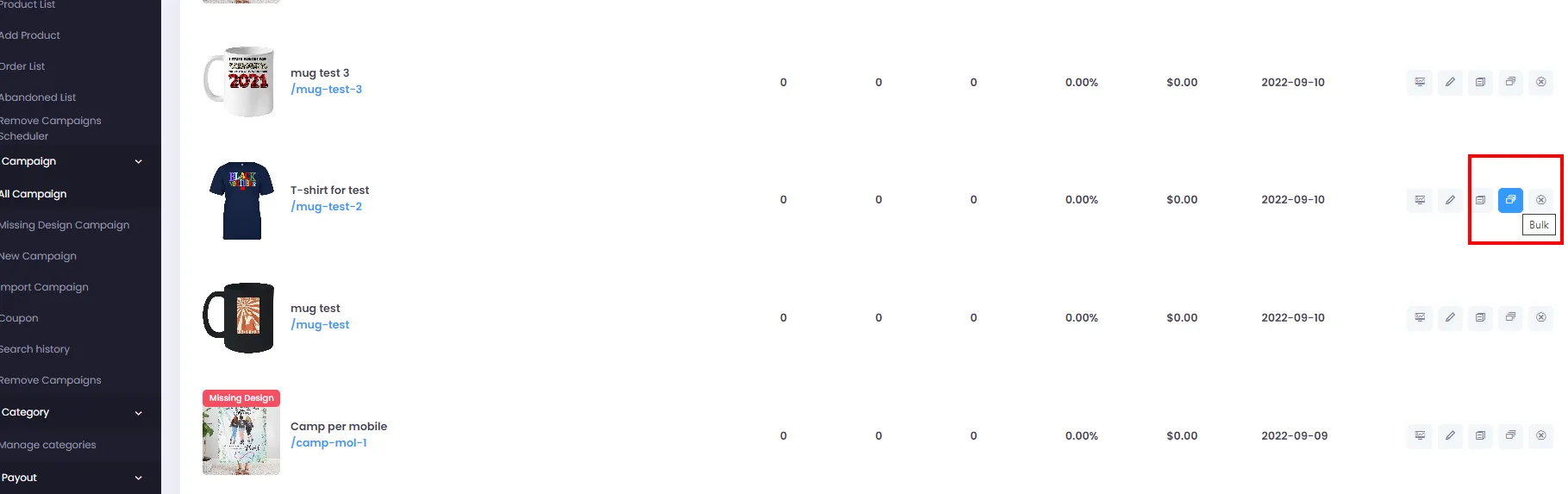
Find the campaign you want to clone and click the Bulk button as shown:
-
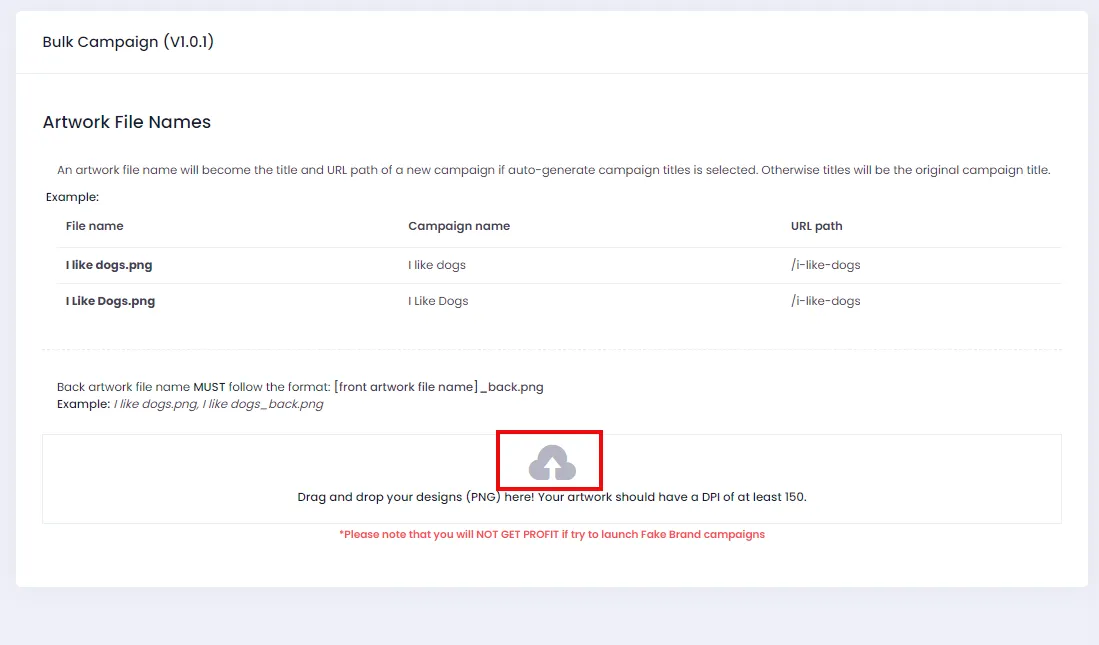
The system will take you to the Bulk Campaign page. Here, drag and drop your design files from your computer into the “Drag and drop your designs (PNG) here! Your artwork should have a DPI of at least 150.” area. Alternatively, click the Upload icon to open the file upload dialog.
-
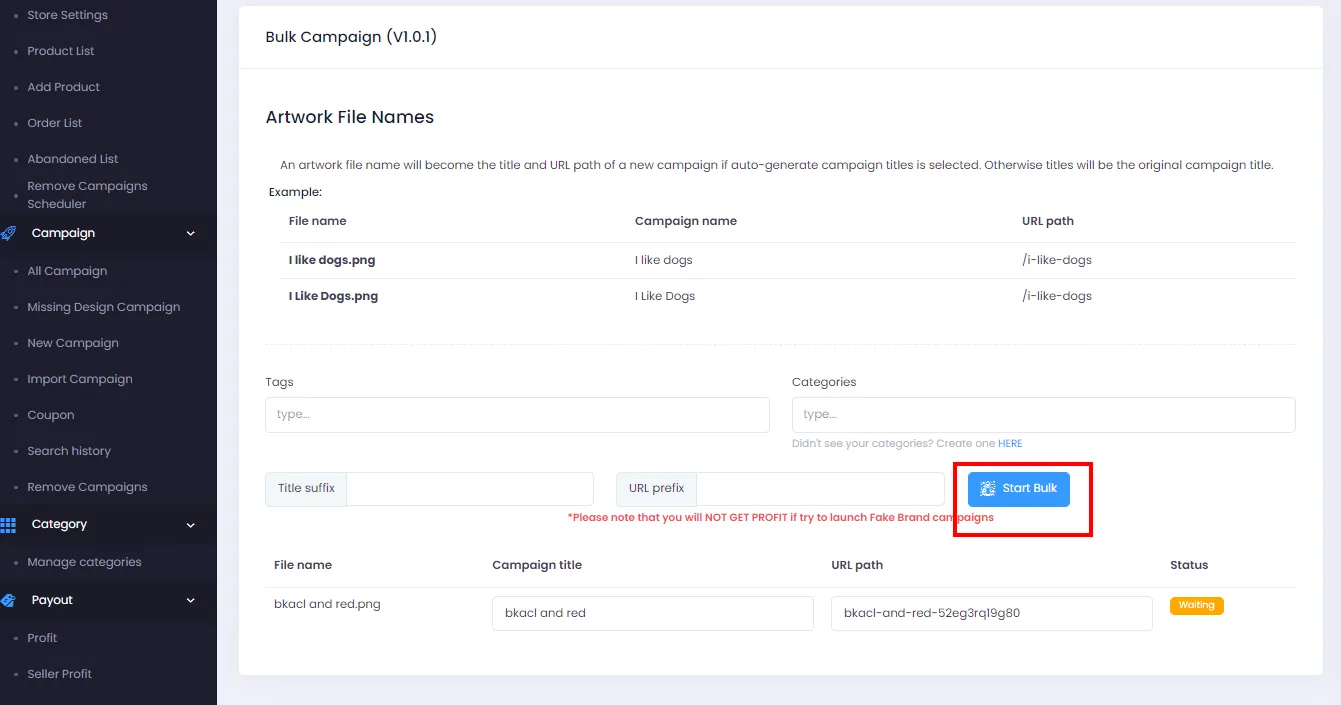
After the system uploads your designs, each design will correspond to a new campaign. The system will automatically name each campaign based on the uploaded design file name. You can edit campaign details in the corresponding fields.
Click Start Bulk for the system to begin cloning the campaigns.
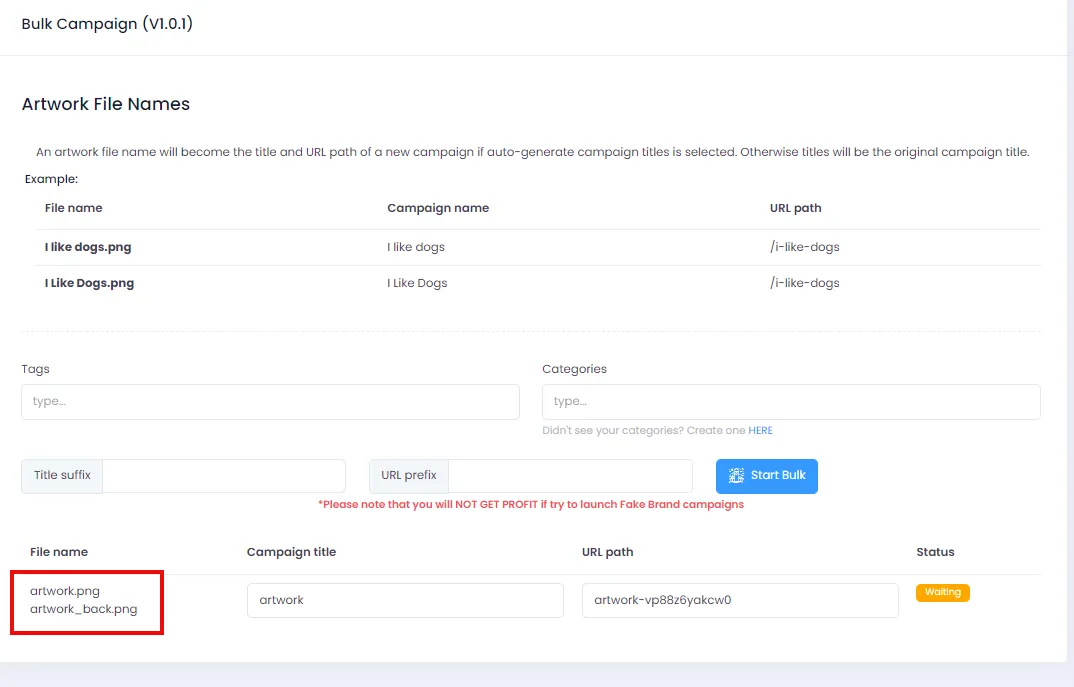
⚠️ IMPORTANT NOTE FOR BULKING TWO-SIDED CAMPAIGNS:
- For campaigns with two sides (front & back), you need to prepare two design files with the same name - the back-side file must include the suffix
_back.- Example:
art.png(for the front) andart_back.png(for the back).- If the file names don’t follow the suggested naming convention, the campaign bulk operation will not succeed.
2. How to Duplicate a Campaign
Section titled “2. How to Duplicate a Campaign”-
From the admin page, go to All Campaigns.
-
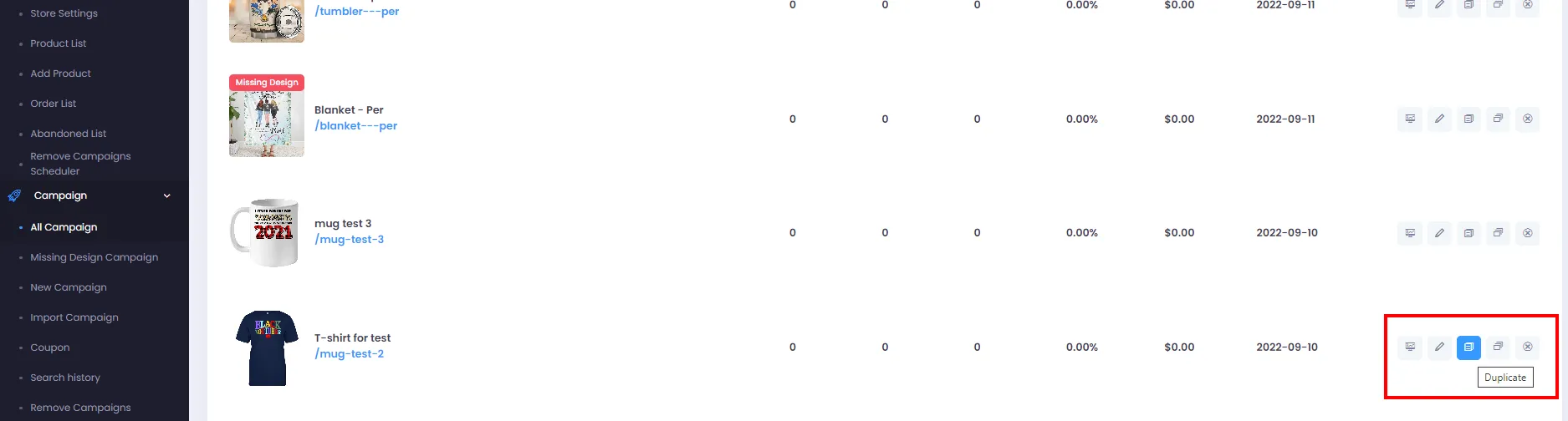
Find the campaign you want to duplicate and click the Duplicate button as shown:
-
The system will take you to the campaign creation page with product settings pre-filled, identical to the original campaign. From here, upload your new design and fill in any other necessary information, just like the standard campaign creation process.