
Creating and Managing Description Templates
Welcome to the guide on Creating and Managing Description Templates for your campaigns.
Description templates are designed to streamline the campaign description process, saving sellers significant time when launching campaigns. Let’s explore how to use this feature effectively to enhance your campaign management experience.
-
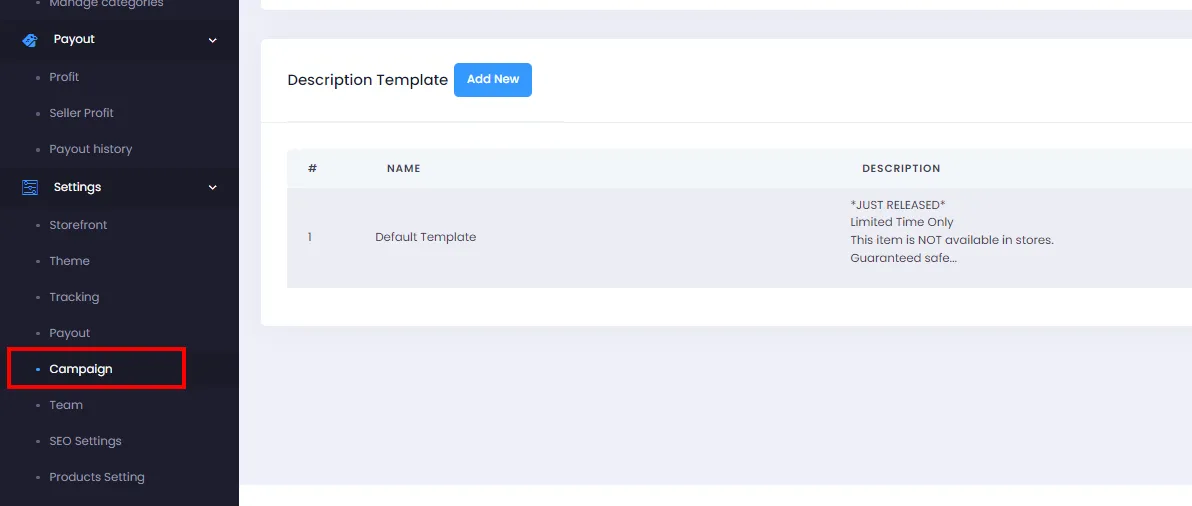
From the admin page, click Campaign on the Menu.
-
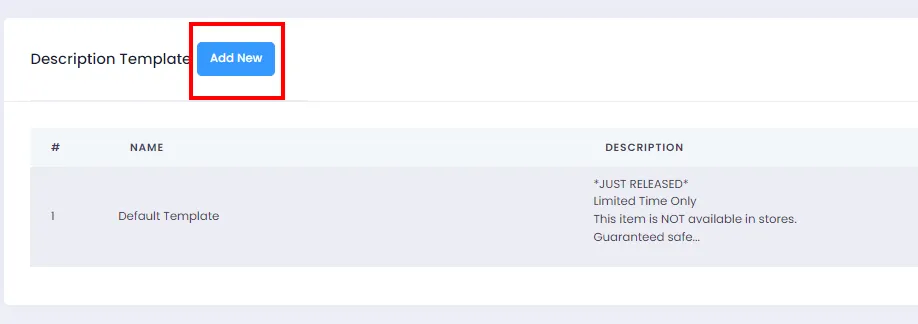
On the Campaign Settings page, scroll down to the Description Template section and click Add New to create a new template.
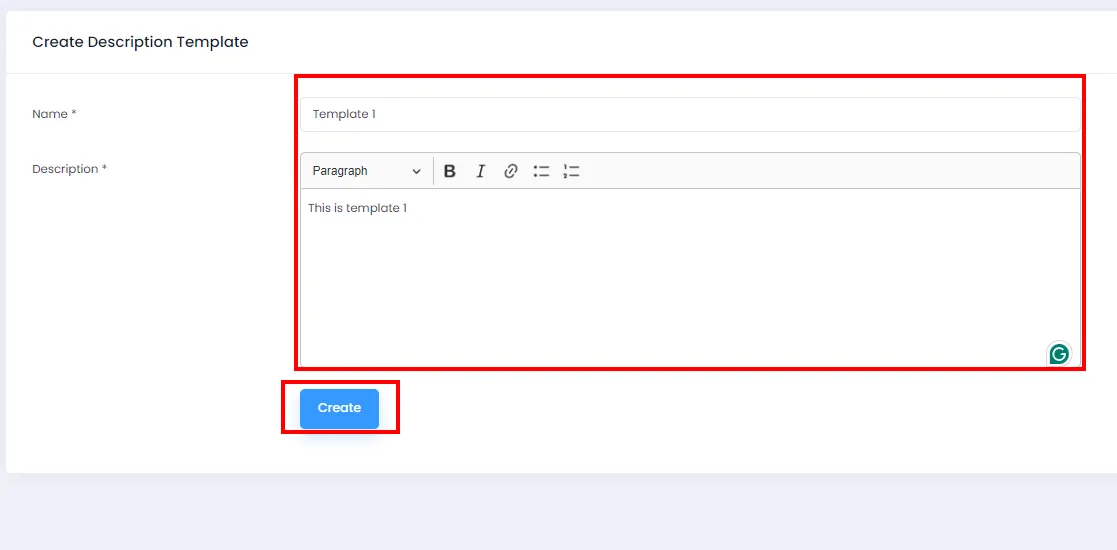
- You’ll be taken to the Create Description Template page (as shown). Fill in the required information, including the Name and Description of the template. Click Create to save the template and return to the previous page.
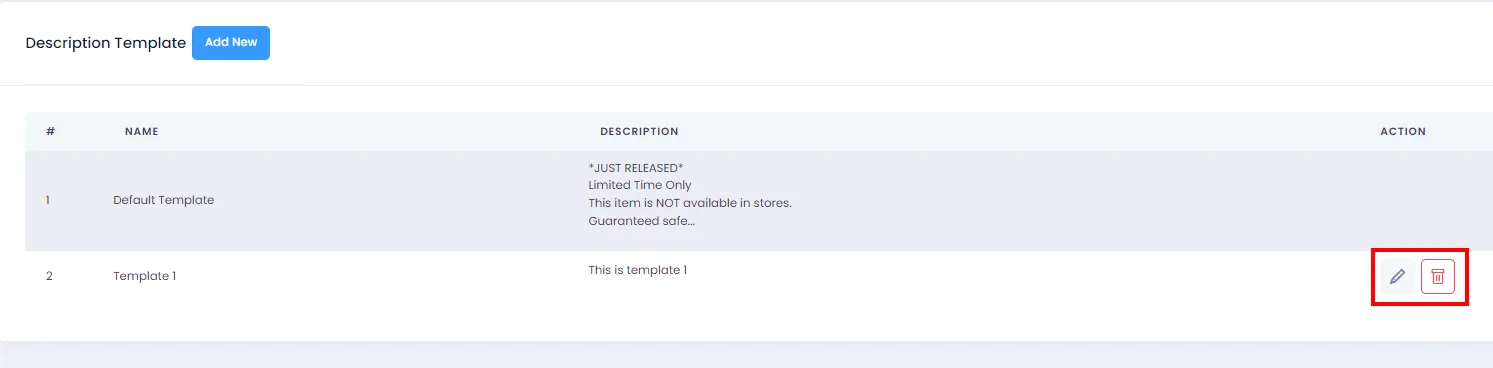
- The new template will appear as shown.
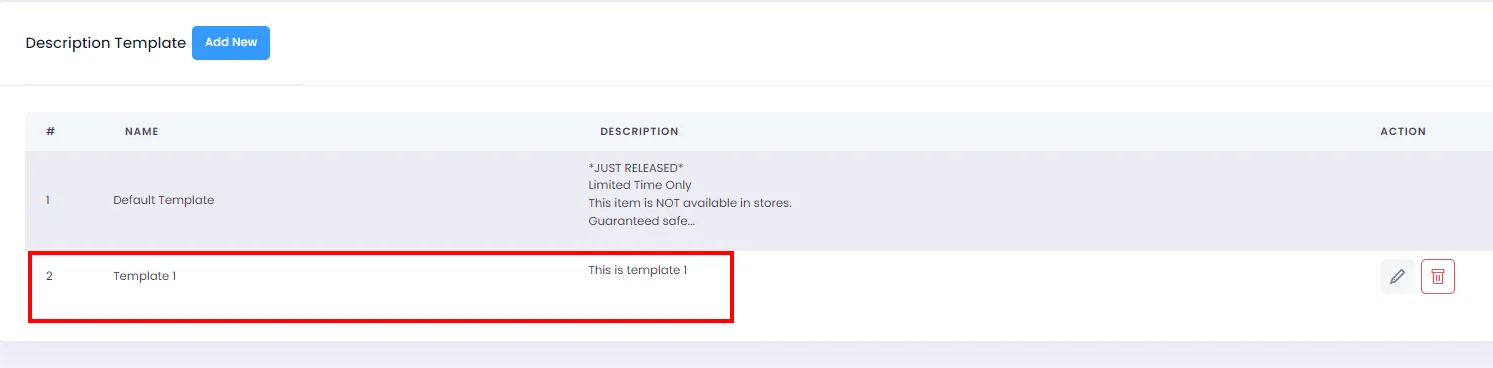
- You can Edit or Delete a template by clicking the Edit or Delete icon.
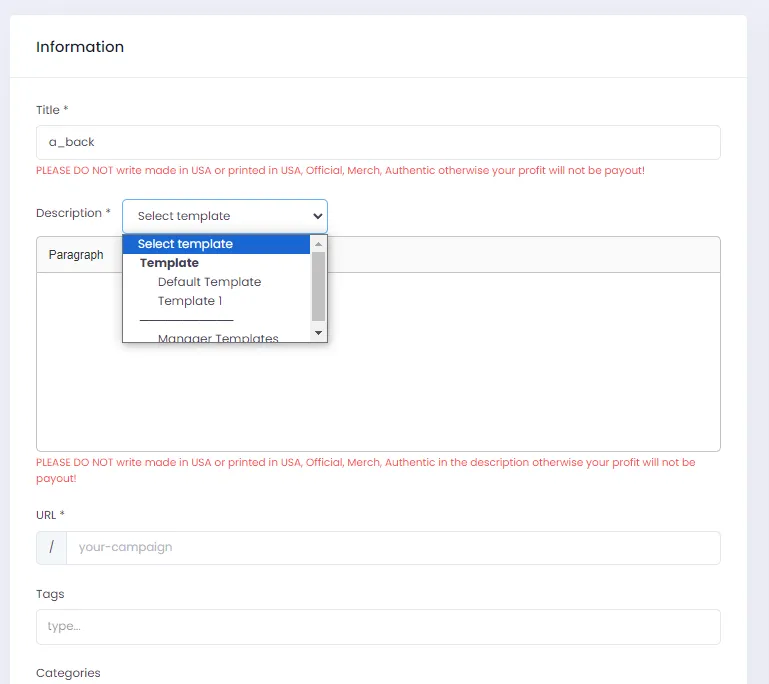
- You can use the template on the Create/Edit Campaign page by selecting it from the template list in the Description section (as shown).
Note:
- The Default Template is the system’s built-in template - you cannot delete or edit it. However, you can choose not to use it, depending on your campaign needs.
- Description templates help you fill in the Description section faster. Deleting or editing a template does not affect campaigns that were already created using that template.