
General Settings
This guide walks you through the General Settings screen in the admin panel, where you can customize global settings for your store. You can access it from Admin > Settings > Storefront.
Overview of Store General Features
- Compare price (Show slashed price)
- Show default banner on Home page
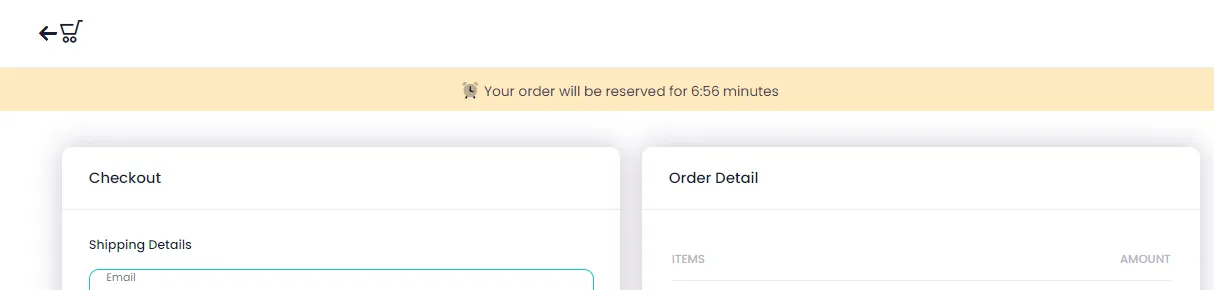
- Show timer on Checkout page
- Send New Order Notification To Email
- Show Customer Review on Product Detail page
- Show timer on Campaign detail page
- Show Rush Order Message
- Stay on campaign detail after adding to cart
- Free Shipping Threshold Amount
- Telegram Group ID
- Number of campaigns in category
1. Compare price (Show slashed price)
Section titled “1. Compare price (Show slashed price)”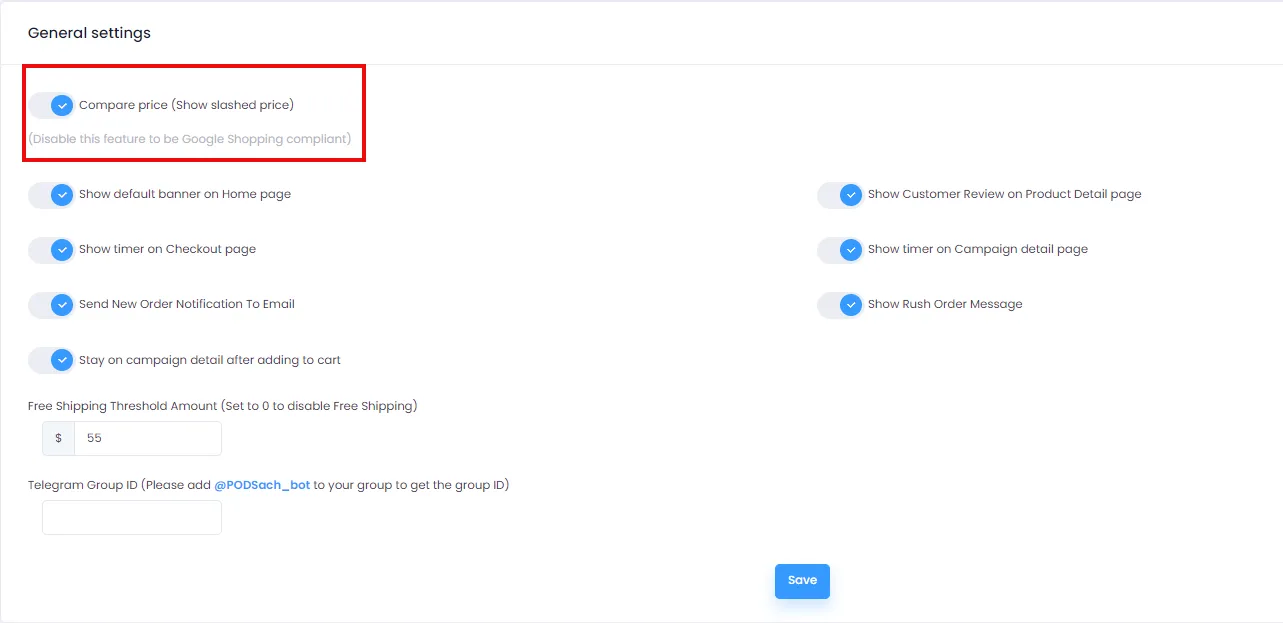
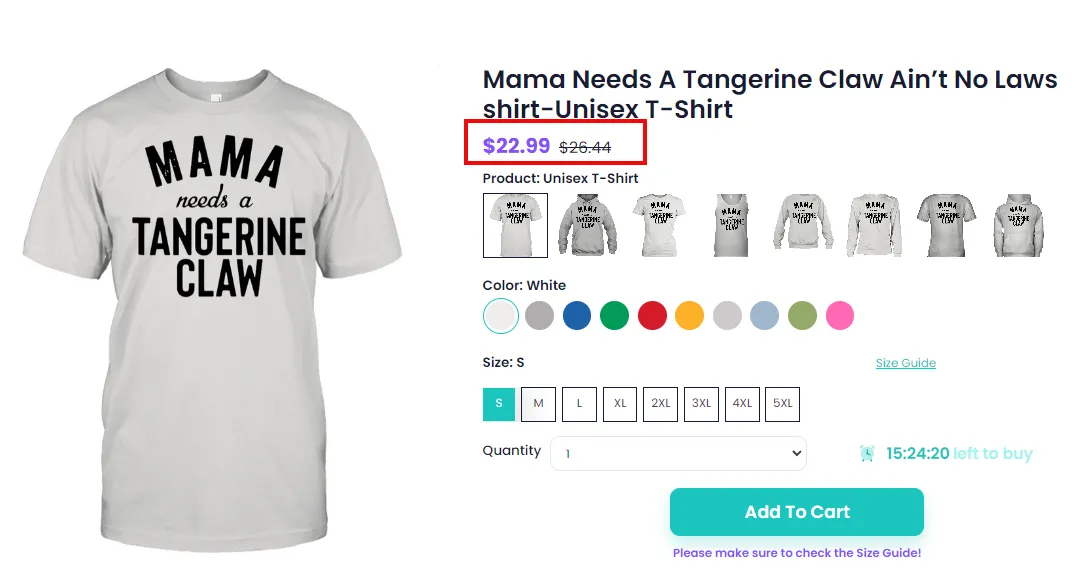
When you enable Compare price (Show slashed price), the campaign detail page will display the original price before the discount.
2. Show default banner on Home page
Section titled “2. Show default banner on Home page”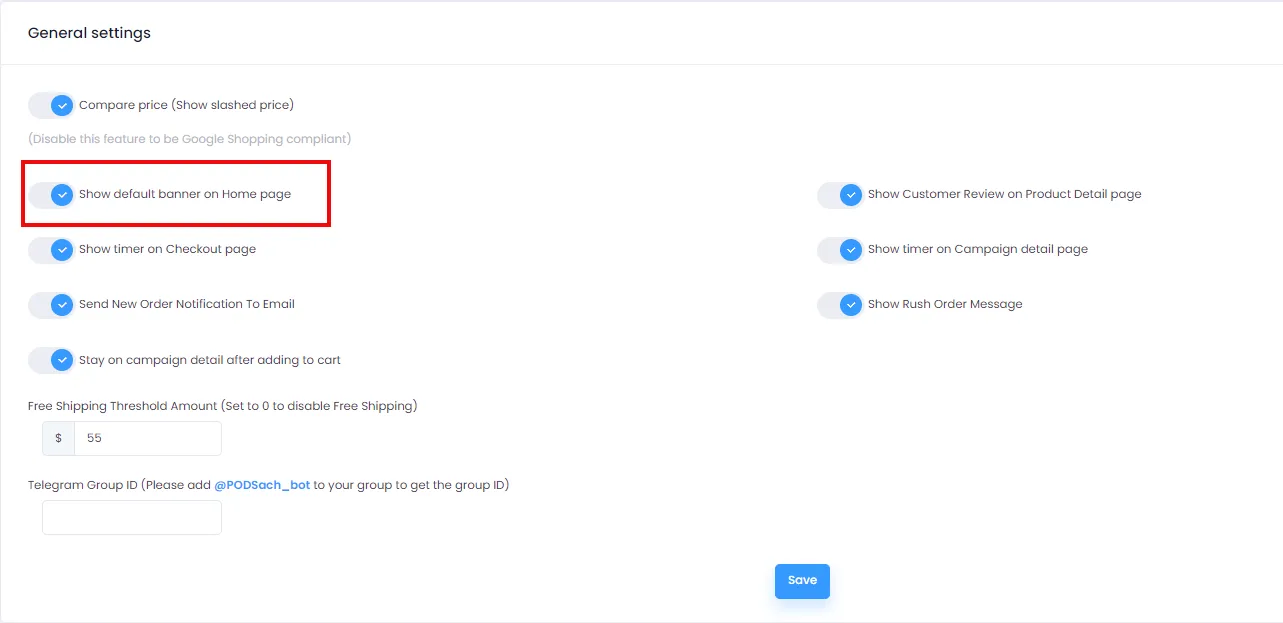
To display the default banner on your store’s homepage, turn this feature ON. To hide the banner, turn it OFF.
3. Show timer on Checkout page
Section titled “3. Show timer on Checkout page”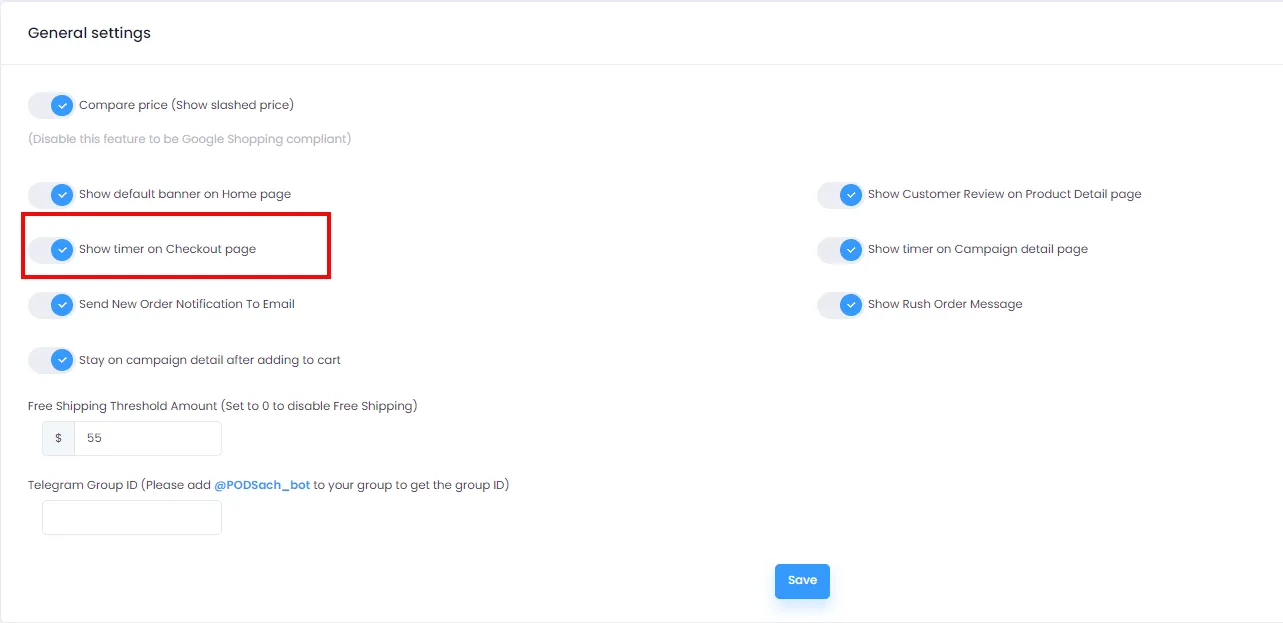
When enabled, a countdown timer will appear on the checkout page.
4. Send New Order Notification To Email
Section titled “4. Send New Order Notification To Email”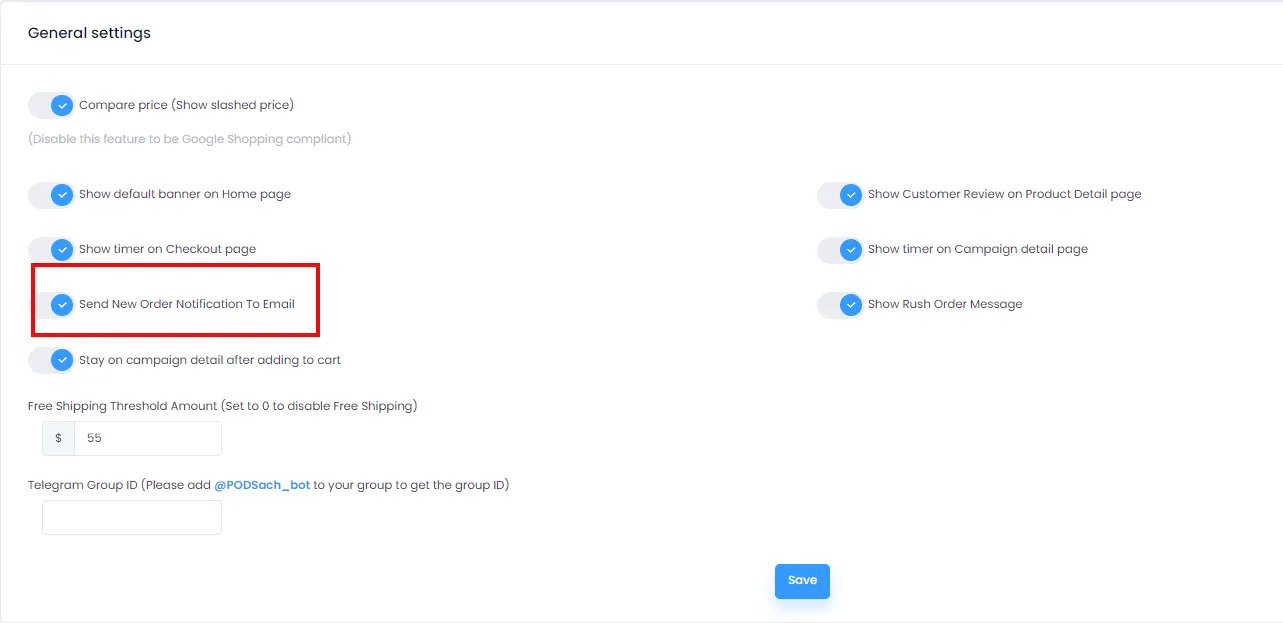
Turn ON: You will receive an email notification from the system whenever your store gets a new order.
5. Show Customer Review on Product Detail page
Section titled “5. Show Customer Review on Product Detail page”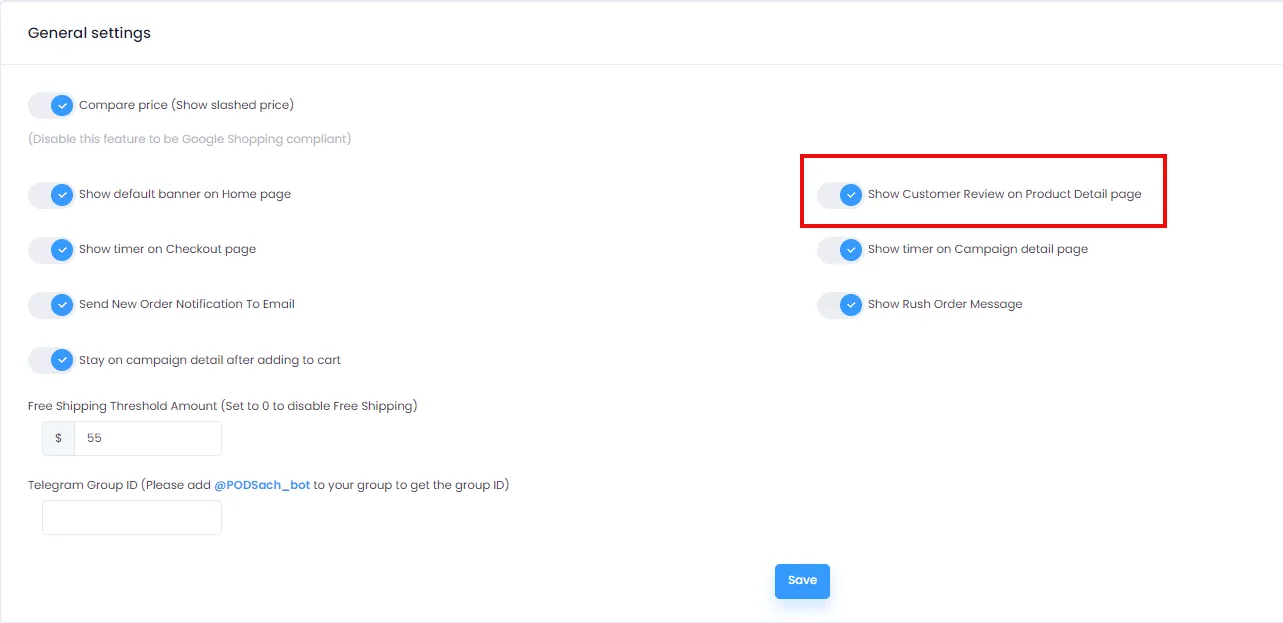
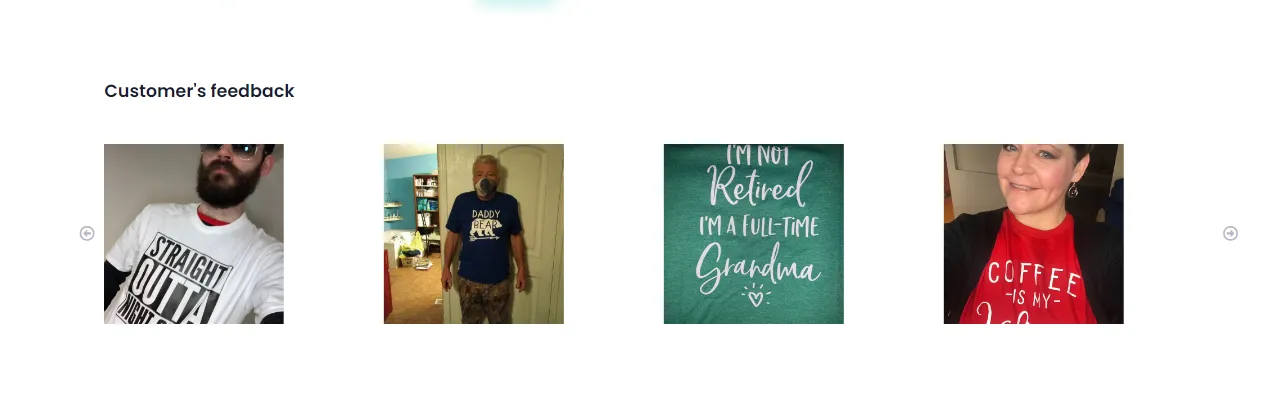
Boost your store’s credibility by enabling customer review display on the Campaign Detail page. Note: The reviews section is fixed and cannot be edited.
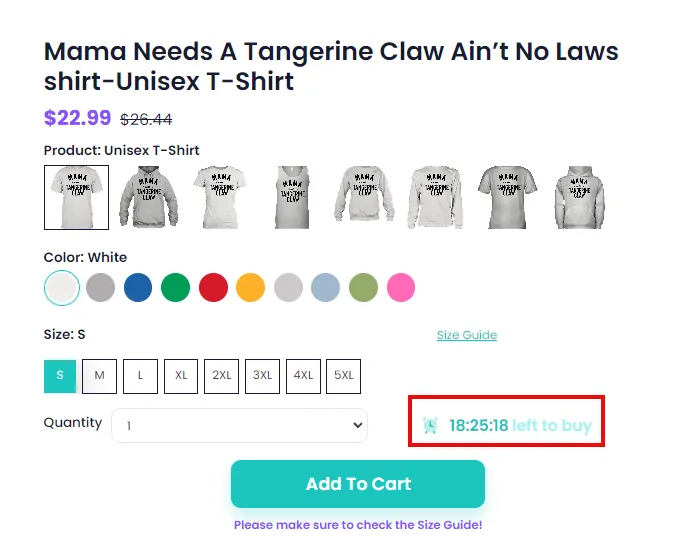
6. Show timer on Campaign detail page
Section titled “6. Show timer on Campaign detail page”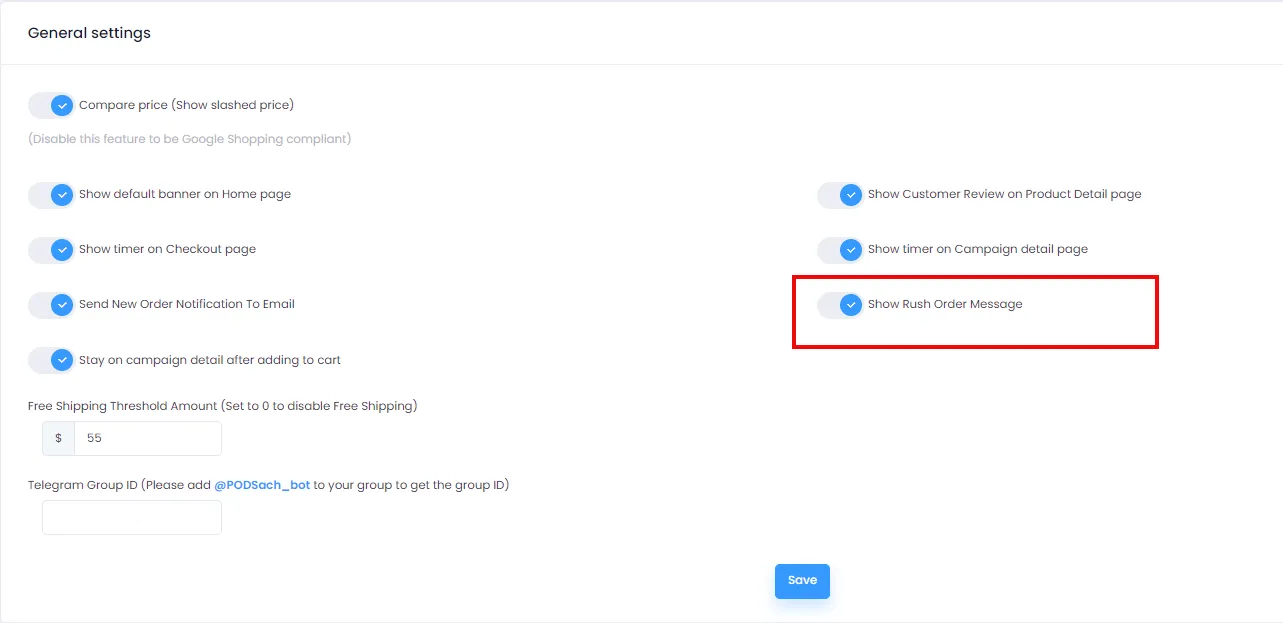
Displaying a countdown timer on the campaign detail page creates urgency, encourages faster purchases, and builds anticipation. You can toggle this feature in General Settings.
7. Show Rush Order Message
Section titled “7. Show Rush Order Message”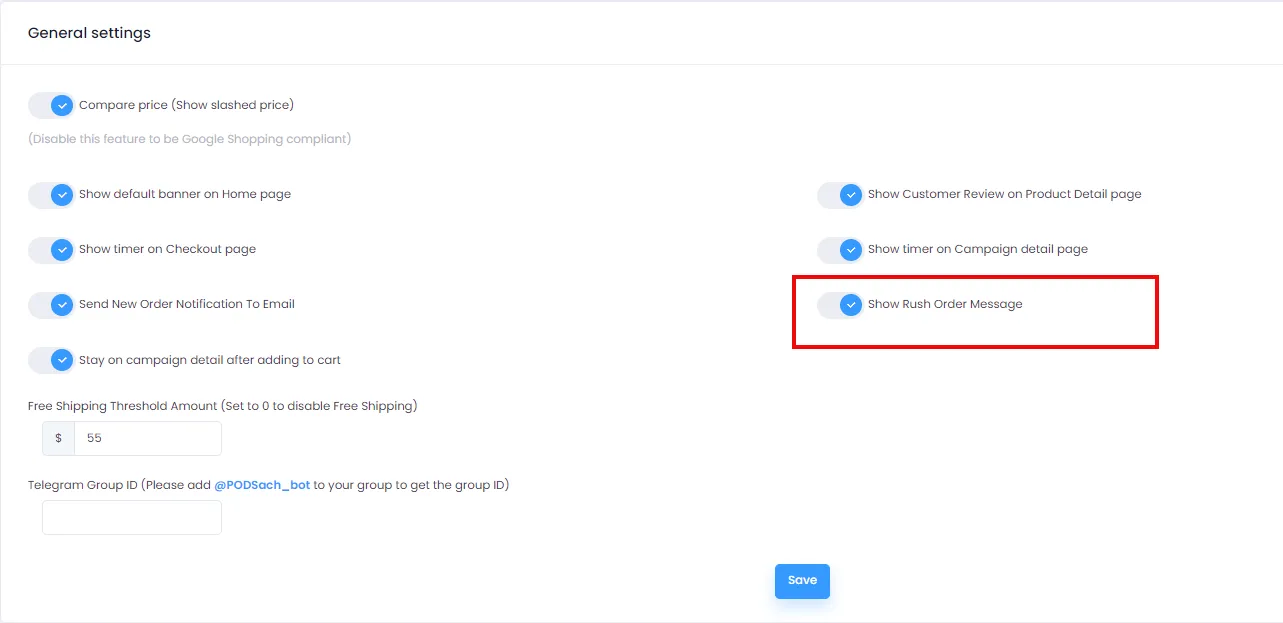
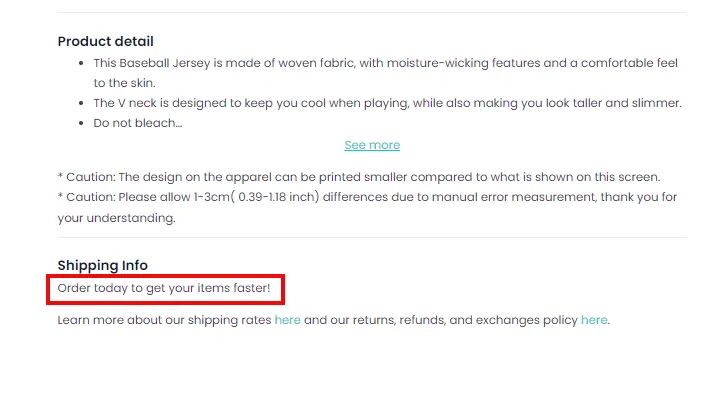
The “Rush Order Message” feature displays a priority order notice on the Shipping Info section of the campaign detail page. This message lets customers know they can place an order today to receive their product faster, creating excitement and encouraging quicker purchase decisions.
8. Stay on campaign detail after adding to cart
Section titled “8. Stay on campaign detail after adding to cart”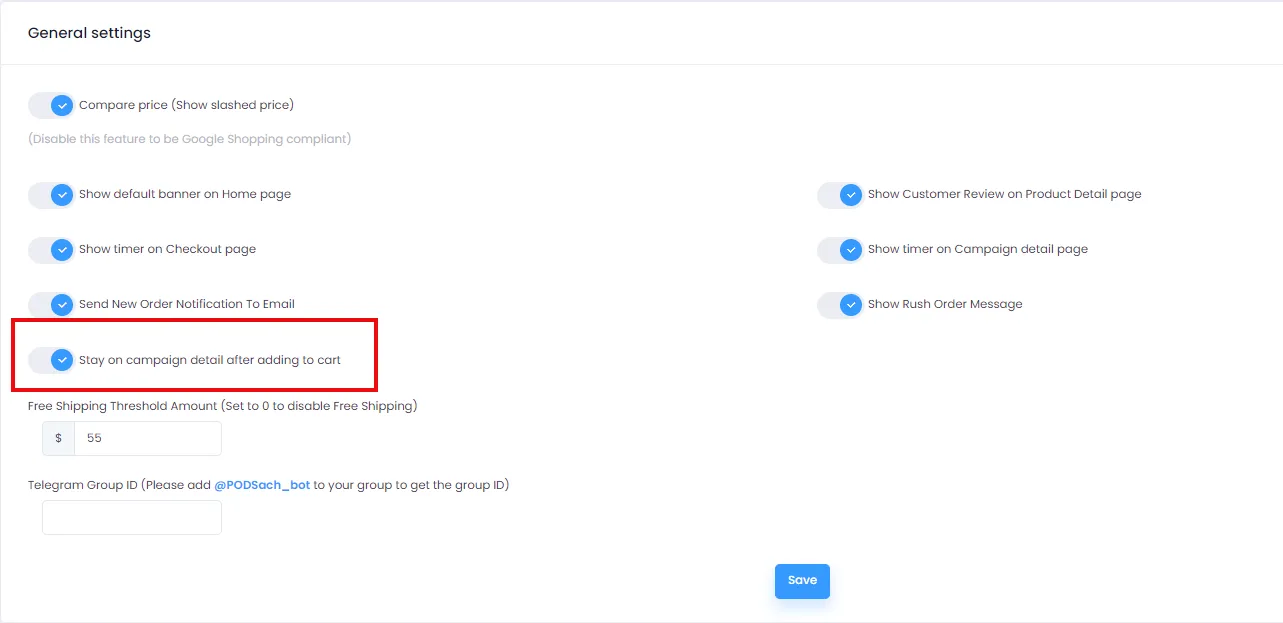
When enabled, clicking Add to Cart will keep you on the Campaign Detail page instead of redirecting to the Cart screen. To restore the old behavior (navigating directly to Cart after clicking Add to Cart), turn this feature off. Note: This feature is disabled by default.
9. Free Shipping Threshold Amount
Section titled “9. Free Shipping Threshold Amount”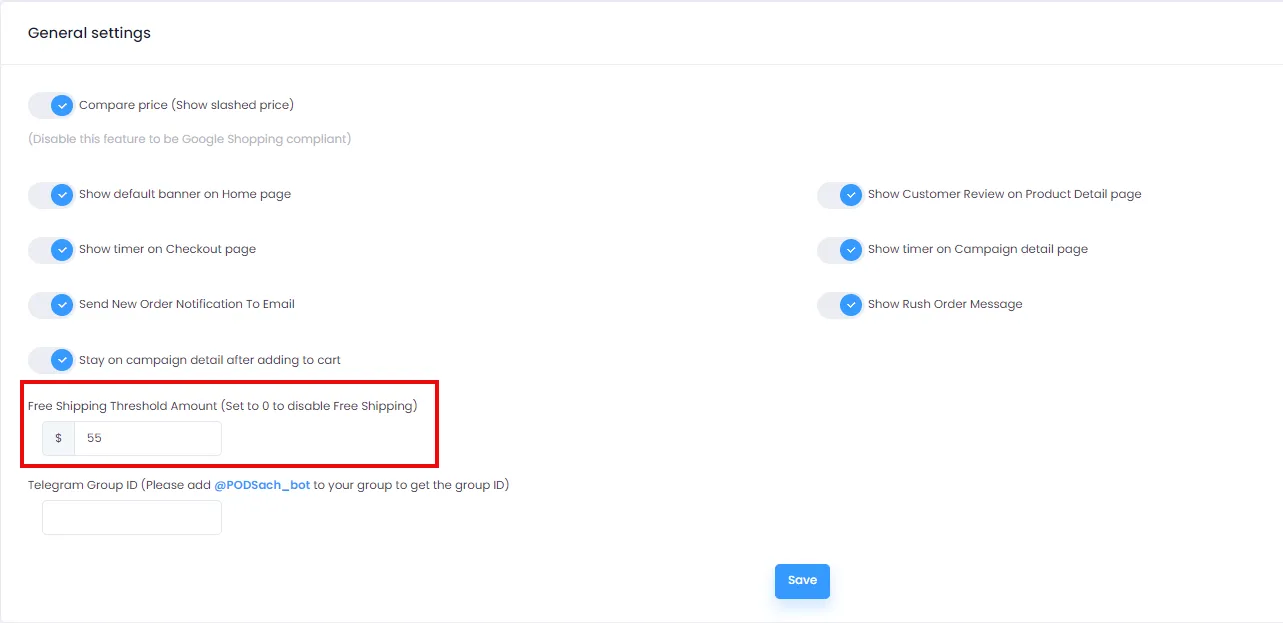
The “Free Shipping Threshold Amount” feature lets you set a minimum purchase amount, such as $100. If a customer’s cart reaches or exceeds this amount, they qualify for free shipping. To disable free shipping, set this value to 0.
The notification will appear on the storefront as shown below:

10. Telegram Group ID
Section titled “10. Telegram Group ID”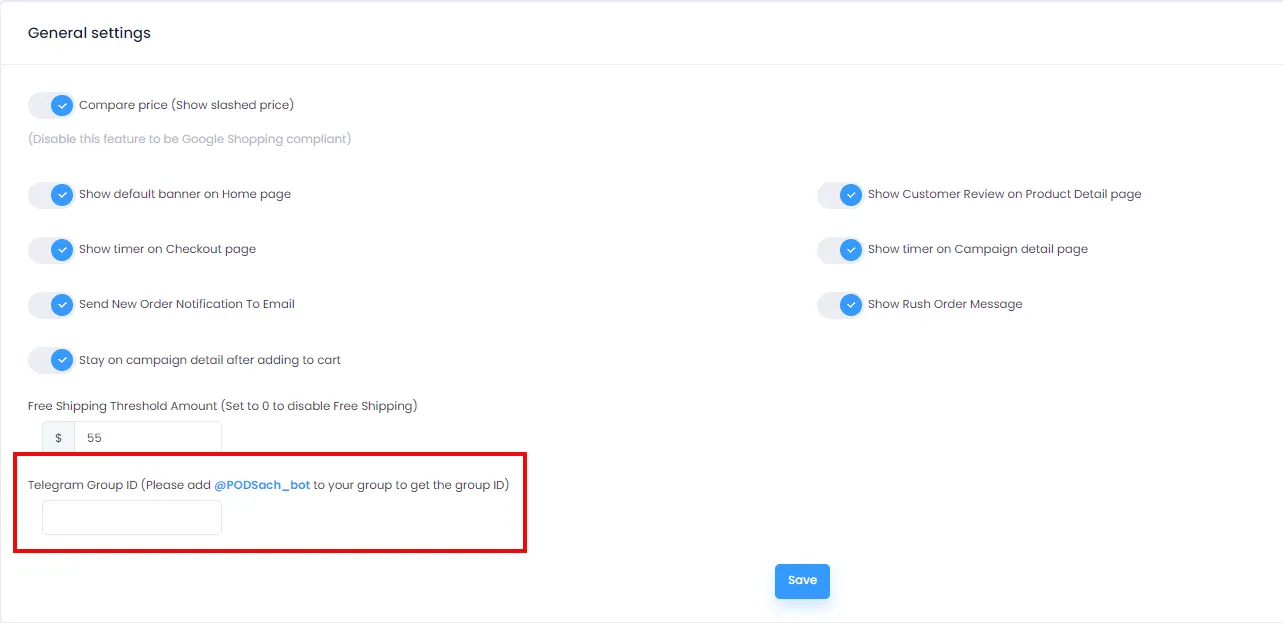
The “Telegram Group ID” feature lets you set the ID of your Telegram group chat. This enables integration with Telegram apps or bots to receive notifications and perform other interactions. To get your group ID, add the @PODSach_bot to your Telegram group, then the group ID will be used to link with the app or integration. You can refer to the detailed guide at the following link.
11. Number of campaigns in category
Section titled “11. Number of campaigns in category”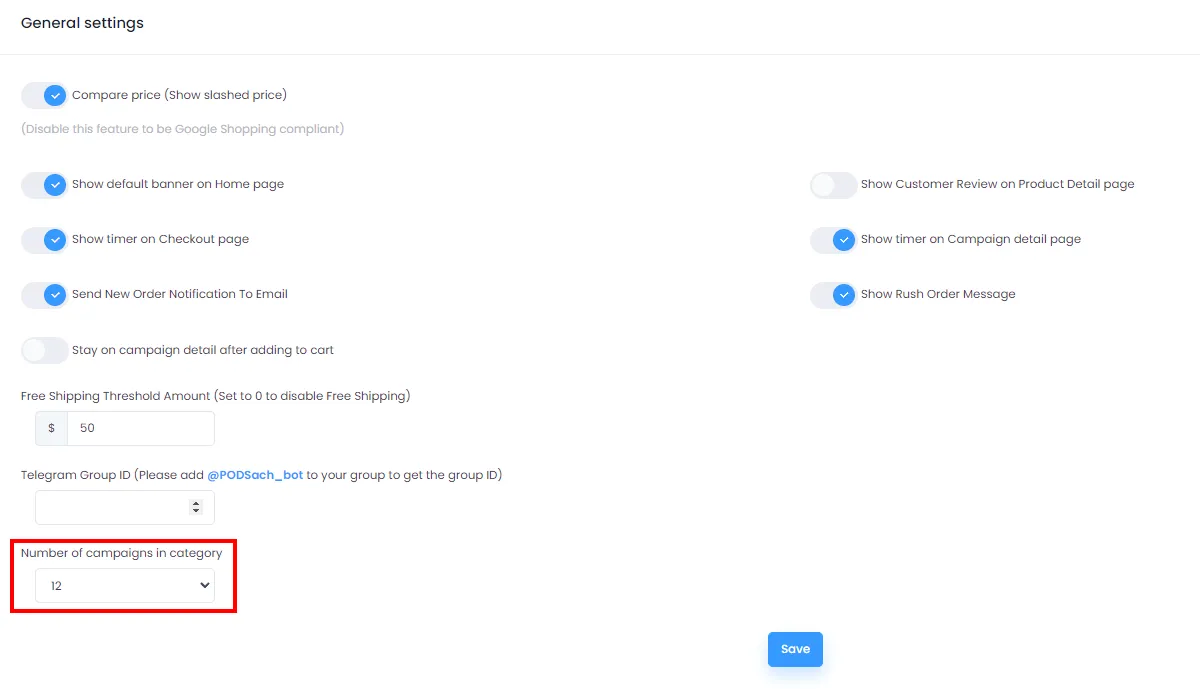
The “Number of campaigns in category” feature lets you choose how many campaigns to display per category on the homepage. There are three options: 4, 8, and 12. When you select a value, the system automatically adjusts the number of campaigns shown in each category accordingly.
This feature helps you easily control the number of campaigns displayed on the homepage, based on your plans and needs.