Adding Extra Mockups for 3D Campaigns
Article Contents
- Feature introduction
- How to add mockups for campaigns
1. Feature Introduction
Section titled “1. Feature Introduction”Sellers can add custom-designed extra mockups to 3D campaigns to further enrich the visual presentation of their campaigns.
⚠️ IMPORTANT NOTE:
- The extra mockup feature requires approval and activation for your store. Please contact an admin for assistance.
- The extra mockup feature only supports 3D campaigns.
- You can upload a maximum of 2 mockups.
- Mockups should match the design of the campaign.
- Mockups should be square images with a minimum size (Width × Height) of 700 × 700 px.
2. How to Add Mockups for Campaigns
Section titled “2. How to Add Mockups for Campaigns”-
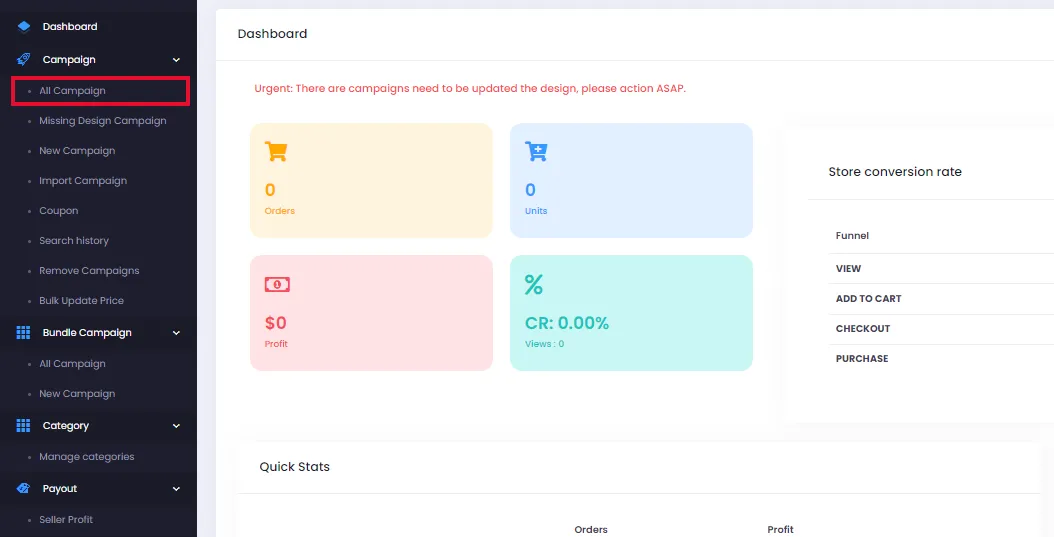
From the admin page, click All Campaigns.
-
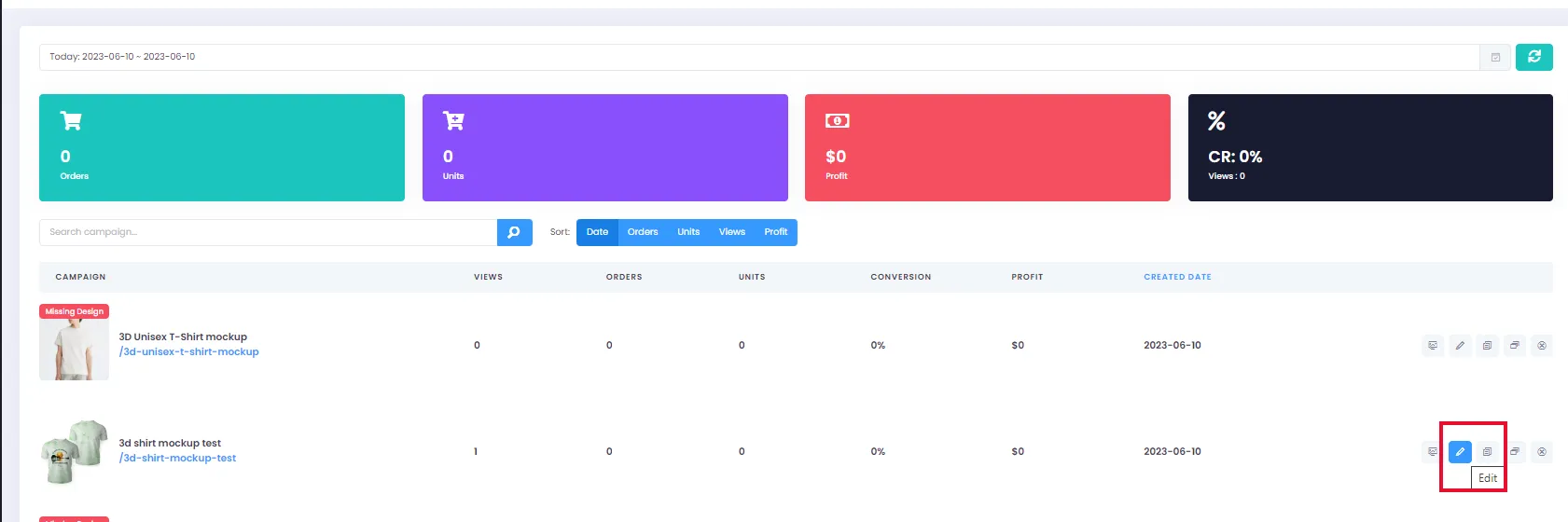
Click the Edit icon (pencil icon) on the campaign you want to add mockups to.
-
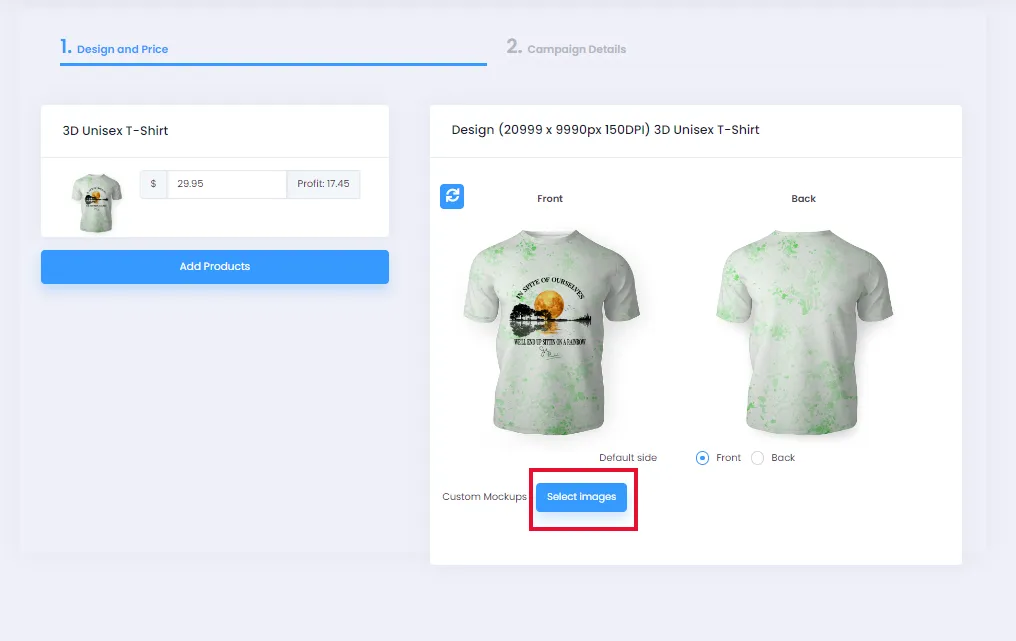
On the Design and Price tab, click Select Images to open the upload dialog.
-
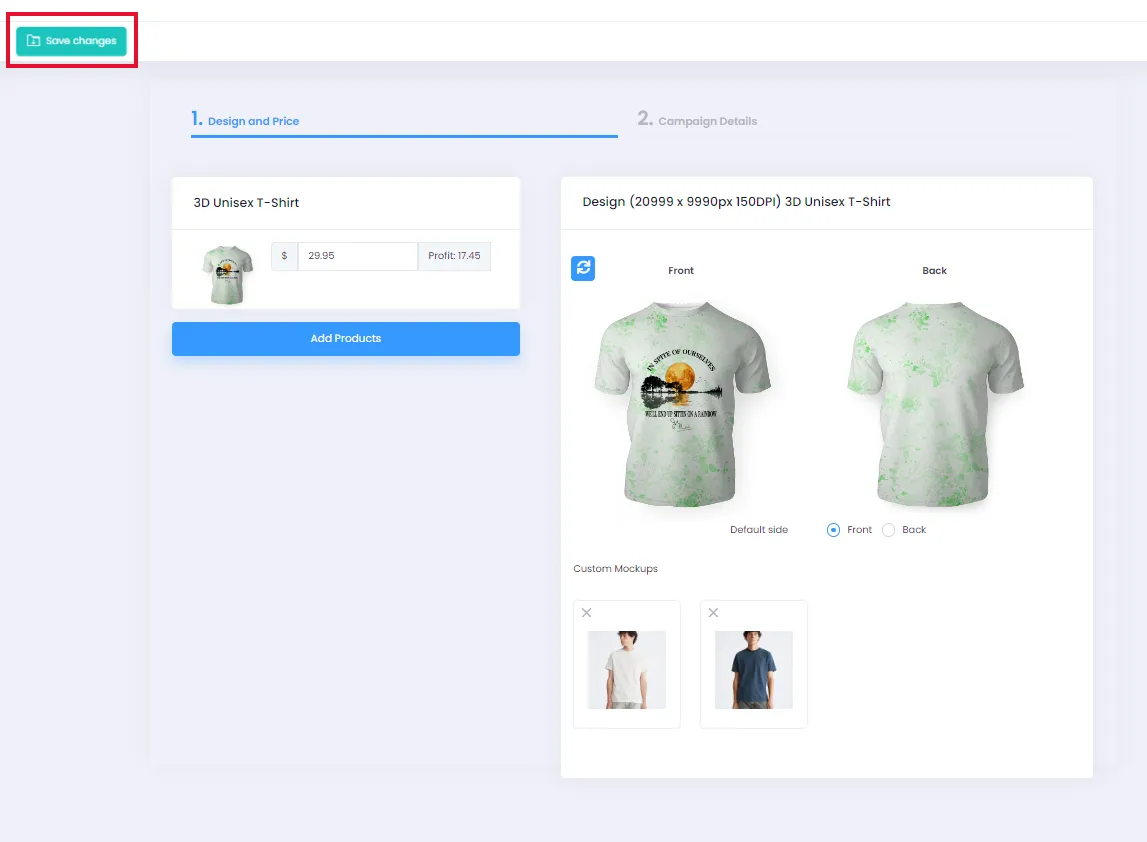
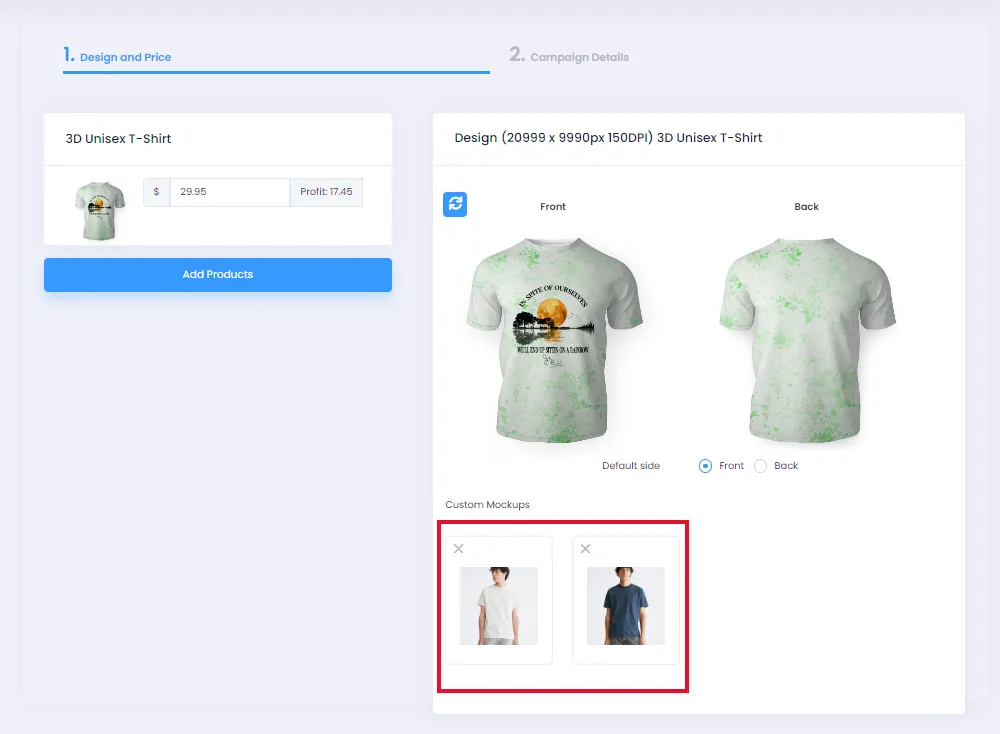
Select mockup files (max 2 mockups) and upload. The result will look like the image below.
-
At this point, you can reorder mockups by dragging and dropping, or delete and re-upload other mockups. When done, click Save changes to save.