
Using Upsell Templates
The Upsell Template feature helps you quickly set up effective upsell campaigns, saving time and increasing conversion rates.
1. What is an Upsell Template?
Section titled “1. What is an Upsell Template?”An Upsell Template is a “pre-built template” containing a list of campaigns you want to bundle together for upselling. You can:
- Create a new template
- Add/reorder campaigns within the template
- Apply the template to main campaigns when editing
2. Creating a New Upsell Template
Section titled “2. Creating a New Upsell Template”- Access Upsell Templates - Go to Admin > Campaign > Upsell Templates. Here you’ll see your existing templates and can create new ones.
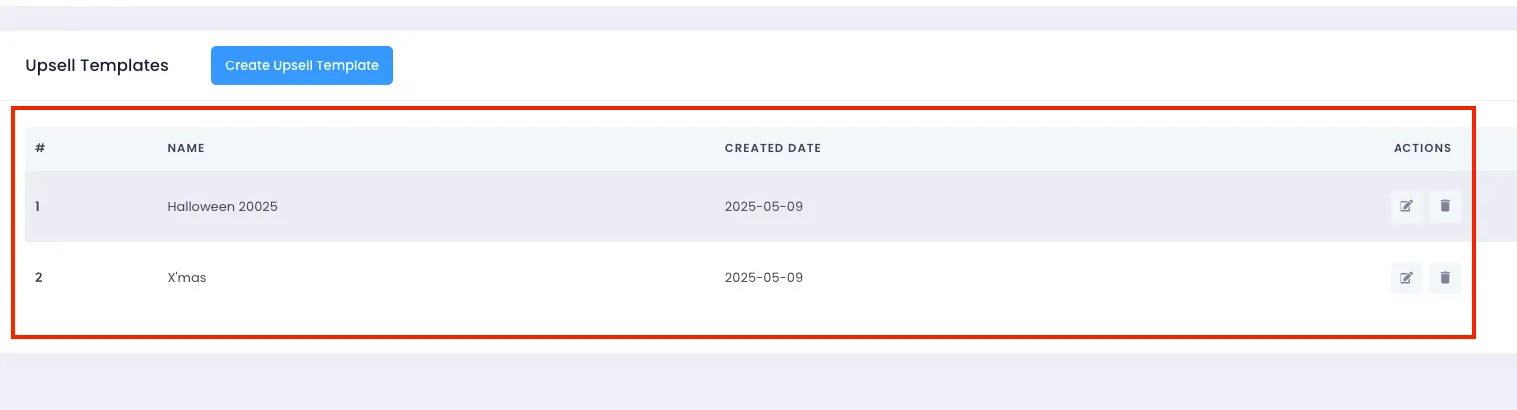
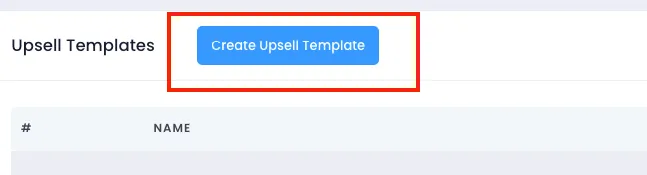
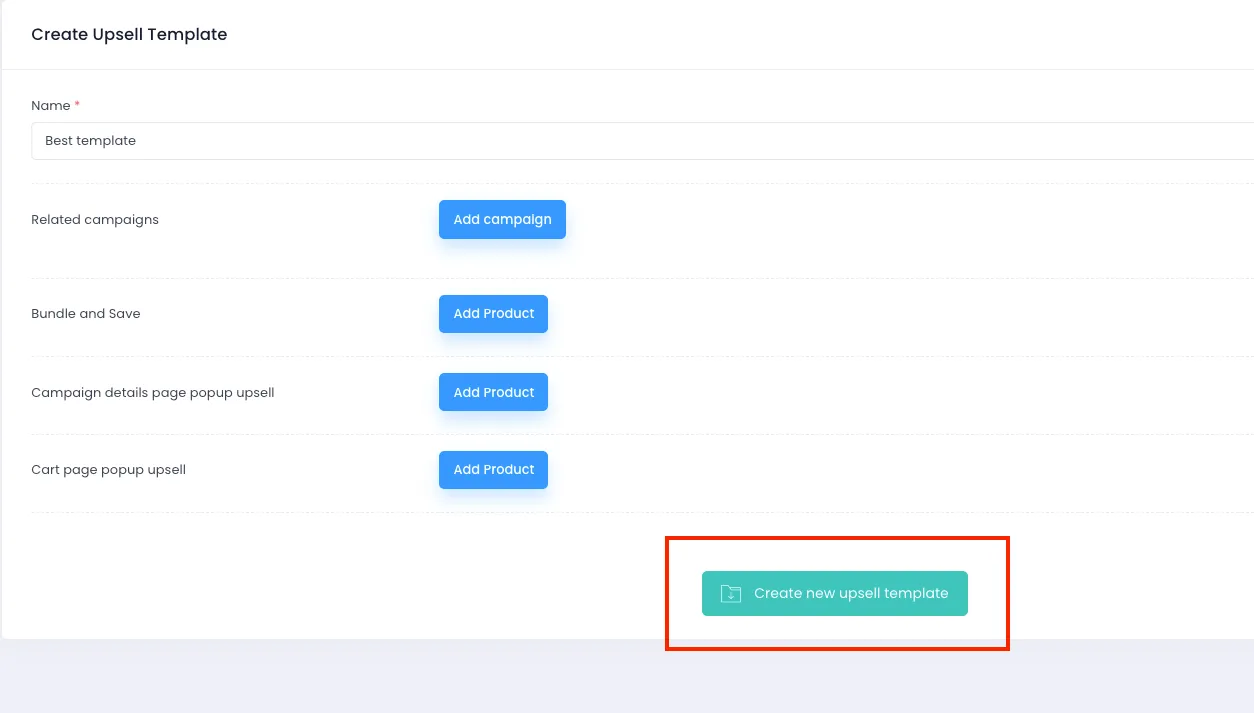
- Click the Create new upsell template button to start creating a new template.
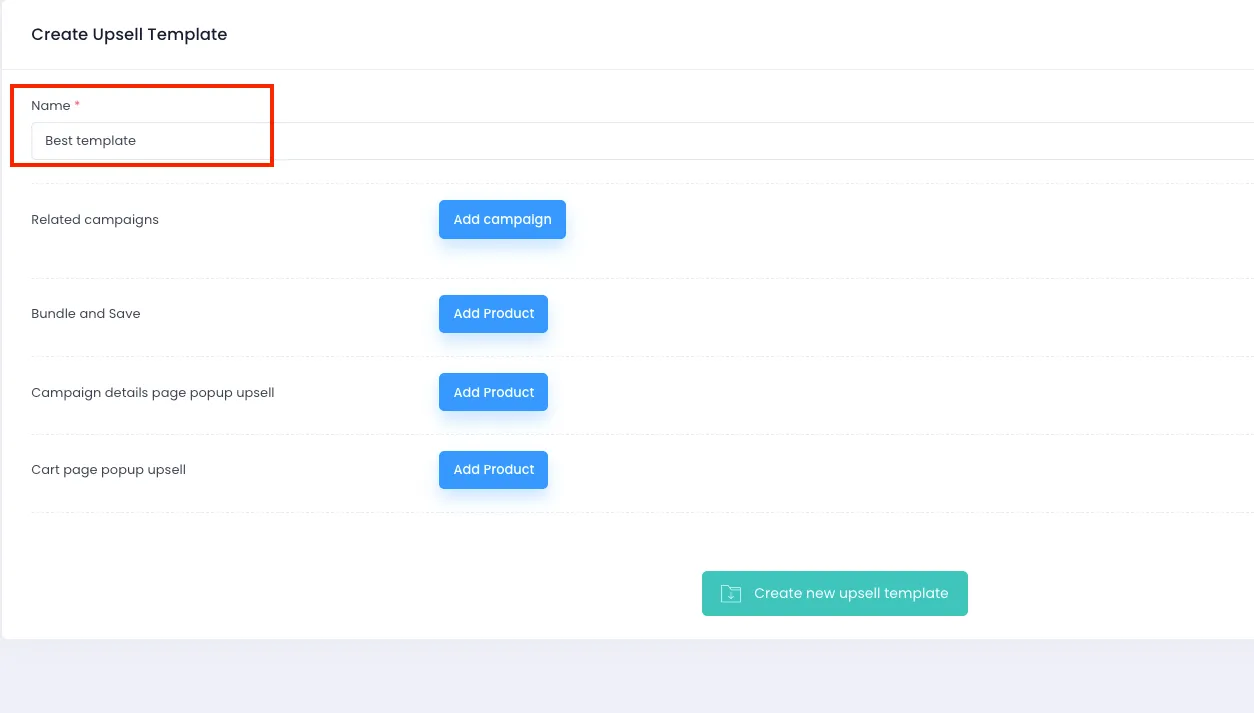
- When creating a new Upsell Template, enter a name for the template. Use a clear, memorable name (e.g., “Xmas Sale Bundle”, “Best Seller Deals”…) for easier management later.
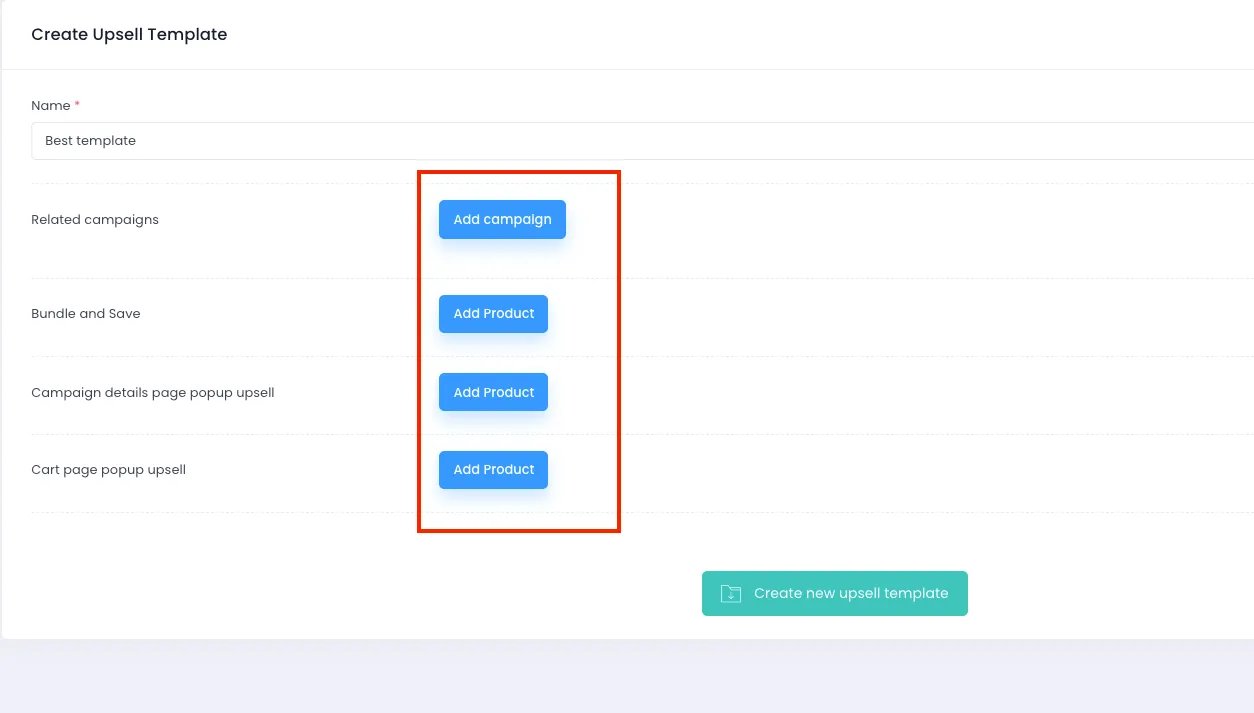
- Next, add campaigns or products to each upsell section: Related campaigns, Bundle and Save, Campaign details page popup upsell, and Cart page popup upsell.
- Finally, click the “Create new Upsell Template” button to finish creating the template.
3. Applying an Upsell Template When Editing a Campaign
Section titled “3. Applying an Upsell Template When Editing a Campaign”- To apply a template, edit the campaign you want to add upsells to, then go to the “Campaign detail” tab (as shown). Scroll down to the “Upsell Template” section and select the template you want to use.
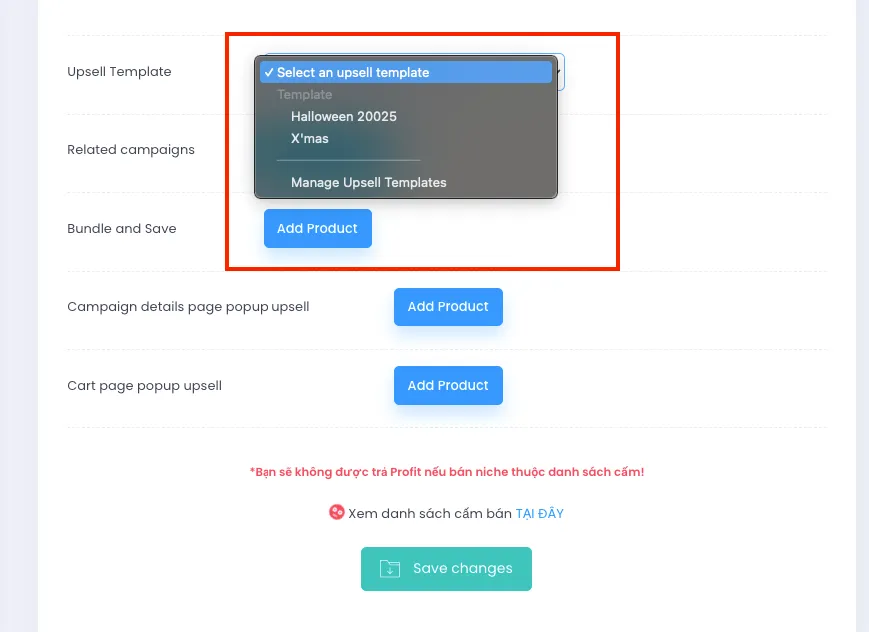
- After selecting the template, the campaigns or products you previously set up will appear as defined in the template. Click Save changes to finish editing the campaign.
You now know how to create and apply Upsell Templates easily and effectively, saving time when creating campaigns and rolling out upsell strategies. We hope this guide helps you make the most of this feature to boost your business performance.