Creating Pre-Purchase Upsell Offers
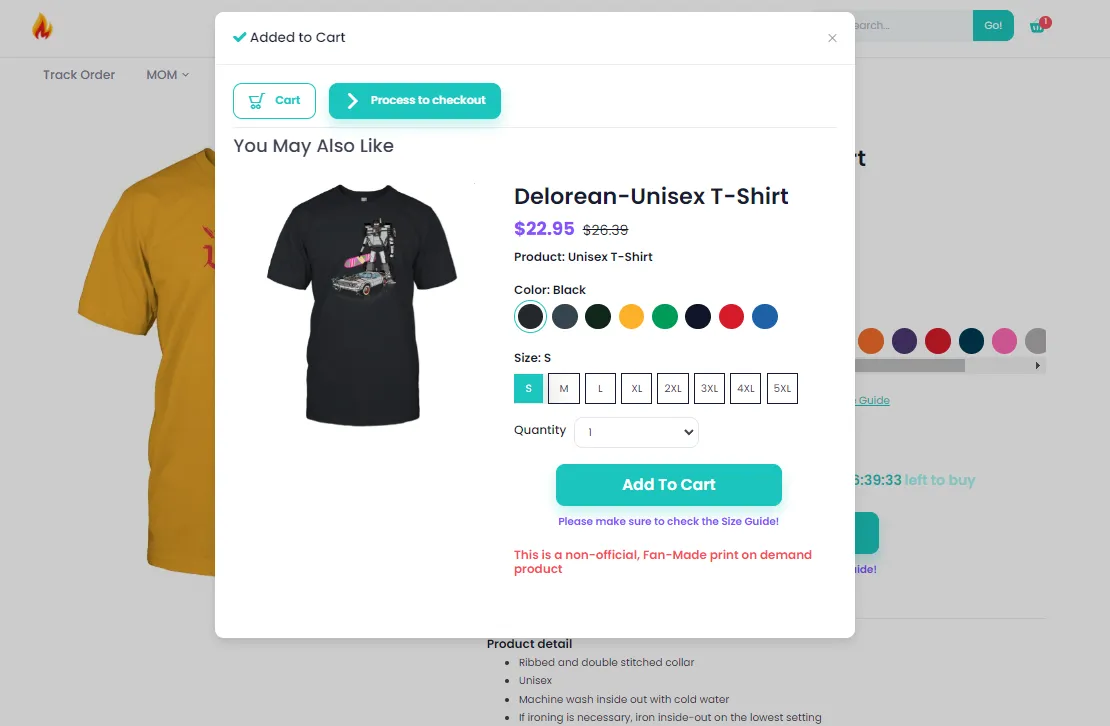
The Pre-purchase upsell suggests additional products to customers right when they click the Add To Cart button on the campaign page, as shown below. This encourages customers to add more items to their cart.
-
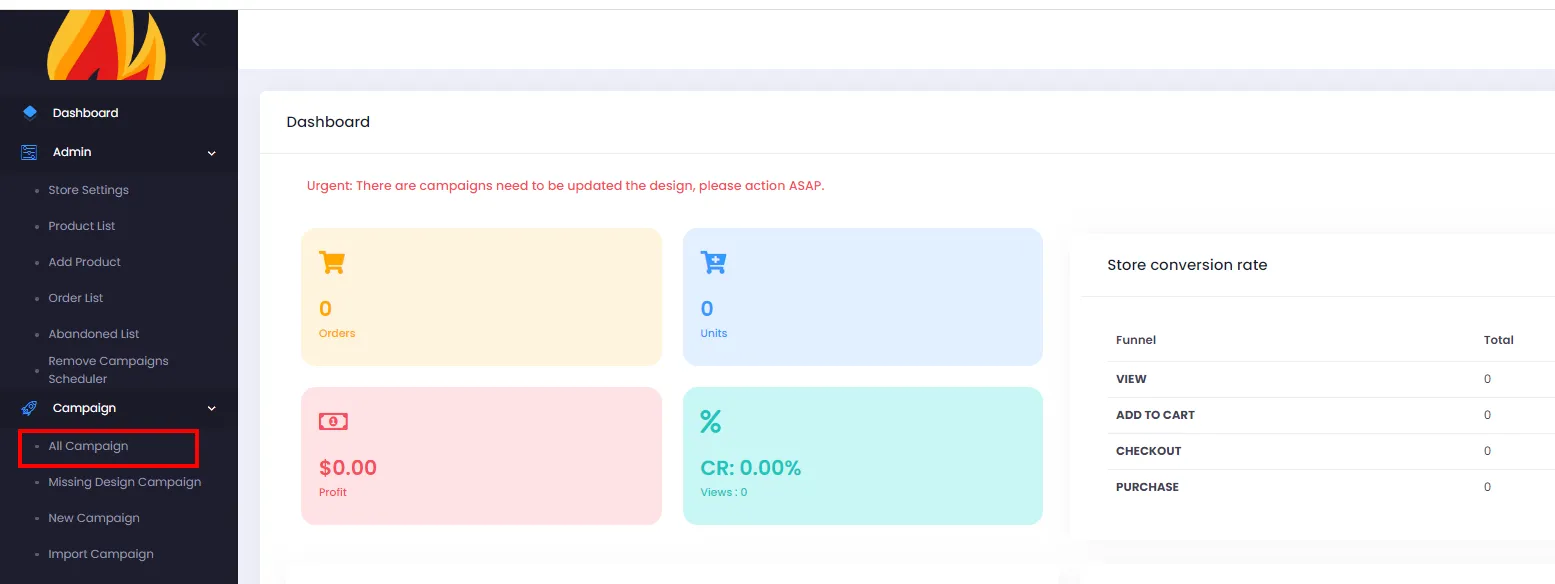
From the admin page, click All Campaigns.
-
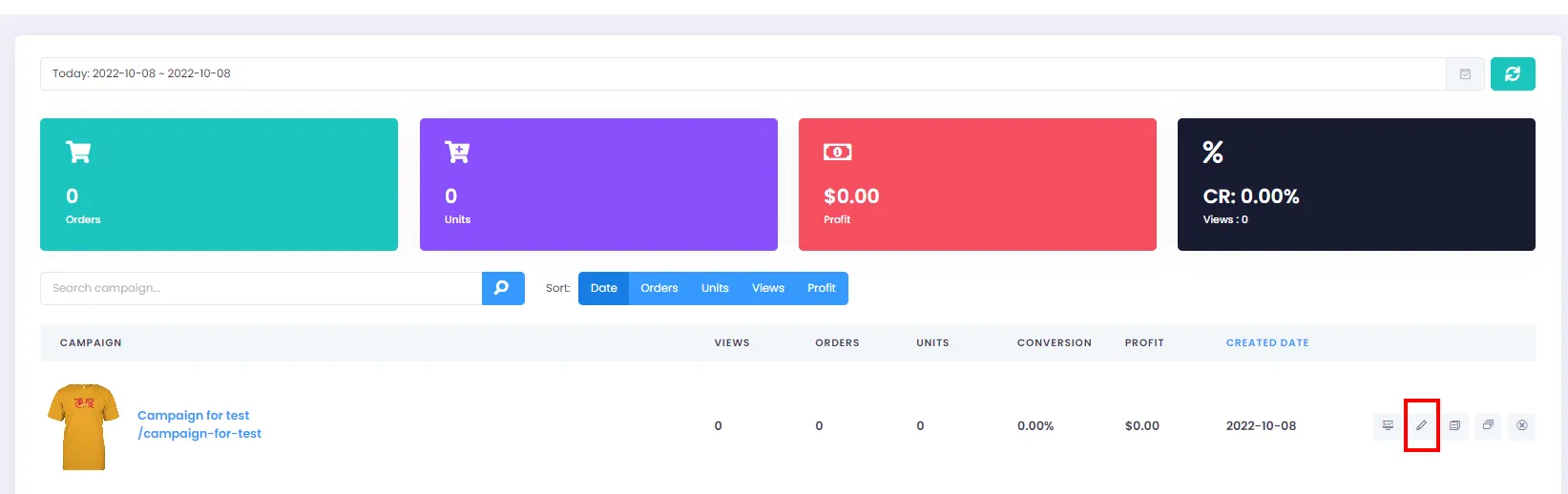
On the Campaign List page, click the Edit button for the campaign you want to add pre-purchase products to.
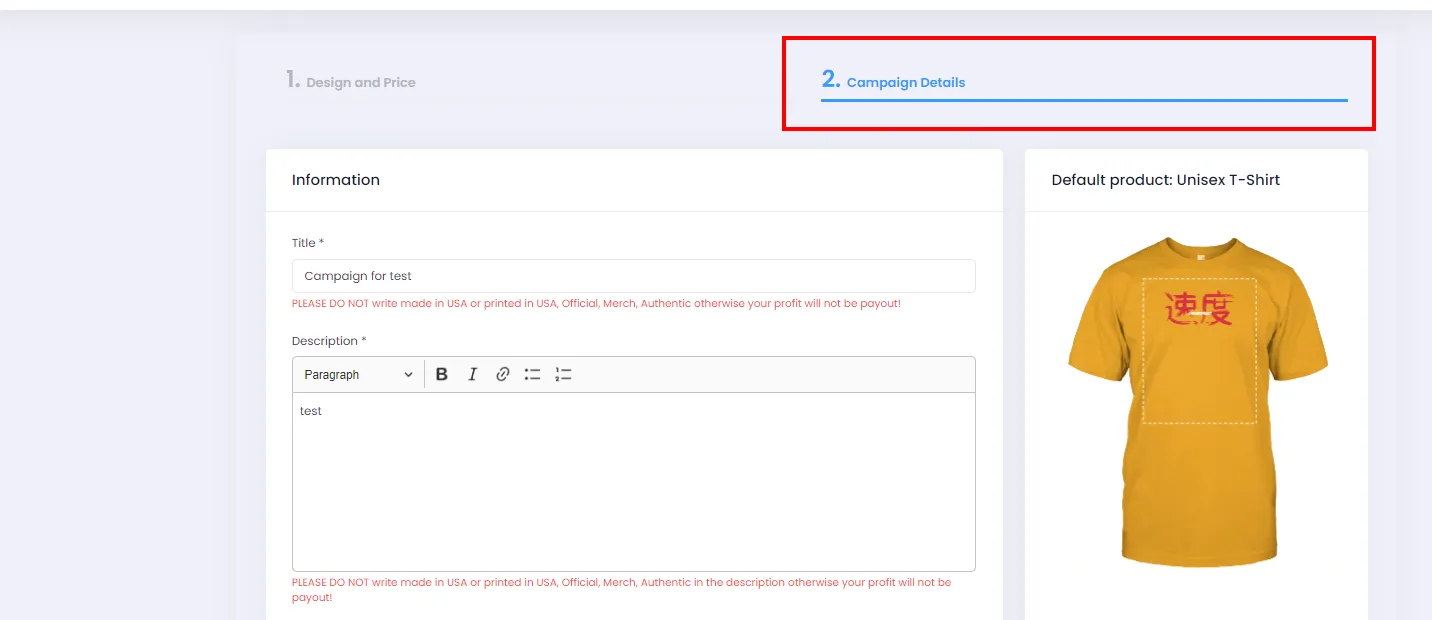
- On the Edit Campaign screen, click Campaign Detail.
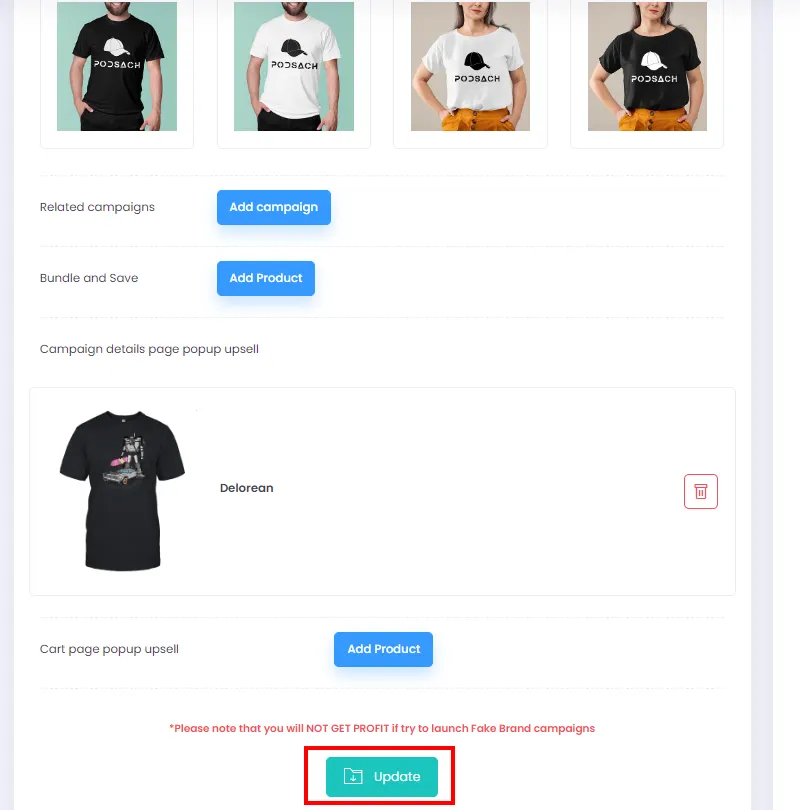
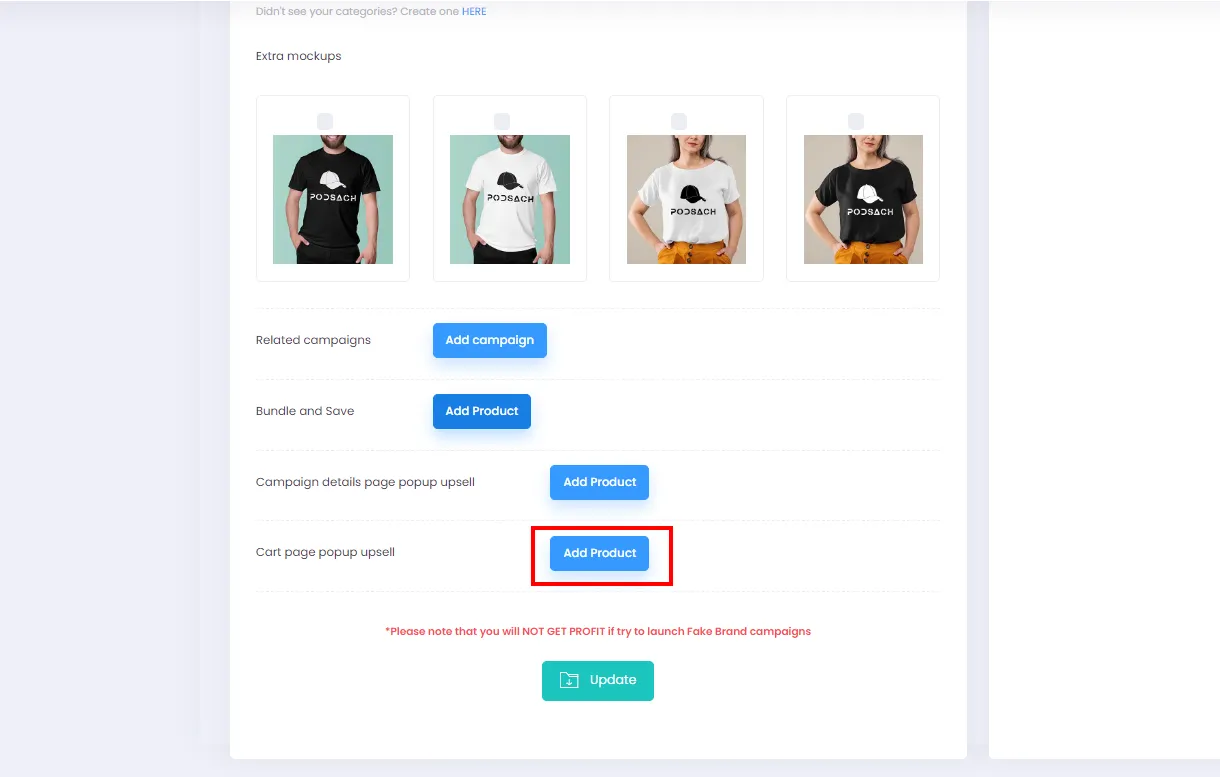
- Scroll down and click Add Product under Cart page popup upsell to open the dialog.
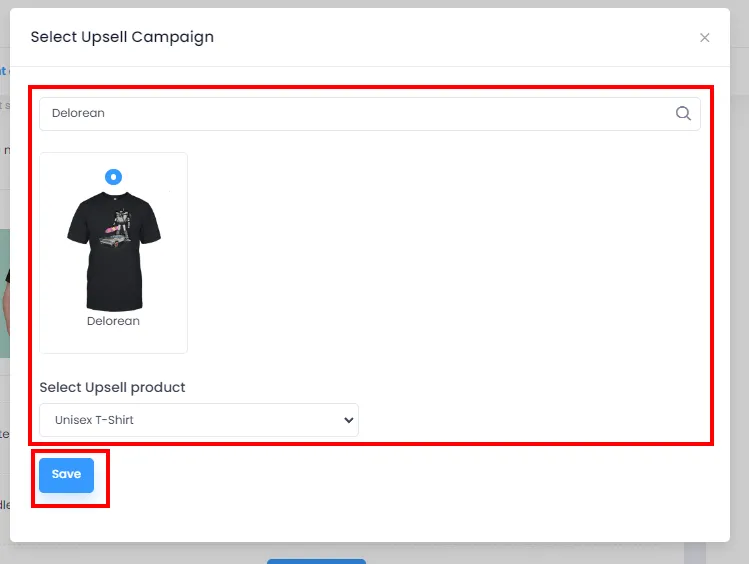
- Enter a keyword to search for the campaign you want to set as a related product, select the product in the dialog. Then click Save to close the dialog.
- After closing the dialog, the pre-purchase product will appear as shown below. You can remove a pre-purchase product by clicking the Delete icon.
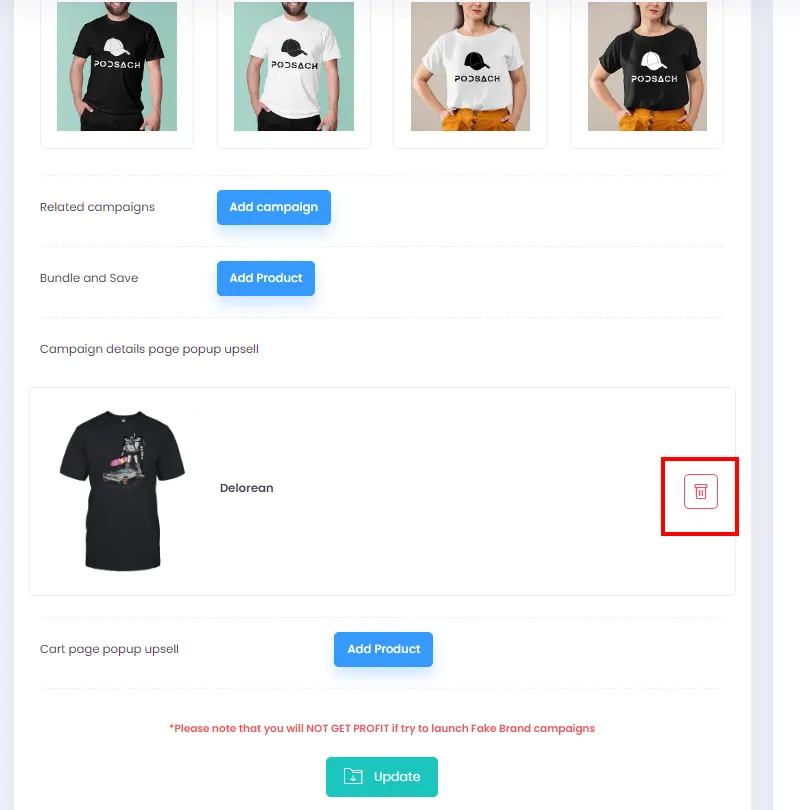
- Finally, click Update to save your changes and activate the pre-purchase product.