
How to Reset Your Password
We understand that forgetting or wanting to change your password is sometimes necessary to keep your store account secure. This guide walks you through the password reset process quickly and easily in just a few steps.
1. Getting Started & Preparation
Section titled “1. Getting Started & Preparation”The password reset process involves requesting a special link via email and creating a new password. You just need access to the email address registered with your store.
2. Steps by Steps
Section titled “2. Steps by Steps”Please follow these steps in order:
Step 1: Go to the Login Page
Section titled “Step 1: Go to the Login Page”- Open your web browser and go to your store’s admin login URL: yourstore.com/admin
Step 2: Request a Password Reset
Section titled “Step 2: Request a Password Reset”- On the login page, find and click the “Forgot Password?” link.
- You’ll be taken to the request page. Enter the exact email address registered with your seller account.
- After entering your email, click the “Submit” button.
Step 3: Check Your Email
Section titled “Step 3: Check Your Email”- Check your Inbox: Open your email. The message is usually sent from your store with the subject line: “Reset Password Notification”.
- If you don’t see the email in your Inbox, also check your Spam/Junk folder. Automated emails can sometimes end up there.
❗ Important Note: If you’ve requested a password reset multiple times, some email providers (like Gmail) may group similar emails together. Please open the most recent email (by received time) to get the correct link, and avoid using an old, expired link.
Step 4: Activate the Reset Link
Section titled “Step 4: Activate the Reset Link”- Open the Reset Password email - you’ll see a special blue link.
- Click the link to open the new password creation page. (Or copy and paste the link into your browser if needed.)
Note: This link is only valid for 60 minutes. If the link expires, simply go back to Step 1 and repeat the reset request process to get a new link.
Step 5: Create a New Password
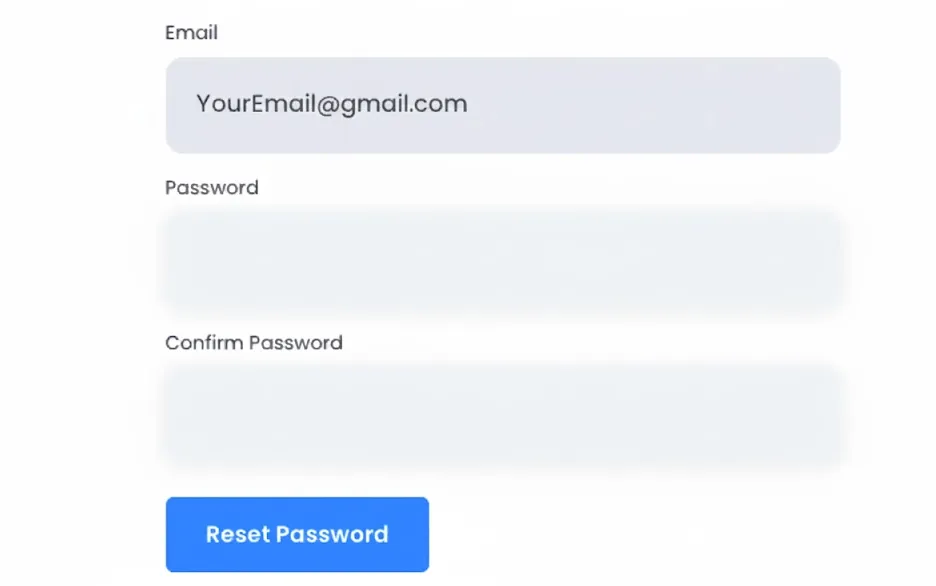
Section titled “Step 5: Create a New Password”- The password reset page will display the following fields:
- Email: (your email address, pre-filled)
- Password: Enter your new desired password.
- Confirm Password: Re-enter the exact same new password.
After entering and confirming your new password, click the “Reset Password” button to finish.
That’s it! Your store password has been updated. If you need further help with the password reset process, please message us via the PODSach Fan Page or reach out through the 1-on-1 Telegram support group!