Changing Mockups for Mockup Campaigns
Article Contents
- Feature introduction
- How to change mockups for mockup campaigns
1. Feature Introduction
Section titled “1. Feature Introduction”For mockup campaigns (3D), you can change the initial mockup of the campaign.
⚠️ IMPORTANT NOTE:
- You can only change mockups for campaigns created with mockup files or imported from a CSV file.
- Once a campaign has an order in the system, the mockup change feature for design campaigns will be disabled - meaning you won’t be able to change the mockup anymore.
- Mockups should be square images with a minimum size (Width × Height) of 700 × 700 px.
2. How to Change Mockups for Mockup Campaigns
Section titled “2. How to Change Mockups for Mockup Campaigns”-
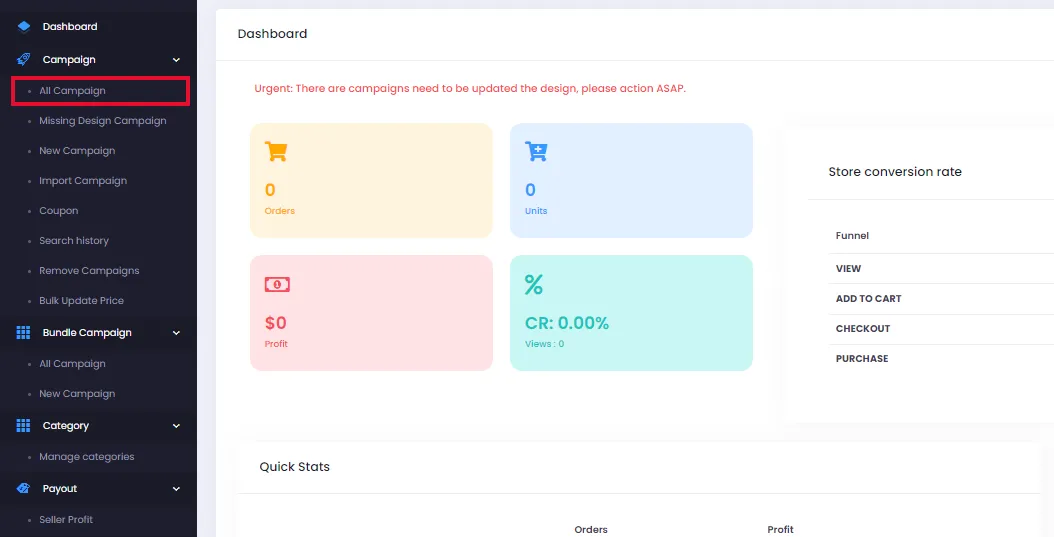
From the admin page, click All Campaigns.
-
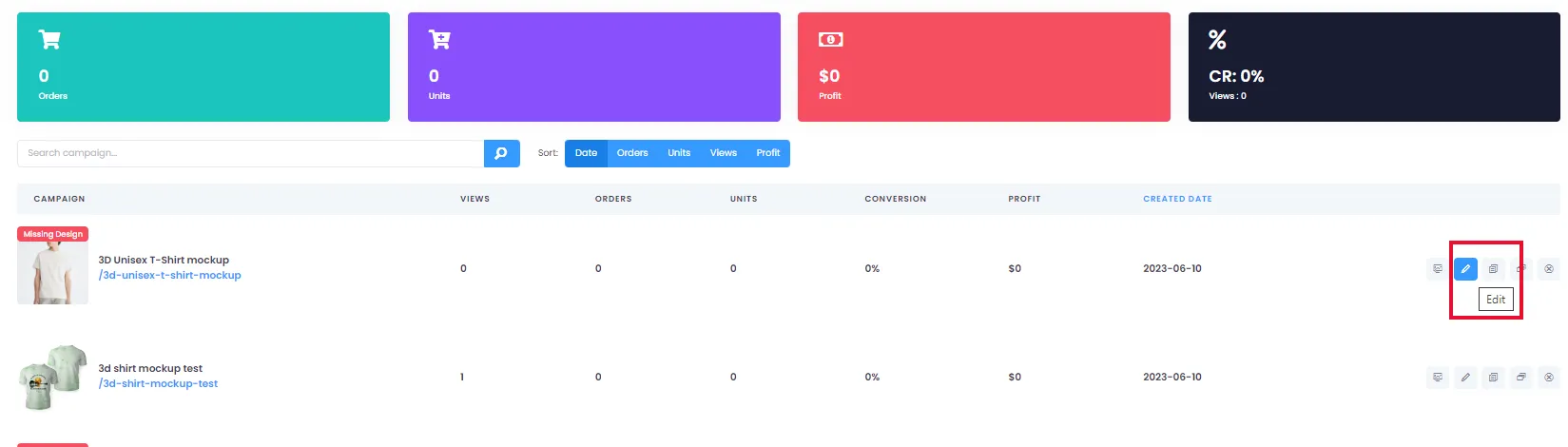
Click the Edit icon (pencil icon) on the campaign you want to change the mockup for.
-
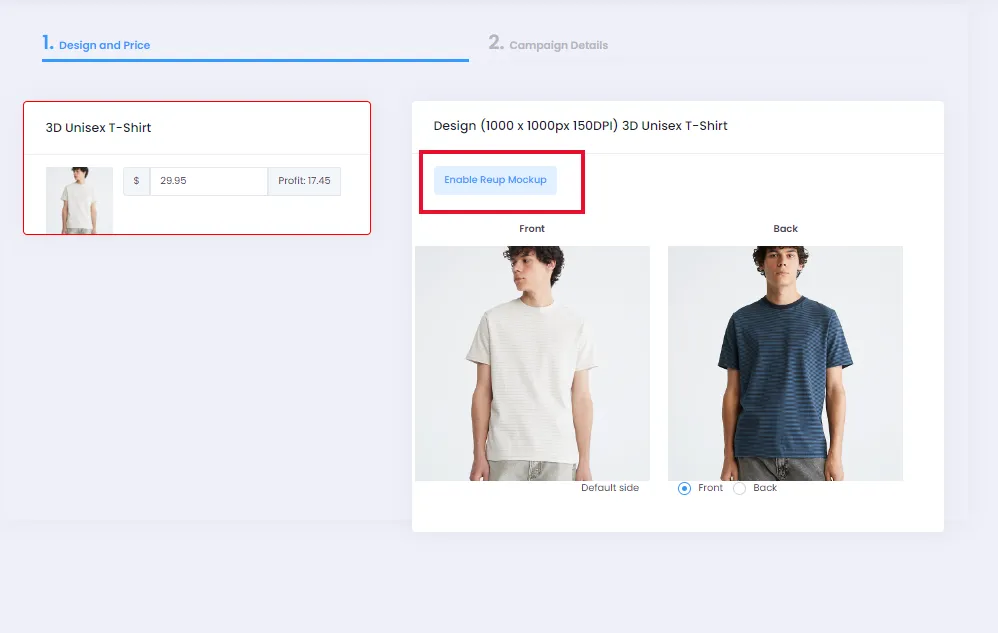
On the Design and Price tab, toggle the switch to enable mockup upload.
-
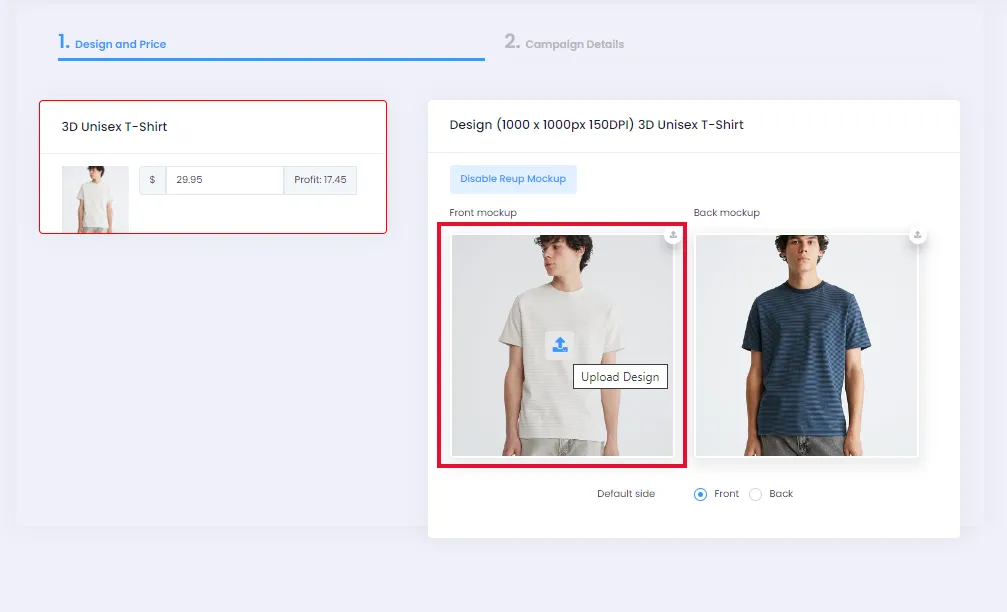
Click the upload area and select a mockup file from your device to upload.
-
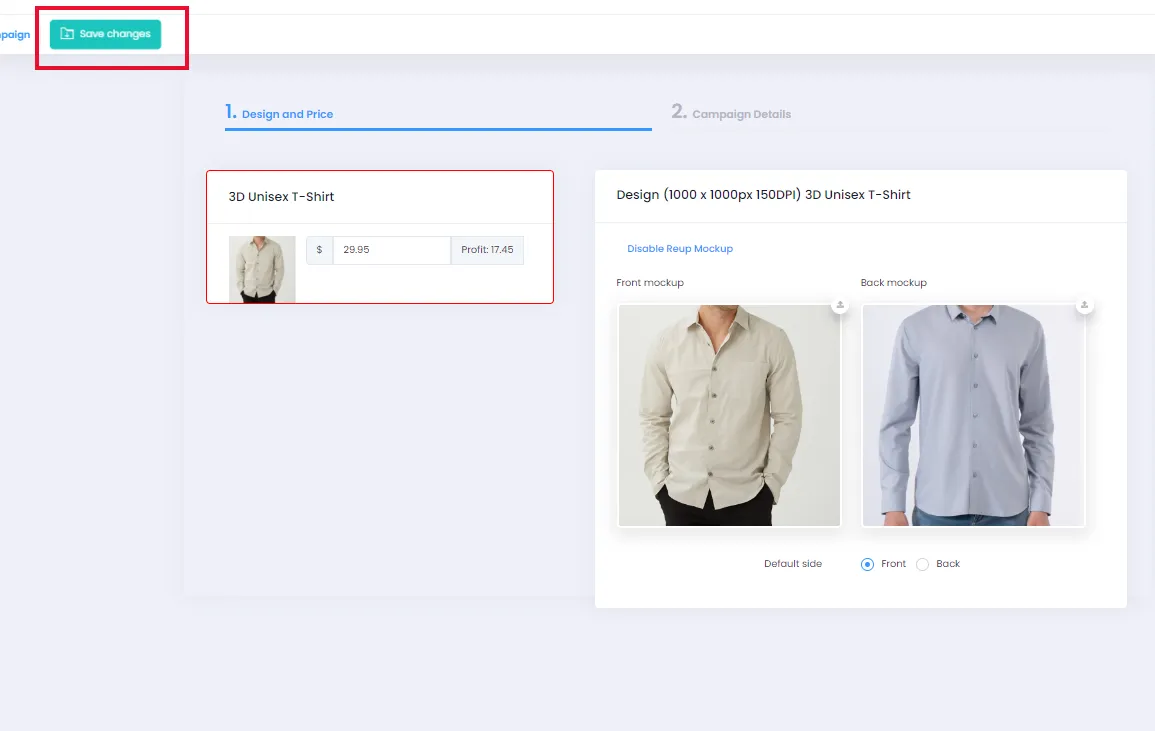
After the mockup is successfully uploaded, click Save changes to save all changes.